
Best CS2 Settings for Max FPS (Smooth & Stable Performance)

When it comes to getting max FPS in CS2, a lot of players make the same mistake — they just crank everything down to Low. But just lowering settings doesn’t automatically make the game smooth. Performance isn’t just about graphics; it’s also about how the game loads your CPU, GPU, and handles frames. Even with all settings at minimum, you can still run into lag, micro-stutters, or sudden FPS drops.
It’s also super important to tell high FPS and stable FPS apart. Big numbers on the counter don’t mean much if your FPS keeps spiking up and down. Those drops mess with your shooting, increase input lag, and just make the game feel off.
So, the “real” max FPS in CS2 isn’t about hitting crazy numbers — it’s about having smooth, predictable frames without weird jumps. In this article, the xplay.gg team will show you the settings that actually give you stable performance in matches.
What Actually Affects FPS in CS2
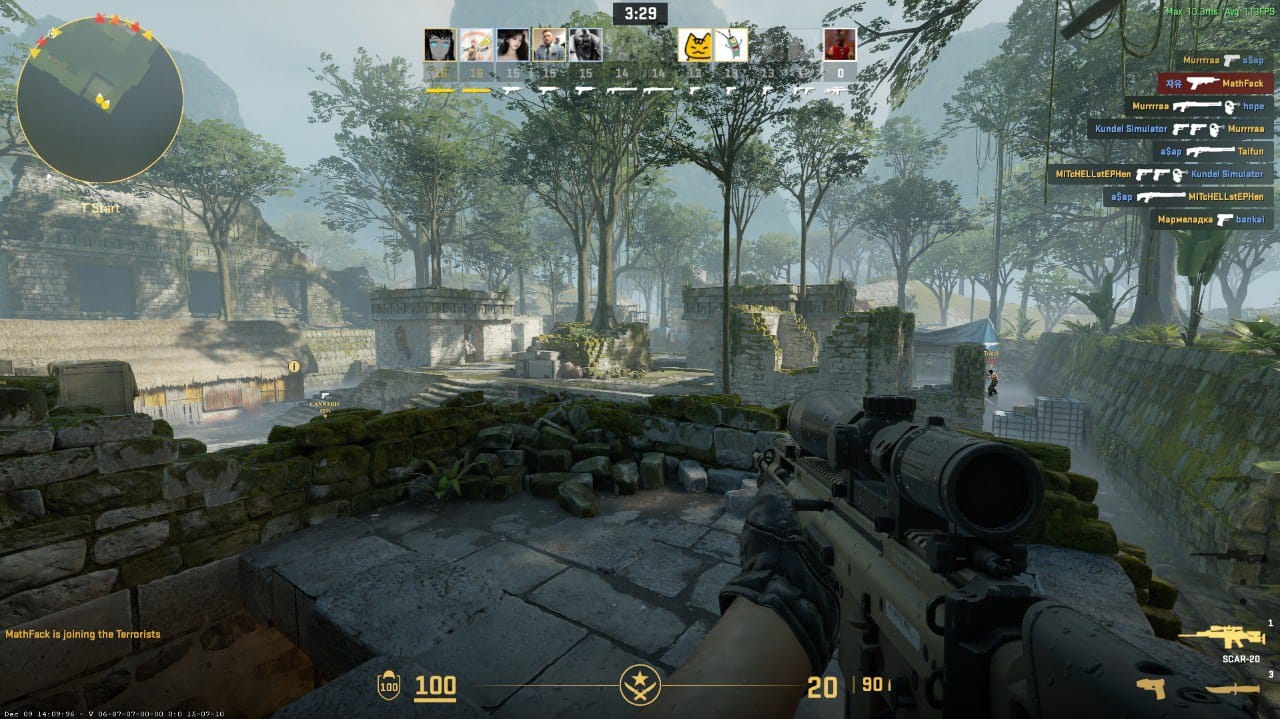
Before you start tweaking settings, it’s important to understand what actually limits FPS in CS2. Most of the time, the bottleneck isn’t your GPU — it’s your CPU. Source 2 really puts a load on the processor: handling players, physics, shooting, smoke, netcode — all of this runs mostly on the CPU. Even if you have a beefy graphics card, the game can still lag if your CPU can’t keep up with all the in-game calculations.
The GPU usually has some headroom, but the CPU in real matches — especially in Premier or on Faceit — is constantly working at its limit.
Another thing to keep in mind is not to confuse average FPS with smooth gameplay. What really matters is the stability of frames. If the frame time keeps jumping around, you’ll feel stutters and input lag. That’s why 1% lows are so important: the higher and more even they are, the smoother the game feels in fights and critical moments.
If your PC can’t hold stable 120+ FPS, it’s not just about tweaking graphics. You also need to train smart. There’s a detailed guide on this: “Low-End PC? Here’s How to Train Efficiently in CS2” — it shows how to improve your skill without sacrificing comfort in-game.
It’s important to understand that FPS isn’t just about your PC — the server you play on matters too. Even with high local FPS, an unstable server can amplify micro-stutters, make frame delivery uneven, and create a feeling of delay — especially during intense firefights with smoke and lots of players.
That’s why server FPS and overall server stability are so important. On xplay.gg servers, high server FPS and optimized configurations ensure load is distributed more evenly, making gameplay feel smoother and more predictable. This is especially noticeable in real matches, where consistent frames matter more than just high numbers on your FPS counter.
Best Video Settings for Maximum FPS
Resolution, Aspect Ratio, and Scaling
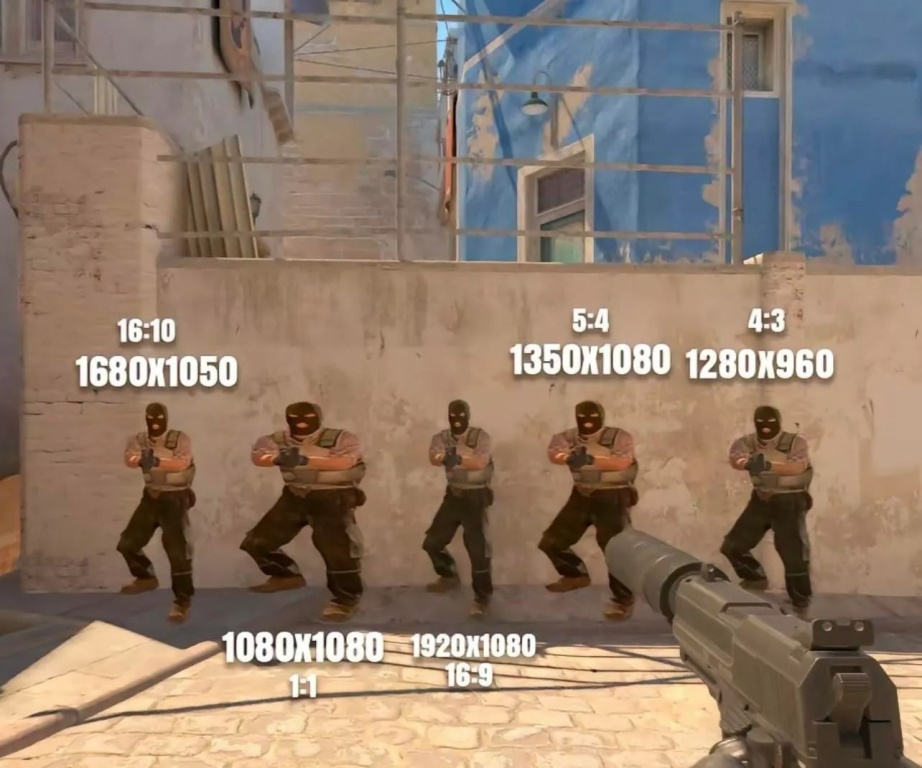
Resolution directly affects FPS — the higher it is, the more work your GPU has to do. In terms of performance, 4:3 and 16:9 are almost the same. The difference is mostly about how it feels and what you’re used to. Stretched 4:3 can feel faster because the models look bigger and easier to spot, but in terms of raw FPS, the gain is minimal or non-existent.
Choosing native or stretched is also about comfort, not performance. Stretching the image doesn’t actually give you more FPS if the resolution itself is the same. Pick the format that makes it easier for you to aim and control spray patterns.
Graphics Quality Settings (What to Lower First)
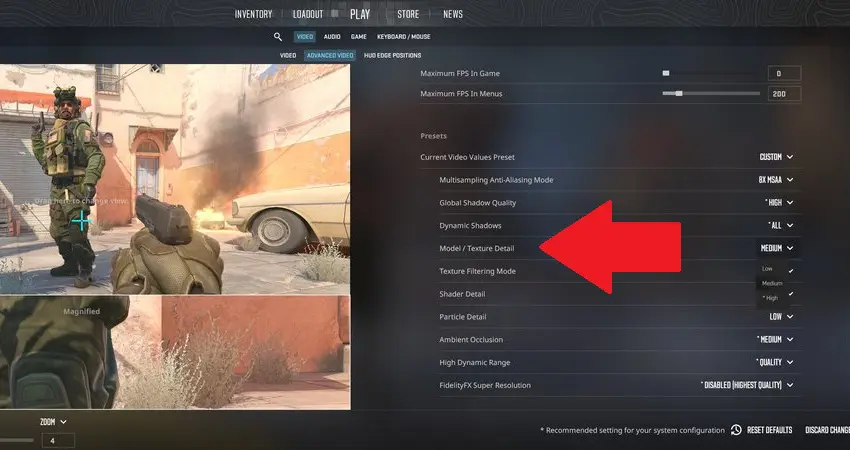
Not all settings affect FPS equally. Some put a heavy load on your system, while others barely change anything.
- Enhanced player contrast — always keep this on; it makes operatives stand out against the map and easier to spot.
- Multisample anti-aliasing (MSAA) — smooths edges but heavily impacts performance; turn it off for maximum FPS.
- Overall shadow quality — low gives stable FPS, but medium can be fine for comfort.
- Dynamic shadows — “sun only” saves FPS, but “all” helps spot enemies by their shadows.
- Texture filtering — for budget PCs, bilinear is the way to go.
- Ambient occlusion & shader detail — heavy on performance; lower them for more stable FPS.
- Model and particle detail — low increases FPS; textures can stay medium if VRAM allows.
- HDR (Extended Dynamic Range) — choose “performance” mode for more stable FPS.
- FidelityFX Super Resolution (FSR) — use only if FPS drops a lot, as it reduces responsiveness and image quality.
Settings You Should Always Disable
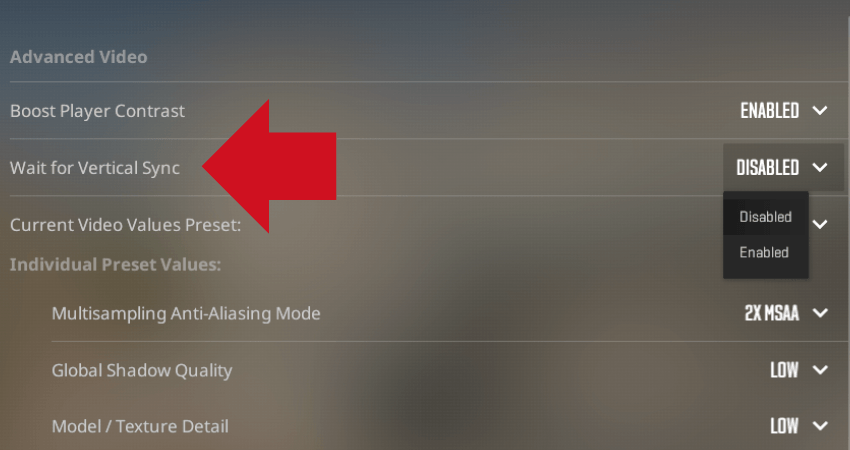
Some options don’t give any advantage in competitive play and just hurt performance and responsiveness. Turn them off if your goal is smooth and stable CS2 gameplay:
- VSync — adds input lag and can cause stutters; always off for CS2.
- Motion Blur — blurs the image while moving and gives no advantage; only reduces clarity and smoothness.
- Film Grain — purely visual effect that makes the image “messier” and can affect frame stability.
- Ambient Occlusion — one of the heaviest visual effects; doesn’t help gameplay, so turn it off for maximum FPS.
Advanced Video & Rendering Settings
Beyond the basic graphics options, CS2 has a few less obvious but important settings that really affect smoothness and input responsiveness.
Multicore Rendering
Multicore rendering lets the game split the workload across multiple CPU cores instead of relying on just one. In most cases, it’s worth enabling — it improves FPS stability and reduces dips in intense situations. On very old CPUs with few cores, however, turning it on can sometimes have the opposite effect, so it’s worth testing for your system.
NVIDIA Reflex / AMD Anti-Lag
These technologies don’t directly boost FPS, but they help reduce input lag and make the game feel more responsive.
- NVIDIA Reflex — reduces the delay between your mouse movements and what you see on the screen.
- AMD Anti-Lag — does the same for AMD graphics cards.
Both are especially useful in competitive play, where every fraction of a second counts.
How to Set Up NVIDIA Reflex / AMD Anti-Lag in CS2

NVIDIA Reflex:
- Open CS2 and go to Settings → Video → Advanced.
- Find the NVIDIA Reflex option (sometimes just called “Reflex”).
- Choose one of the modes:
- Off — disabled; FPS is stable, no impact on input lag.
- On — reduces input lag; works well on modern systems.
- On + Boost — extra response acceleration, but can slightly increase GPU load.
- Save settings and test in-game. If you notice micro-stutters or FPS drops, leave it on On or turn it off.
Tip: On older PCs or if your FPS isn’t very stable, Reflex can sometimes make things feel less smooth. Only enable it if your FPS is high and steady (120+).
AMD Anti-Lag / Anti-Lag 2:
- Open the AMD Radeon Software control panel.
- Go to Gaming → Global Settings or the settings for CS2 specifically.
- Find Anti-Lag or Anti-Lag 2.
- Choose:
- Off — disabled, FPS is as stable as possible.
- On / Enhanced — reduces input delay, useful for competitive play.
- Save and test in fights, especially with smoke or effects.
Tip: Anti-Lag reduces input delay but can slightly lower FPS, so on weaker PCs it’s best to test both modes and stick with whichever gives the most stable gameplay.
Display Mode and Refresh Rate Settings
Choosing the wrong display mode or refresh rate is a common cause of FPS drops and input lag in CS2. Here’s how to get it right.
Вот естественный, «человеческий» английский перевод этого блока с живым и понятным стилем:
Display Mode and Refresh Rate Settings
Choosing the wrong display mode or refresh rate is a common cause of FPS drops and input lag in CS2. Here’s how to get it right.
Fullscreen vs Windowed
Fullscreen is the best choice for stable FPS and minimal input lag. The game gets full access to your GPU and CPU, which reduces the risk of stutters and frame drops.
Windowed mode is convenient if you need to switch between programs or stream, but it can sometimes cause slight delays and unstable FPS, especially on older systems.
Tip: For competitive play, stick to fullscreen.
Monitor Refresh Rate
The higher your monitor’s refresh rate, the smoother the image and the faster the response. If your display supports 144Hz, 240Hz, or higher, make sure CS2 is set to the same frequency.
Using the wrong refresh rate can cap your FPS. For example, if you have a 144Hz monitor but the game runs at 60Hz, your FPS won’t go above 60 even on a powerful PC.
Tip: Always set the refresh rate in CS2 to match your monitor’s maximum, so FPS is as stable and responsive as possible.
System & Windows Settings That Improve CS2 FPS
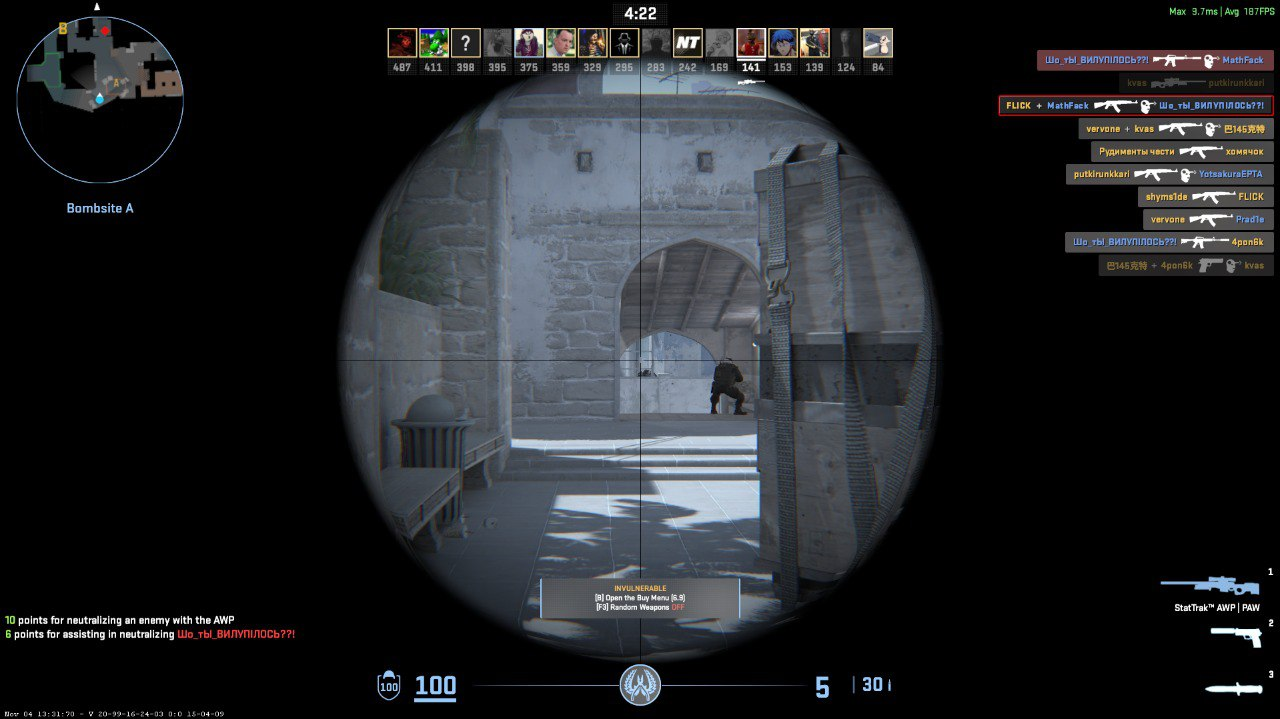
Optimizing CS2 isn’t just about in-game settings. The right system tweaks can help your CPU and GPU work more efficiently, reducing FPS drops and input lag.
Power Plan
In Windows, it’s important to choose the High Performance plan. This turns off energy-saving features that can limit CPU and GPU speeds. With this enabled, your hardware runs at full power, keeping FPS more stable, especially in intense fights.
Game Mode
Turning on Game Mode helps Windows allocate more resources to CS2 and reduces background load. This minimizes stutters and temporary FPS drops, especially on systems with less RAM or weaker CPUs.
Hardware-Accelerated GPU Scheduling
This option allows Windows and your GPU to better manage tasks per frame, reducing graphics processing delay and improving smoothness. On modern GPUs, it can slightly stabilize FPS and reduce micro-stutters.
Tip: Turn on all three of these settings — it’s an easy optimization that doesn’t require a beefy PC but noticeably improves CS2 performance.
Background Programs and Processes
Even a powerful PC can take FPS hits if background apps are eating up CPU, RAM, or GPU resources.
- Close unnecessary programs before launching CS2 — browsers, messengers, game launchers.
- Disable auto-updates and antivirus scans while playing, as they can cause sudden stutters and FPS dips.
- Use Task Manager to monitor which processes are using resources in real time.
System Maintenance
- Regularly clean temporary files and Windows cache — a cluttered system slows even a high-end PC.
- Defragment HDDs or optimize SSDs for faster map and texture loading in CS2.
- Keep an eye on CPU and GPU temperatures — overheating lowers performance and causes FPS drops.
GPU Drivers
- Always keep your GPU drivers up to date — new versions often include CS2 optimizations and bug fixes.
- In NVIDIA or AMD driver settings, enable Low Latency Mode and Hardware-Accelerated GPU Scheduling if not already on.
- Make sure CS2 is added to the driver’s game list to apply the optimal performance profile.
Input Lag, Frame Pacing, and Competitive Performance
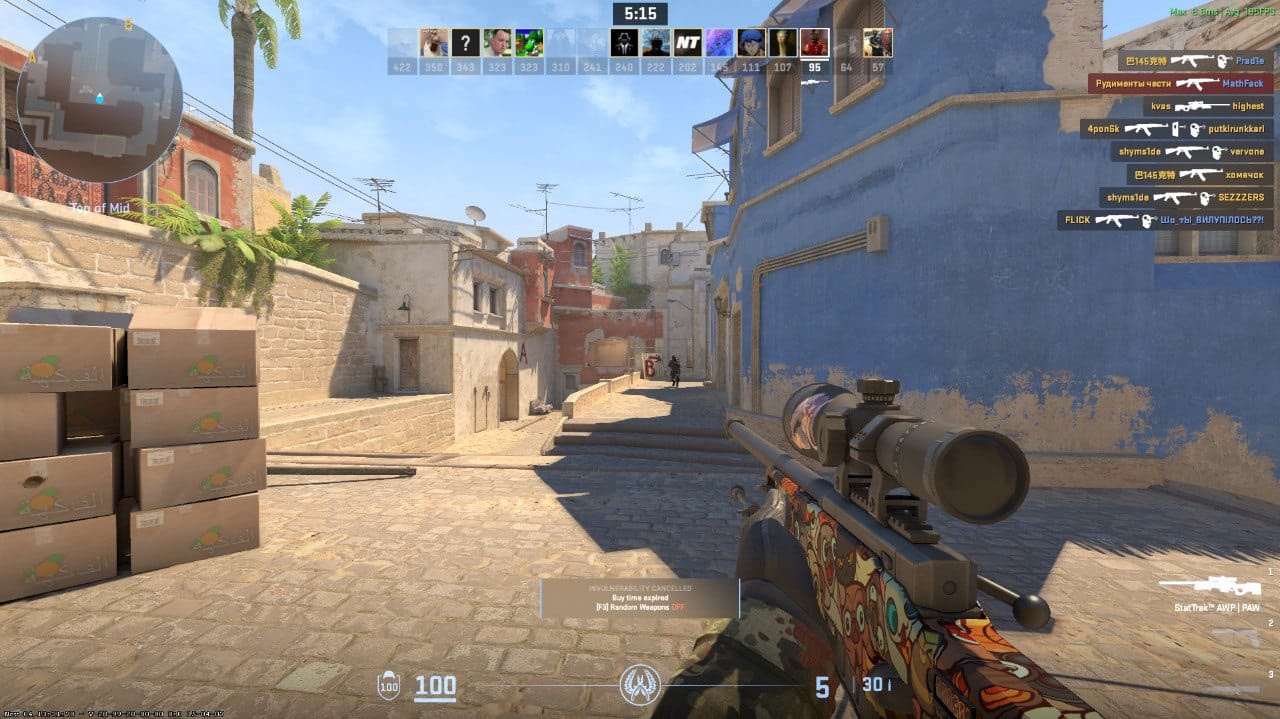
Even at 300 FPS, CS2 can still feel heavy or jerky. When frames arrive unevenly, the game feels rough — you notice small freezes or stutters that break aim control and movement consistency.
What Are Stutters and Micro-Freezes
Stuttering is a noticeable short FPS drop or a brief “hiccup” where one frame takes much longer to render than usual.
Micro-freezes are smaller but frequent delays between frames. They often don’t show up clearly on the FPS counter, but you can feel them while aiming or moving.
Both issues usually come from uneven CPU and GPU load, heavy effects like smoke or explosions, or network-related calculations happening at the same time.
It’s also worth mentioning FPS Boost on xplay.gg. This is a server-side optimization designed to reduce unnecessary load and make gameplay more frame-stable. Thanks to high server FPS, proper tickrates, and optimized server configs, the game feels smoother, with fewer micro-stutters and sudden FPS drops.
FPS Boost is especially useful for players with mid-range or weaker PCs. Even if your hardware can’t always hold a stable 120+ FPS, CS2 tends to feel smoother on xplay.gg servers, with more consistent gunfights and better overall responsiveness.
Frame Pacing — Why Even Frames Matter
Frame pacing is about how evenly frames are delivered over time. Even with high average FPS, poor frame pacing makes the game feel choppy. Good, stable frame pacing is what makes CS2 feel smooth and responsive — especially when controlling spray or reacting to enemy movement.
Input Lag — Delay Between Action and Response
Input lag is the delay between moving your mouse or pressing a key and seeing the result on screen. High FPS helps reduce input lag, but only if frames are consistent. 200 FPS with bad frame pacing can feel worse than a stable 100–120 FPS with evenly spaced frames.
Sometimes stutters and micro-freezes look like an FPS problem, but the real cause is high ping or an unstable connection. To minimize delay and pick the best server, check out this guide: CS2 Low-Ping Servers: How to Pick the Nearest Region.
To reduce freezes and input delay, lower heavy settings like shadows and particles, enable multicore rendering, and cap FPS slightly above your monitor’s refresh rate — this helps stabilize frame delivery.
For the fastest response, use fullscreen mode, enable NVIDIA Reflex or AMD Anti-Lag, and turn on hardware-accelerated GPU scheduling in Windows. Also make sure to close unnecessary background apps, monitor CPU and GPU temperatures, and keep your graphics drivers up to date.
For a deeper breakdown, see this article: CS2 Lag, Packet Loss & Hit-Reg: Practical Fixes.
How to Test and Verify Your FPS Improvements
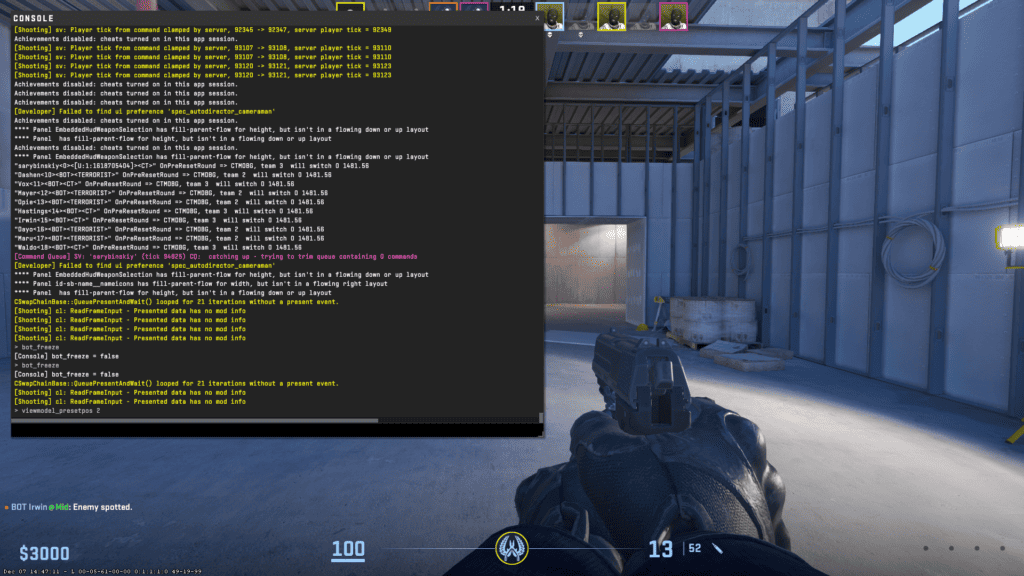
After changing all your settings, it’s important to make sure they actually work. A lot of players think their FPS improved, but the game still feels choppy — this is a classic placebo effect.
Start with the built-in FPS counter. In CS2, you can enable it via the console with cl_showfps 1 or through the Steam Overlay. It shows your current FPS in the corner of the screen, but don’t focus on the average number alone.
What really matters:
- Average FPS gives a general idea of performance, but it doesn’t show drops.
- 1% lows represent your lowest frame rates during critical moments. If they’re much lower than your average FPS, the game will feel stuttery even with high numbers on the counter.
- Net graph (net_graph 1) helps track network latency, packet loss, and frame time. Sometimes the “stuttering” you feel is caused by connection issues, not FPS.
To avoid placebo optimization, test your settings in real matches or practice maps, watch frame consistency, and compare results before and after changes. Smooth, predictable gameplay is always a better indicator than just higher numbers.
Common FPS Myths in CS2
There are plenty of performance myths floating around in CS2. Let’s break down the most popular ones and explain why they don’t really work.
Myth #1: “Lowest settings = maximum FPS”
In reality, low settings don’t guarantee smooth gameplay. As mentioned earlier, CS2 is often CPU-bound, not GPU-bound. Even on the lowest settings, you can still get stutters and FPS drops during intense moments if your CPU can’t keep up with players, smoke, and physics calculations. Settings matter, but frame stability matters a lot more than just running everything on Low.
Myth #2: “Pro player settings work for everyone”
Just because a pro uses certain settings doesn’t mean they’ll work for you. Hardware differences and personal habits play a huge role in performance and comfort. Someone else’s preset might give you little to no FPS gain — or worse, make aiming and spray control feel awkward.
Myth #3: “FPS above 144 doesn’t matter”
High FPS isn’t just about the number on the counter. In CS2, smooth and stable frames are what really count. If your average FPS is high but drops still happen, you’ll feel input lag and stutters. Even on a 144Hz monitor, stable 200–300 FPS can improve reaction time and spray control.
Recommended CS2 FPS Settings Summary
For convenience, here’s a quick summary of the key settings:
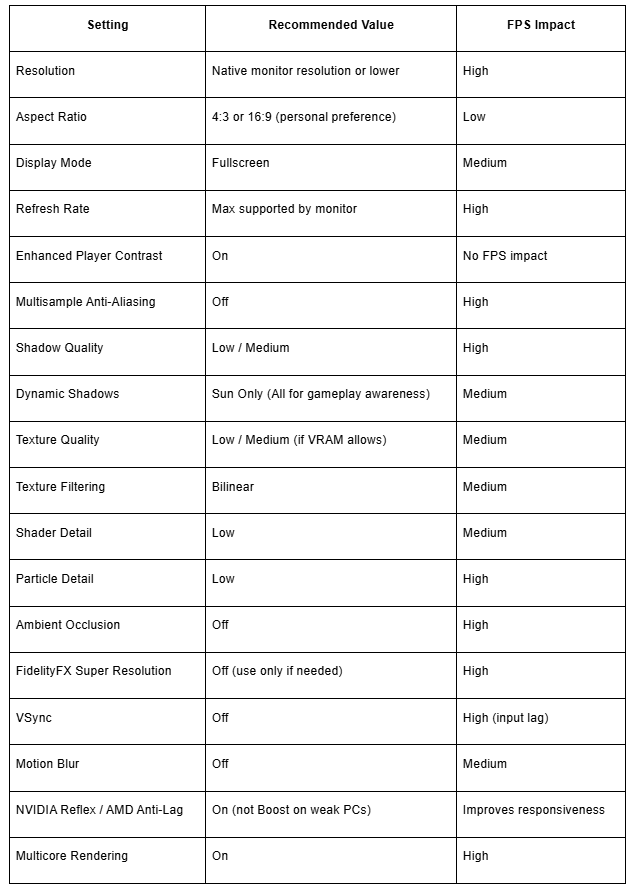
For maximum FPS and stable gameplay, disable shadows and heavy visual effects first. Textures can usually stay enabled if your system allows it, while VSync and motion blur should always be turned off.
FAQ
What FPS is good for CS2?
For comfortable gameplay, FPS shouldn’t drop below 60. For a smooth and responsive experience, it’s best to keep it at 120 FPS or higher.
Should I cap FPS?
If your FPS is much higher than your monitor’s refresh rate, adding a small FPS cap can help stabilize performance and reduce stress on your hardware.
Why do I get FPS drops in fights?
CS2 puts the heaviest load on the CPU during firefights, especially with smoke and explosions, which can cause short FPS drops.
Does higher FPS improve aim?
Yes. Stable high FPS reduces input lag and makes controls more responsive, which helps with more precise aiming.
Are these settings safe for updates?
Yes. These are standard performance-focused settings that remain effective after updates and can be safely used with any patch.