
CS2 Lag, Packet Loss & Hit-Reg: How to Find the Cause and Fix It (2026)

Enemies teleport across your screen, the game freezes as you peek, or a clean-looking shot leaves an opponent unhurt. CS2 lag, packet loss, and apparent hit-registration failures can look alike, but they call for different checks.
Low ping and a clean speed test cannot identify the cause on their own. Use CS2’s Telemetry HUD when the symptom appears, then follow the matching test below.
Is Your CS2 Lag Coming From Your PC, Connection, or Server?
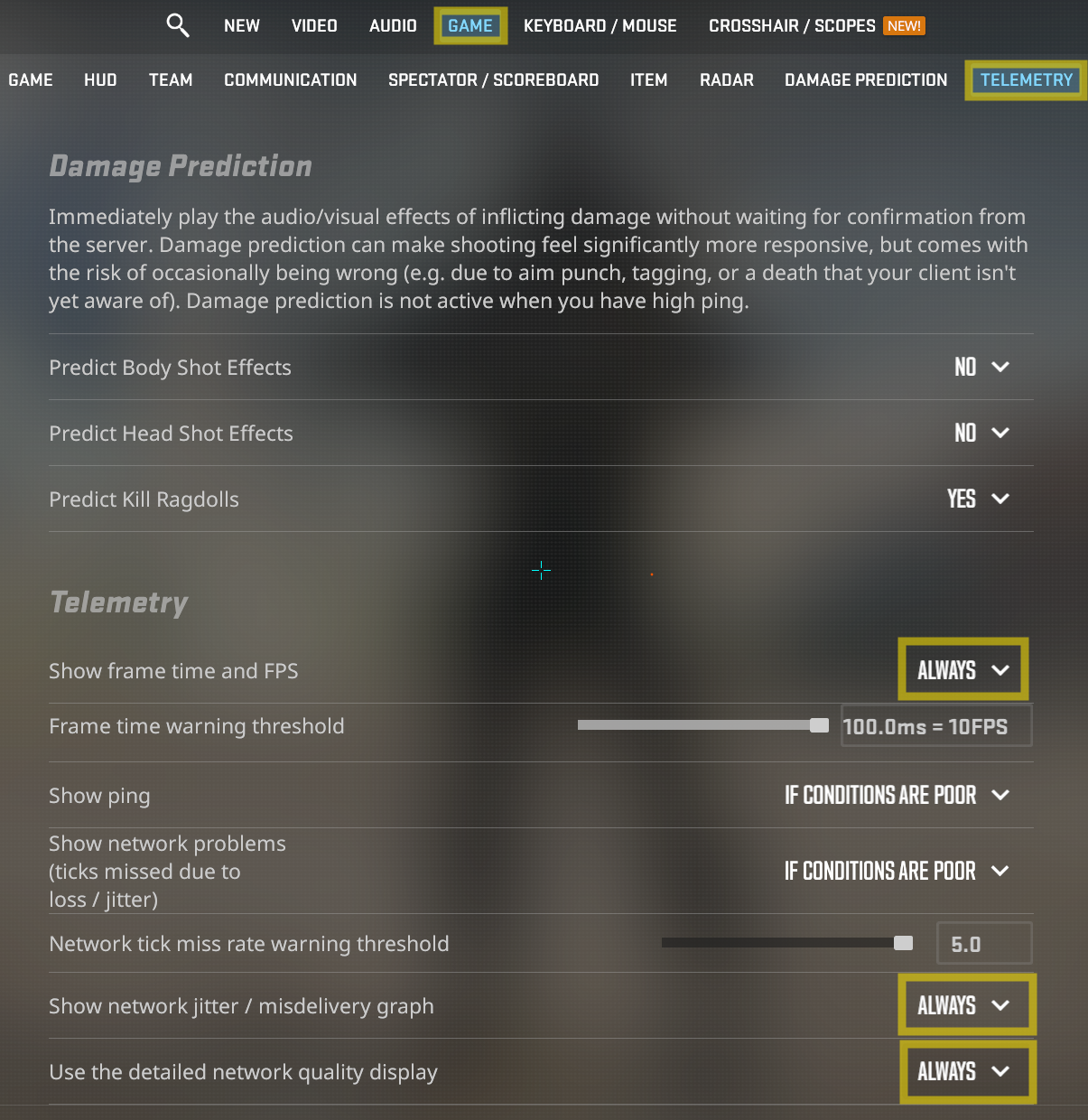
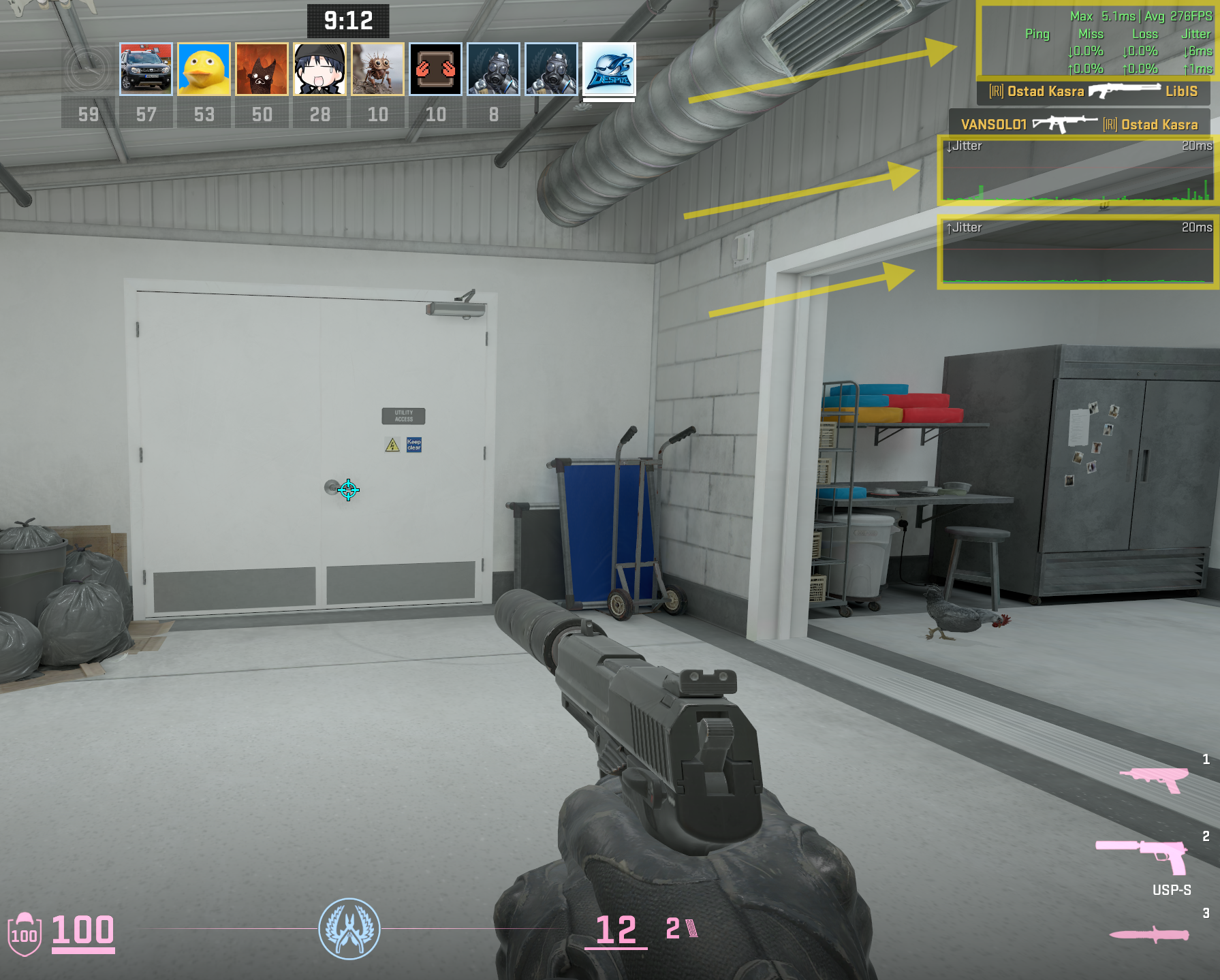
Open Settings > Game > Telemetry. Set frame time and FPS, ping, and network problems to Always while you test. Enable Detailed Network Quality and the Network jitter / misdelivery graph. The upward arrow tracks missed ticks from your PC to the server. The downward arrow tracks missed updates in the other direction. Valve’s Telemetry guide explains the indicators.
The arrows show tick-miss rates, not raw packet-loss percentages. Use Detailed Network Quality to view raw loss and peak jitter. A 0% miss rate means late or lost data didn't miss a tick. It doesn't prove the connection was perfect.
Use CS2’s Built-In Network Diagnostics
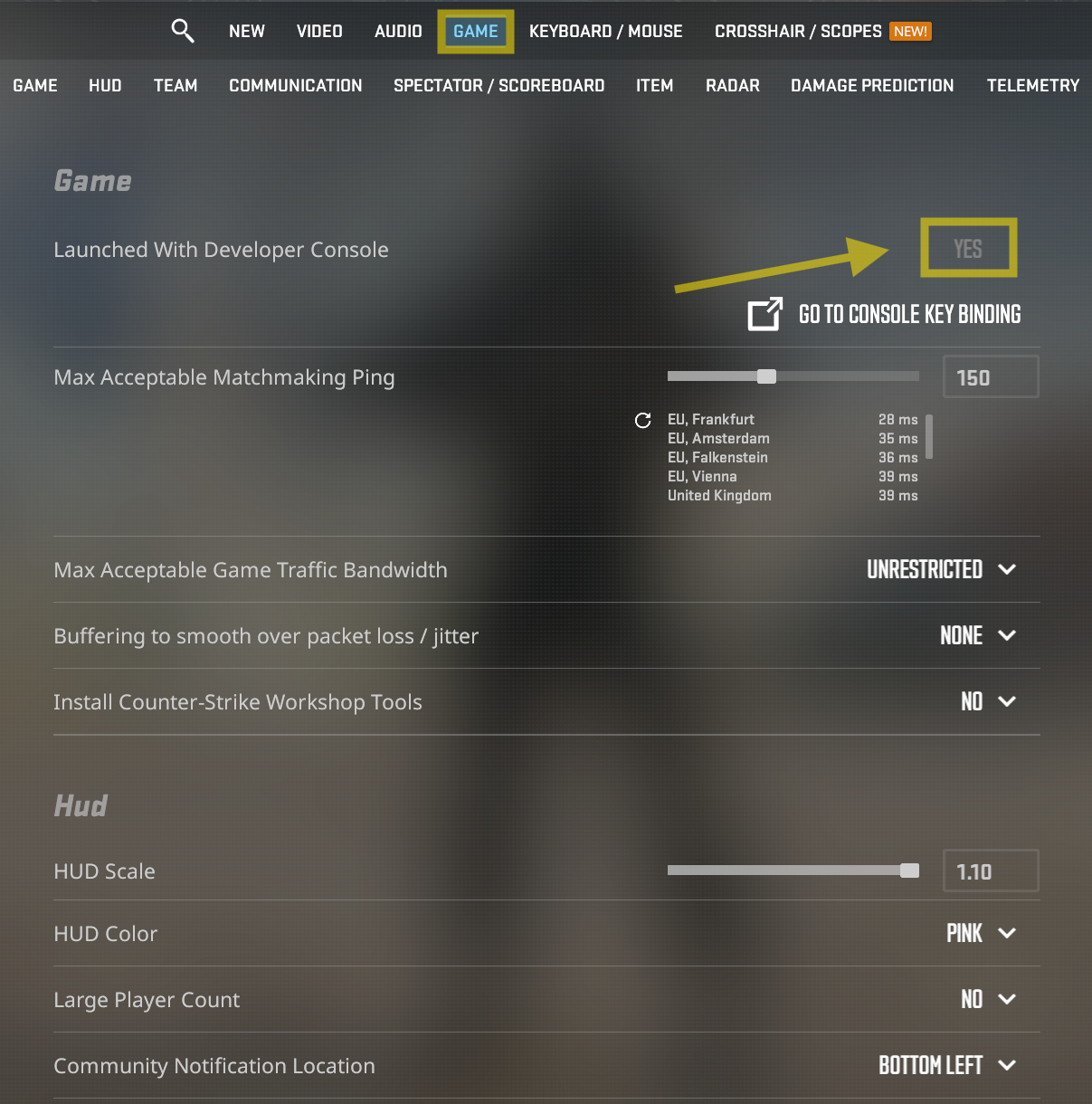
The Telemetry menu is the clearest way to enable these displays. The console gives the same core HUD controls and two useful reports for a persistent problem. Enable the developer console in Settings > Game, then use these commands only to observe the connection. They don't tune or repair it.
Skip shared “cl_updaterate”, “cl_cmdrate”, and interpolation presets during diagnosis. They don't identify where the fault is and make comparisons harder. Max Acceptable Game Traffic Bandwidth is the menu setting for rate. Leave it at its default during early testing.
On a constrained connection that still misses ticks after background traffic is removed, compare one lower preset in the same scenario and keep it only if Telemetry improves.
Fix Frame-Time Spikes When the Connection Looks Clean
Use this branch when the hitch also appears offline, or when frame time rises while the network readings stay normal. Average FPS can remain high while one slow frame interrupts a peek or spray, so compare the same demanding scene after each change.
Test a Sustainable FPS Cap
Use fps_max to compare your current limit with a cap your PC can sustain. Record frame time in the same busy scene, then try a value that stays stable during smokes, utility, and fights. Keep it only when the spikes improve and the game still feels responsive.
Check What Changed Before You Add Tweaks
If stutter began after a CS2, graphics-driver, or Windows update, note the date and repeat the same scene. NVIDIA explains that a new driver can trigger first-run stutter while cached shaders rebuild.
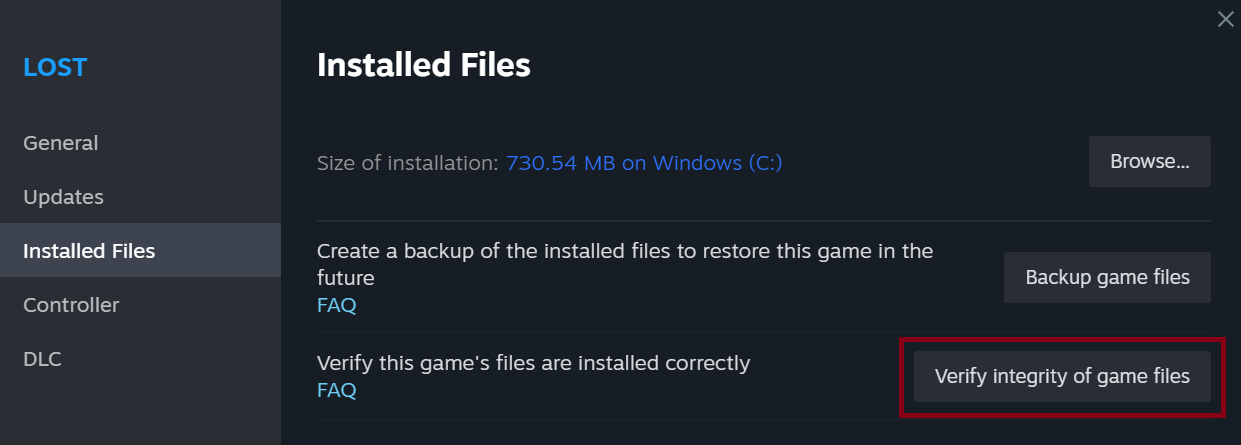
Don't delete shader-cache folders as a routine fix. If the game shows missing content, crashes, or started behaving incorrectly after an interrupted update, use Steam’s file-verification tool: Counter-Strike 2 > Properties > Installed Files > Verify integrity of game files.
If a graphics-driver update clearly introduced the hitch, test the previous working driver. Windows provides Roll Back Driver for this case.
Remove Competing Workload One Item at a Time
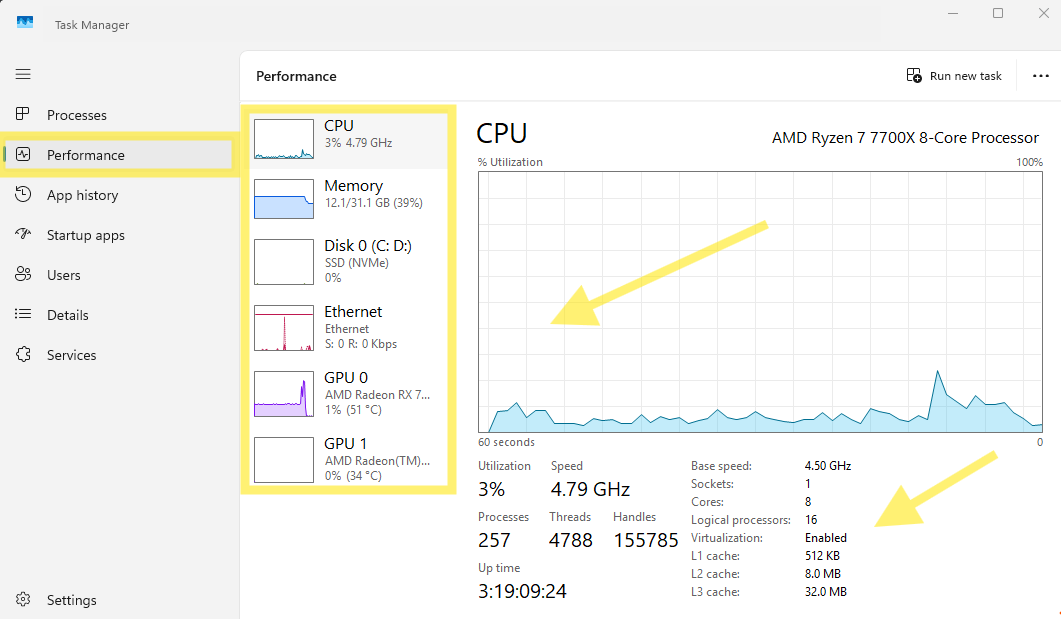
During a repeatable hitch, check Task Manager for CPU, GPU, memory, disk, or network activity that rises at the same moment. Temporarily turn off one recording buffer or overlay, close one unnecessary background task, and repeat the scene.
If GPU memory is near its limit, lower one texture or shader-heavy setting and test again. This isolates the cause without turning off Windows services or security tools.
For a full settings pass, use the xplay.gg FPS and stability guide.
Check Heat and System Latency
If stutter grows during long sessions or appears in other games, compare temperatures, clock speeds, and throttling indicators with the specifications for your exact hardware. Intel documents that thermal throttling can reduce clock speed and cause gaming stutter.
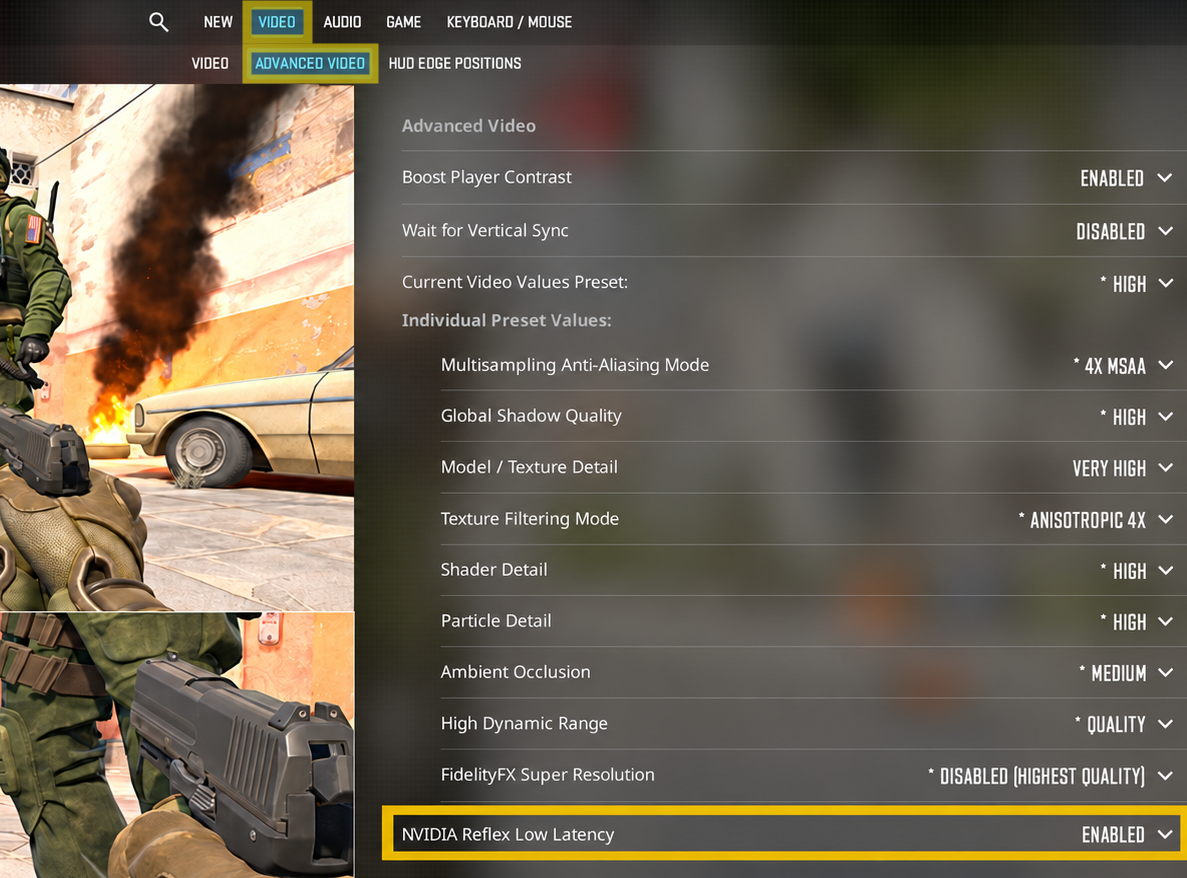
On supported NVIDIA hardware, open Settings > Video > Advanced Video and set NVIDIA Reflex Low Latency to Enabled. Repeat the same scene with Reflex off and on. Use Enabled + Boost only when lower PC latency matters more than power draw and a possible FPS cost. NVIDIA’s CS2 Reflex guide explains the trade-off. Reflex doesn't repair packet loss, routing, or the server’s hit decision.
If you use an NVIDIA G-Sync display and CS2 offers an Apply Changes prompt for G-Sync, V-Sync, and Reflex, apply it and repeat the same scene. Valve recommends this combination when all three features are available. It is designed for smooth frame delivery and limits FPS slightly below the display refresh rate. Don't use this test to diagnose network loss.
Fix Packet Loss and Jitter on Your Home Connection
Test Ethernet Against Wi-Fi
Play comparable matches in the same region over Wi-Fi and then with an Ethernet cable. Watch the missed-tick indicators, raw loss, peak jitter, and actual hitches. If the symptom and its matching network readings improve on the cable, keep it and investigate Wi-Fi interference or coverage. Steam recommends a direct wired test because wireless and powerline links can fail intermittently.

If the cable test helps but you must stay on Wi-Fi, compare the same session nearer the router and on its other available frequency band, often 5 GHz instead of 2.4 GHz. Keep the option that reduces the observed hitch and the matching Telemetry readings. Microsoft documents band and signal checks for Wi-Fi faults.
Pause Downloads and Test for Congestion
Keep the connection type and server region unchanged for this test. Start the two continuous pings in the next section, leave them running for two minutes at idle, then repeat while one download runs and again while one upload runs. Test over Ethernet and record the largest spikes in each condition. If CS2 improves after you pause traffic and the spikes appear only under load, queueing at the router or access link is likely involved.

If your router supports Smart Queue Management (SQM), try it only after that result. SQM deliberately limits available bandwidth so queues form on the router instead of upstream. Follow your router’s documented setup, then retest, because a low-power router can lose throughput under SQM. OpenWrt’s SQM documentation explains the setup and trade-offs.
If the problem began suddenly on a previously stable connection, power-cycle the modem and router once before making further changes. Unplug both, wait at least 30 seconds, start the modem first, wait until it reconnects, then start the router. Repeat the same test after the connection is stable.
Test the Local Link Before Blaming the ISP
Open Command Prompt and run ipconfig. Under the active adapter, find Default Gateway. During the fault, run one continuous test to that address and one to a stable public destination in a second Command Prompt window. Replace GATEWAY_IP with the address shown by ipconfig. Stop both tests with Ctrl+C after the hitch.
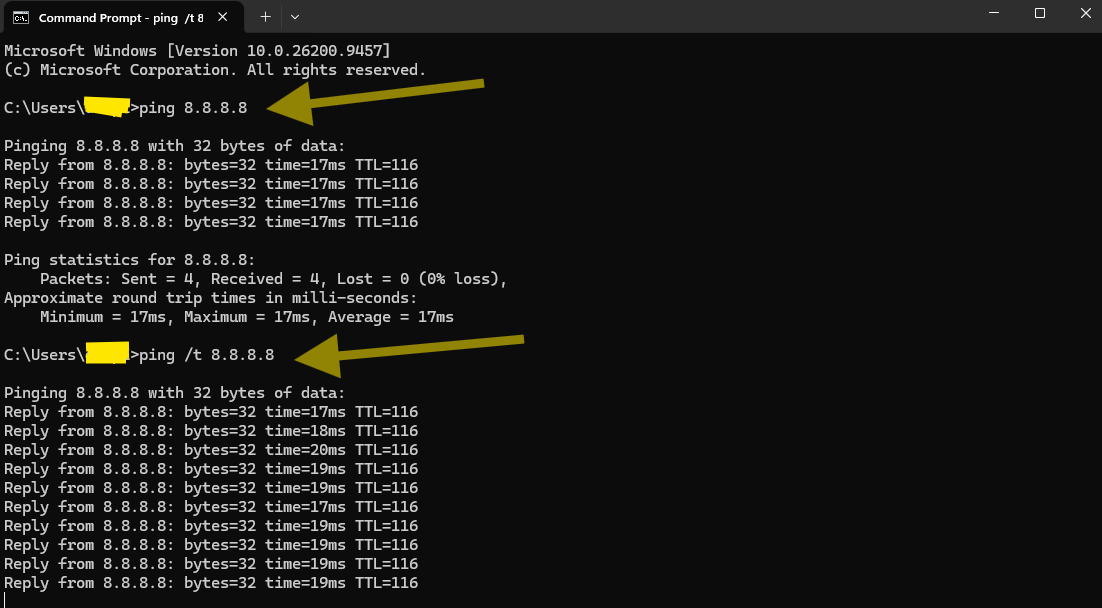
Lost replies or spikes to the gateway support a local-link investigation. A clean gateway result with a degraded public result suggests the issue may sit beyond the router. These are ICMP reachability tests, not direct measurements of CS2 game traffic. If they look clean while Telemetry reports trouble, they don't clear the game route. Microsoft documents ping and ipconfig for these tests.
Check Cables, Ports, and the Adapter Only When the Test Points Local
For a problem that persists over Ethernet, try a different cable and router port, then repeat the same session test. If another device stays clean on the same wired connection while this PC shows the fault, update the adapter driver from its manufacturer and test again. This narrows the issue before you replace hardware or change Windows adapter settings blindly.
Should You Use CS2’s Packet Loss and Jitter Buffer?
Use this setting only when missed ticks, raw loss, late delivery, or peak jitter line up with the hitch. Don't use it for a standalone frame-time spike. In Settings > Game, find “Buffering to smooth over packet loss / jitter” and record the current value. If it is None, compare 1 Packet, then 2 Packets if the hitch remains. If it is already 1 Packet, compare it with 2. If it is 2 Packets, test 1, then None. Use comparable sessions after each change and keep the lowest setting that improves play.
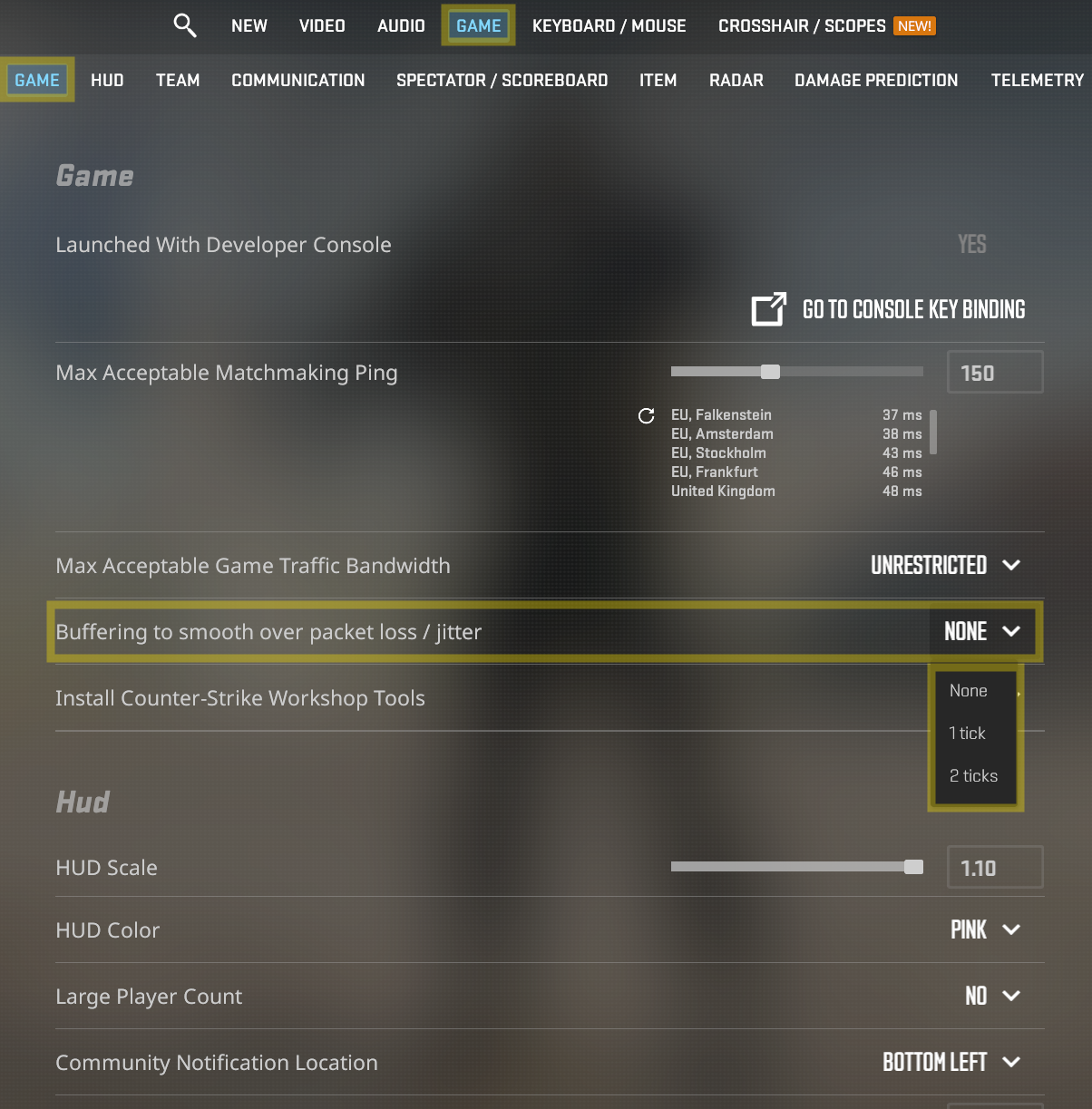
Buffering can mask some late or missing data, but each extra packet adds delay and doesn't repair the connection. If input feels later or the symptom stays, restore your original value.
What If Ping Is High Only on Certain Servers?
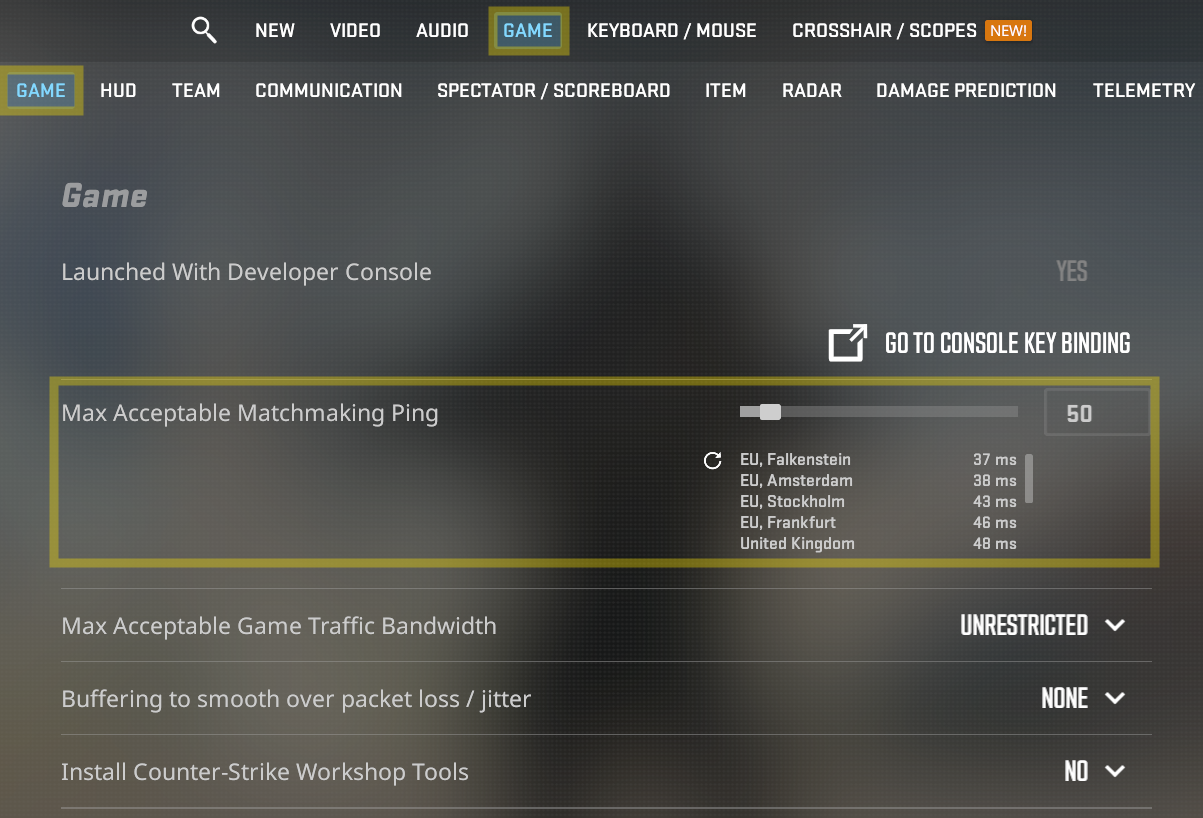
Compare several matches in different available locations. For Valve matchmaking, lower Max Acceptable Matchmaking Ping in the game settings to limit eligible data centers for the next search. A stricter limit may lengthen the queue. It cannot improve the route of the match already in progress.
For community play, compare the ping and stability you actually see on nearby servers in the xplay.gg Public servers. For region choice, use the CS2 low-ping server guide.
Trace a Community-Server Route Correctly
Ask the server operator for a public diagnostic target, or use a public server address they publish. In Command Prompt, replace SERVER_IP with the address only. Don't add the game port.
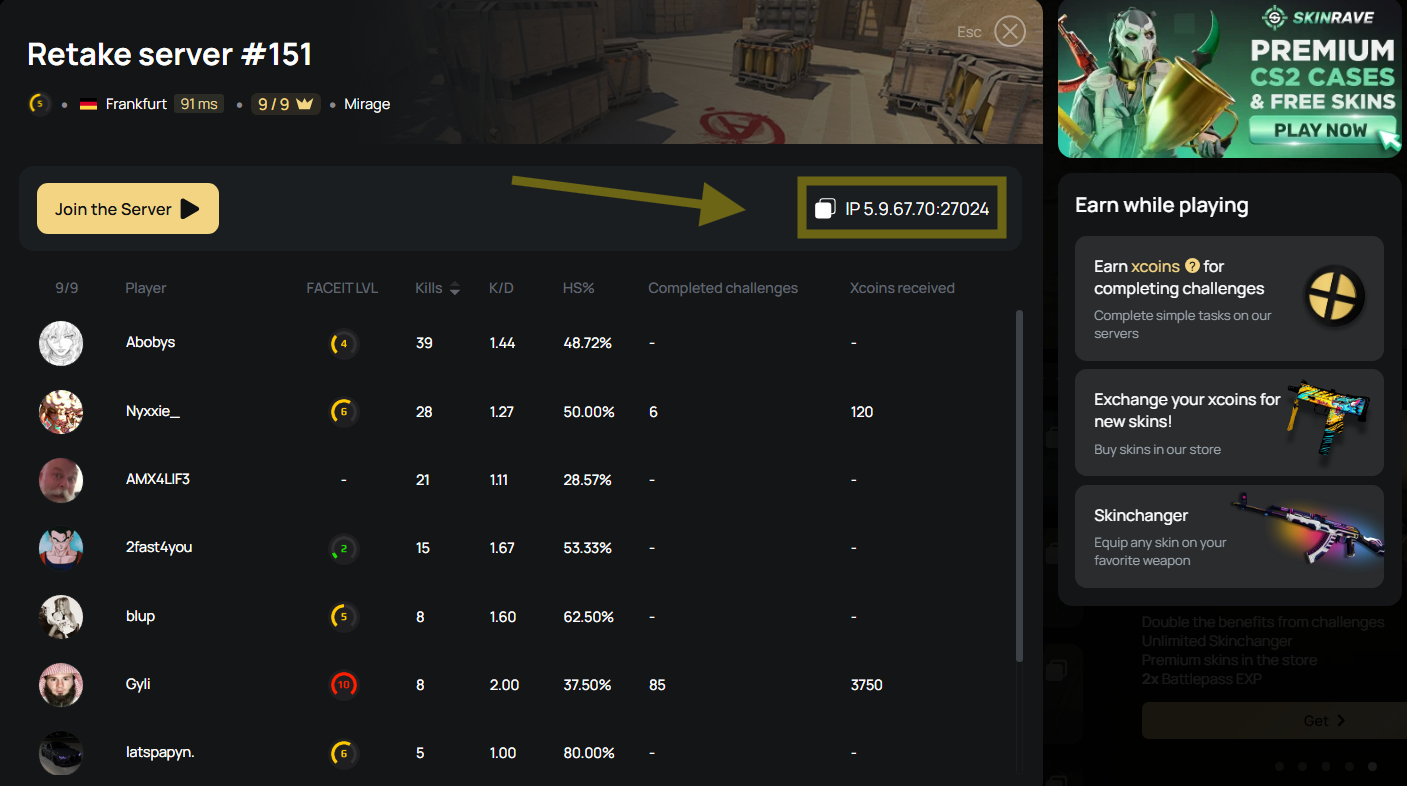
For an xplay.gg example, open the Retake server list, copy a server’s hostname or IP address, and replace SERVER_IP in the command. Don't use the page URL itself.
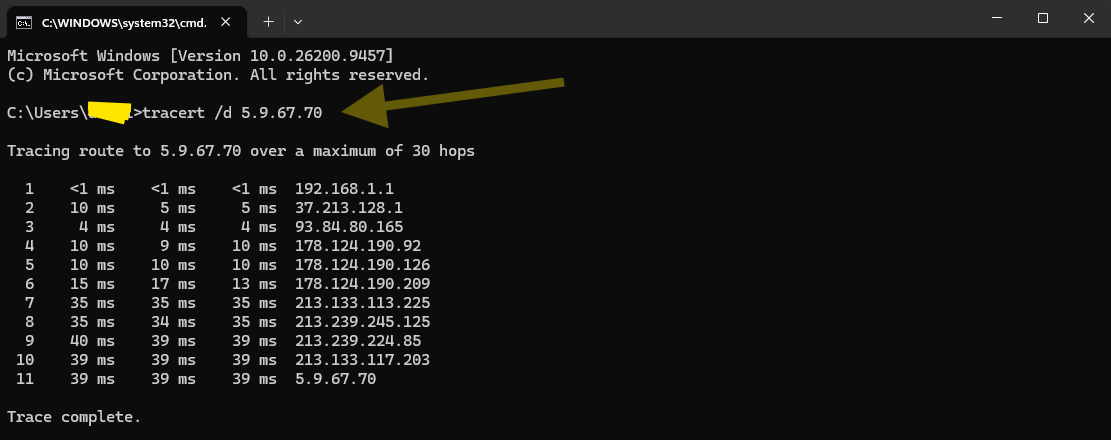
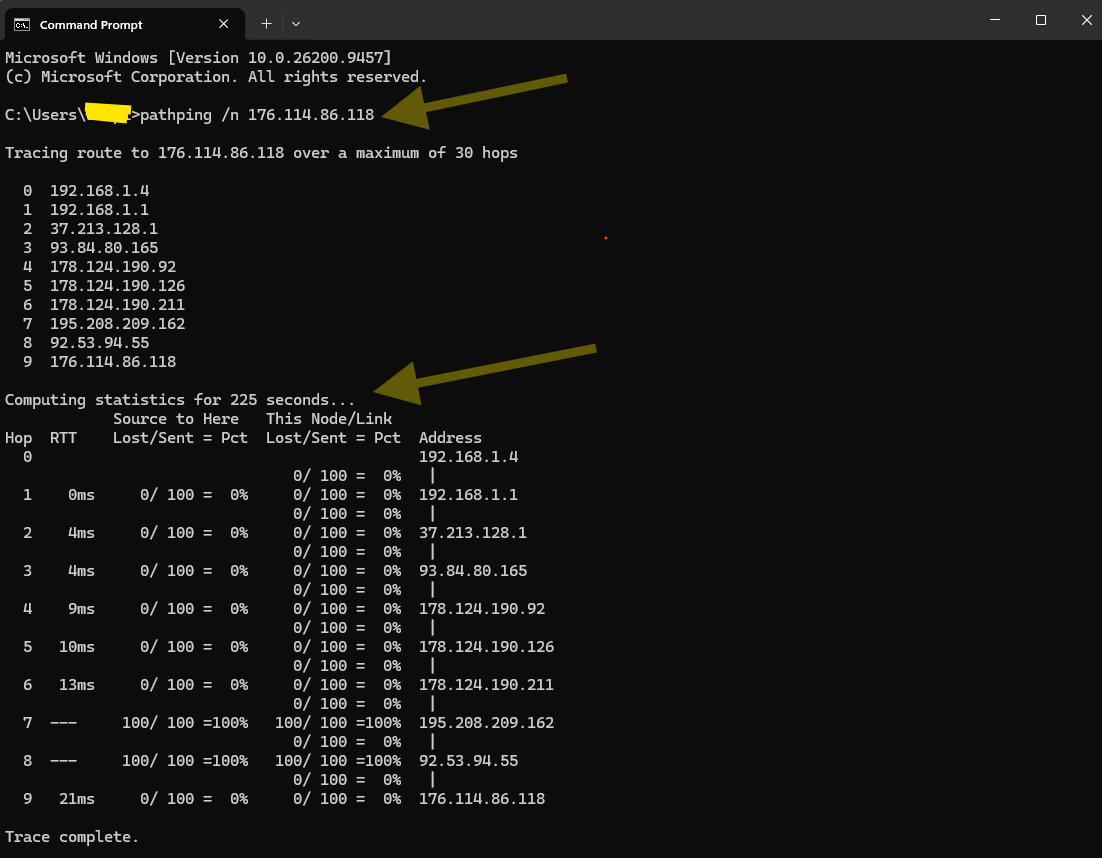
Tracert maps responding hops. Pathping gathers repeated latency and loss statistics. An asterisk can mean a router did not answer the probe. Loss at one intermediate router can be probe handling. Treat a recurring pattern that continues to the destination as evidence for the operator or ISP. Microsoft’s tracert documentation and pathping documentation explain these limits.
Why Valve Matchmaking Needs Different Evidence
Valve matchmaking can use Steam Datagram Relay, which can hide the underlying game-server address. A conventional route test may not reveal the complete game connection. Valve’s Steam Datagram Relay documentation explains the relay model. Save the two console reports from the diagnostics table with the match time, region, and Telemetry clip.
If the issue consistently follows one community server or region, report that pattern to its operator. If teammates in the same match see it at the same time, or the issue repeats at the same hours, treat it as service or route evidence before making more local changes. If it spans services while the local tests stay clean, give the ISP the time window, region, trace results for the public target, and the CS2 evidence.
Why Did a CS2 Hit Appear to Register but Deal No Damage?
CS2’s Damage Prediction can play a local hit sound or effect before the server confirms damage. That feedback can be wrong when the client doesn't yet know about aim punch, tagging, or death. For a clean comparison, turn off Predicted Body Shot Effects, Predicted Head Shot Effects, and Predicted Kill Ragdolls together. This changes feedback, not the server’s hit decision. Damage Prediction is inactive at high ping. Valve’s Damage Prediction update describes the feature.
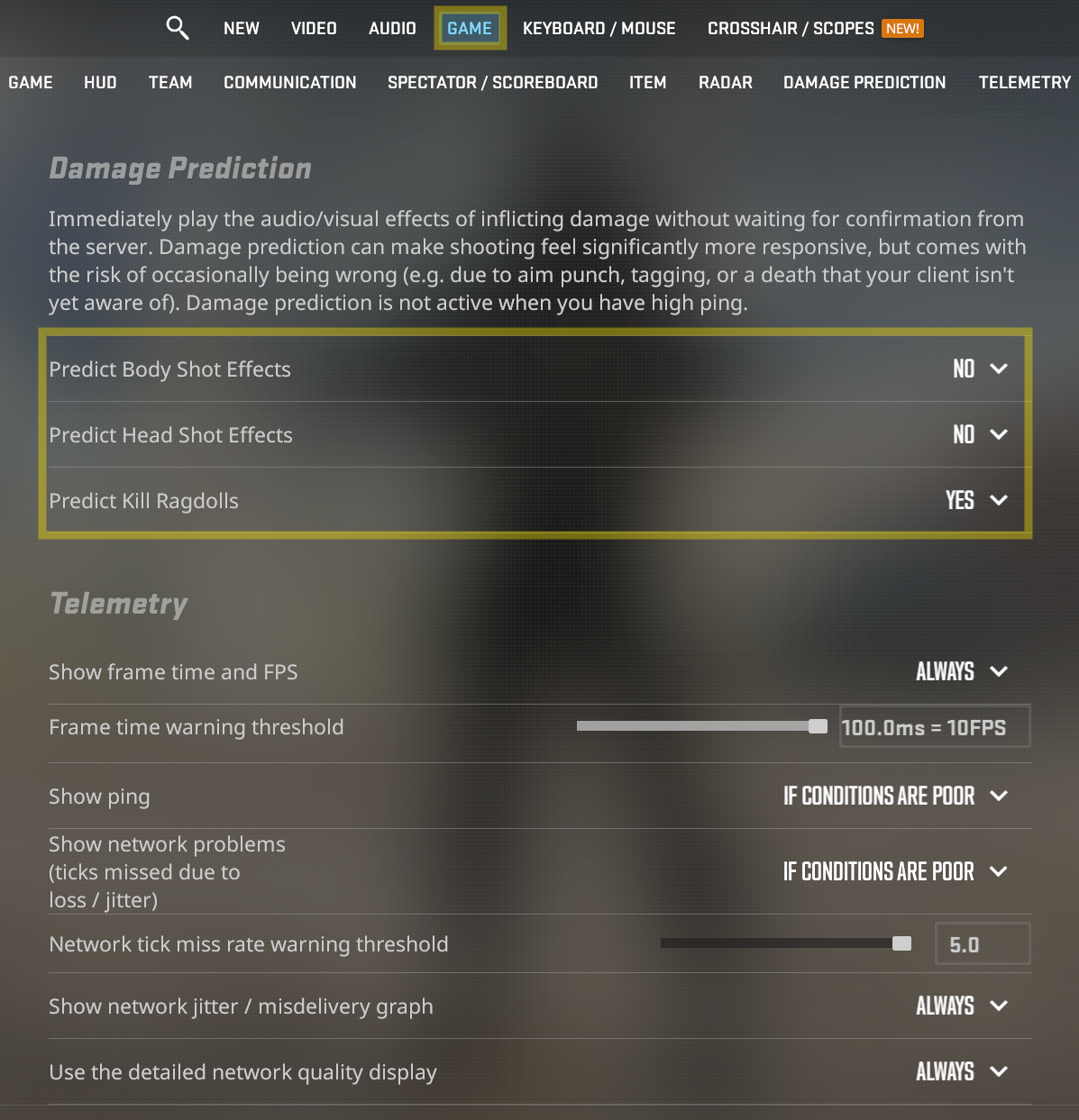
For a questionable shot, save a clip that shows confirmed damage and note the Telemetry state at that instant. If the network indicators are quiet, inspect frame stutter, movement inaccuracy, recoil, and system latency. A repeatable clip documents the issue, but may not establish its cause.
What to Record If the Problem Persists
Record the date and time with time zone, match type, server or region, Telemetry clip timestamp, Wi-Fi versus Ethernet result, background traffic, each buffer setting and outcome, and relevant console or route output. Note recent game, driver, or Windows changes and the original value for every changed setting.
Conclusion
Enable Telemetry, play until the symptom appears, then follow the matching branch in the first table before changing another setting.