
Low-End PC? Here’s How to Train Efficiently in CS2

TL;DR
- You can run CS2 even on a low-end PC, but FPS and stability will depend on your hardware.
- Minimum requirements: Intel Core i5‑2400 / AMD FX‑6300, 8 GB RAM, GTX 660 / Radeon HD 7850.
- Recommended (according to experts): Intel Core i7‑4790 / AMD Ryzen 5 1600, 16 GB RAM, GTX 1060 / RX 580.
- Main issues on low-end PCs: low FPS, micro-stutters, input lag.
- Optimization tips: update drivers, close background apps, use an SSD, set Power Plan to “High Performance.”
- Graphics settings: low/medium texture and shadow quality, V‑Sync off, 2X MSAA, Boost Player Contrast enabled.
- FPS Boost via xplay.gg: reduces processing of events far from the player, boosting FPS by up to +200%.
- Network tips: pick servers with low ping, tweak console settings like rate/cl_cmdrate/cl_updaterate, and play via cable whenever possible.
CS2 System Requirements
Recommended Requirements
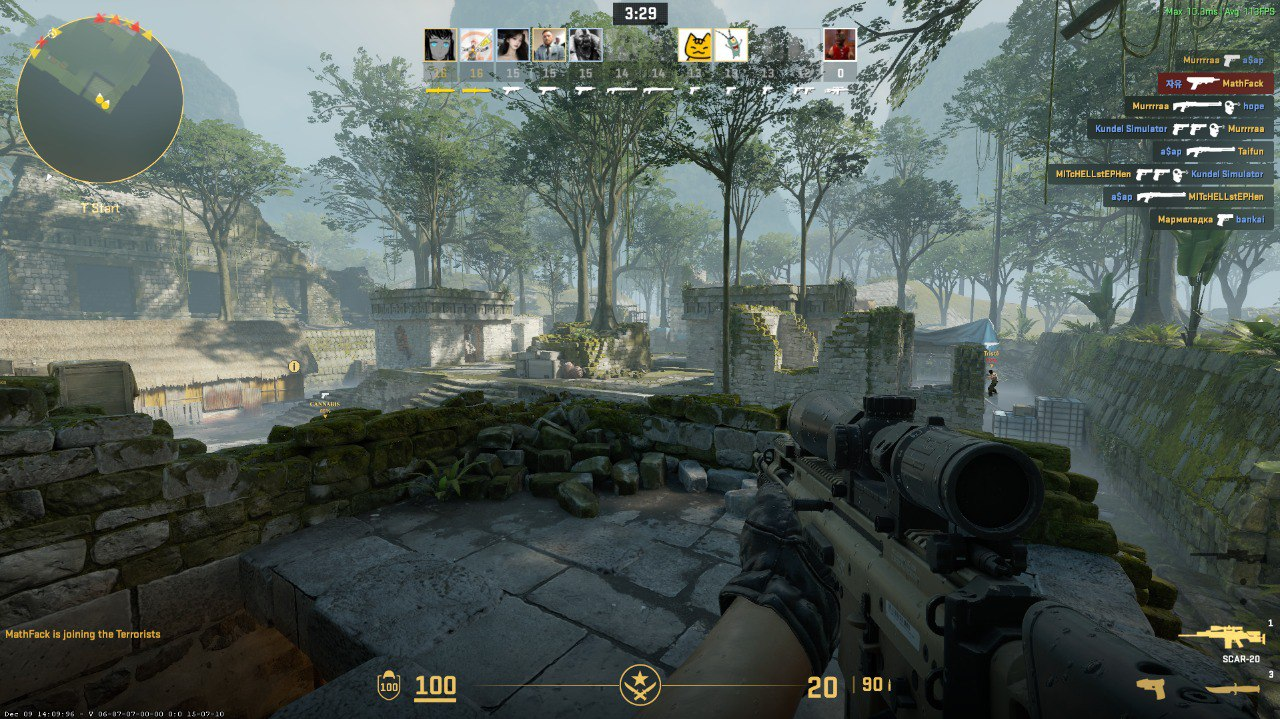
The developers haven’t officially listed “recommended” specs, but experts and community members have roughly estimated the hardware needed for a smooth CS2 experience:
- OS: Windows 10 (64-bit) or newer
- CPU: Intel Core i7-4790 or AMD Ryzen 5 1600
- RAM: 16 GBGPU: NVIDIA GeForce GTX 1060 or AMD Radeon RX 580
- DirectX: Version 12
- Storage: ~45 GB free space
- Internet: Stable broadband connection with low latency
If your system meets these specs, you can confidently increase graphics quality. The game should run smoothly and predictably, without sudden FPS drops or stutters.
Minimum Requirements
- OS: Windows 10 (64-bit)
- CPU: Intel Core i5-2400 or AMD FX-6300
- RAM: 8 GB
- GPU: NVIDIA GeForce GTX 660 or AMD Radeon HD 7850
- DirectX: Version 11
- Storage: ~45 GB free space
- Internet: Broadband connection
With this setup, CS2 will run, but FPS dips may occur during intense gameplay moments. Before thinking about an upgrade, it’s important to understand the exact issues — stutters, input lag, or unstable frame rates. Once you identify the cause, you can optimize your system and tweak graphics settings to make the game noticeably smoother, even on a low-end PC.
Common Issues on Low-End PCs
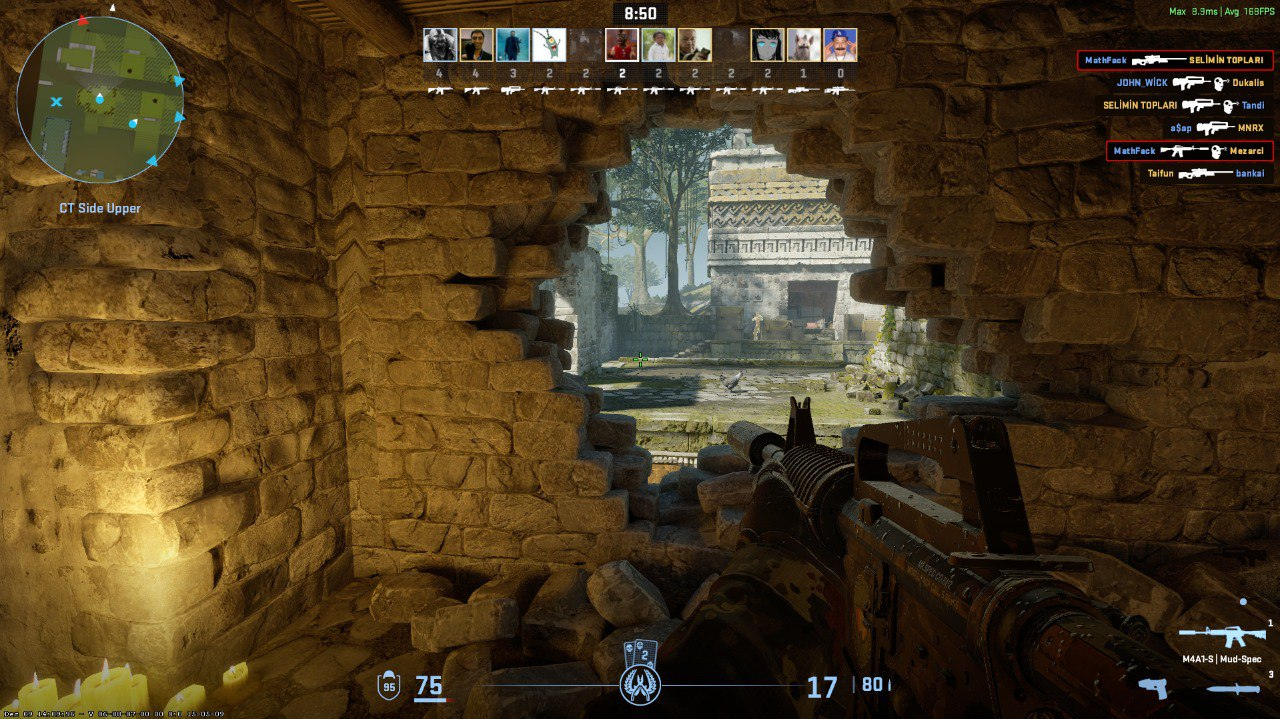
If your PC is close to the minimum requirements, you’re likely running into one or more of the following problems:
- Low FPS
The most common issue. Low FPS can cause:
- Harder tracking of enemy movements
- Unstable aim
- Close-range fights turning into a bit of a lottery
- Stutters
Short freezes (0.1–0.5 sec) often happen when:
- Loading new objects
- Rapidly changing locations
- A large number of players appear on screen
Stutters break timing and make consistent training much harder.
- Input Lag and Delays
On a low-end PC, mouse and keyboard input can lag due to:
- CPU/GPU overload
- Unstable rendering
- Background processes running in Windows
This makes shooting feel “sluggish” and reactions less precise.
Check other guides to learn how to fix lag, packet loss, and hit registration issues in CS2.
Optimizing CS2 for Low-End PCs
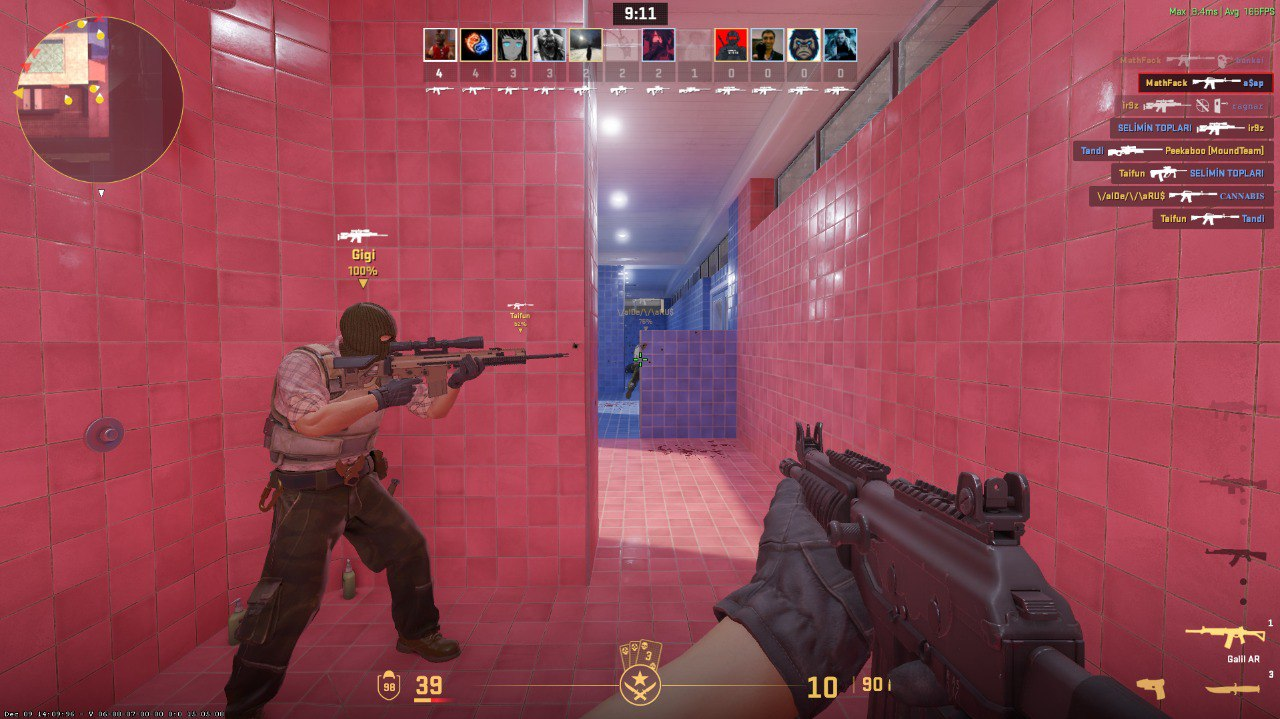
Here’s a proven set of optimizations used by players who train effectively even on budget setups.
Beyond in-game settings, how your Windows system and hardware perform has a big impact on FPS and stability. Here’s what you should do:
- Update your GPU drivers (NVIDIA / AMD / Intel) — the latest versions often bring performance improvements even for older graphics cards.
- Disable all background programs and startup apps — browsers, Discord, overlays, and unnecessary utilities can eat up resources.
- Set Windows Power Plan to “High Performance” — this lets your CPU and GPU run at full speed without saving resources.
- Consider installing CS2 on an SSD if you’re using an HDD — it significantly speeds up map loading and reduces micro-stutters when assets are being loaded.
In-Game Graphics Settings
On low-end systems, it’s better to use 4:3 or 16:9 resolutions at lower settings (e.g., 1024×768 or 1280×960).
- Pros: less GPU load, higher FPS, and enemy models are easier to spot.
- Cons: visuals may look “blocky,” but in competitive play, responsiveness matters more than fancy textures.
Tip: try a few resolution options and pick the one where enemies are easiest to distinguish without FPS drops.
Recommended Low-End Config:
- Boost Player Contrast: On
- Wait for Vertical Sync (V-Sync): Off
- Multisampling Anti-Aliasing Mode: 2X MSAA
- Global Shadow Quality: Low or Medium
- Model / Texture Detail: Low
- Texture Filtering Mode: Bilinear
- Shader Detail: Low
- Particle Detail: Low
- Ambient Occlusion: Off
- High Dynamic Range (HDR): Quality
- FidelityFX Super Resolution: Off
Shadows can sometimes reveal enemy positions before you see them. For a tactical advantage, you can set Global Shadow Quality to Medium or High. But on weak PCs, keep it at Low or Medium to avoid losing FPS.
New Feature on xplay.gg — FPS Boost!
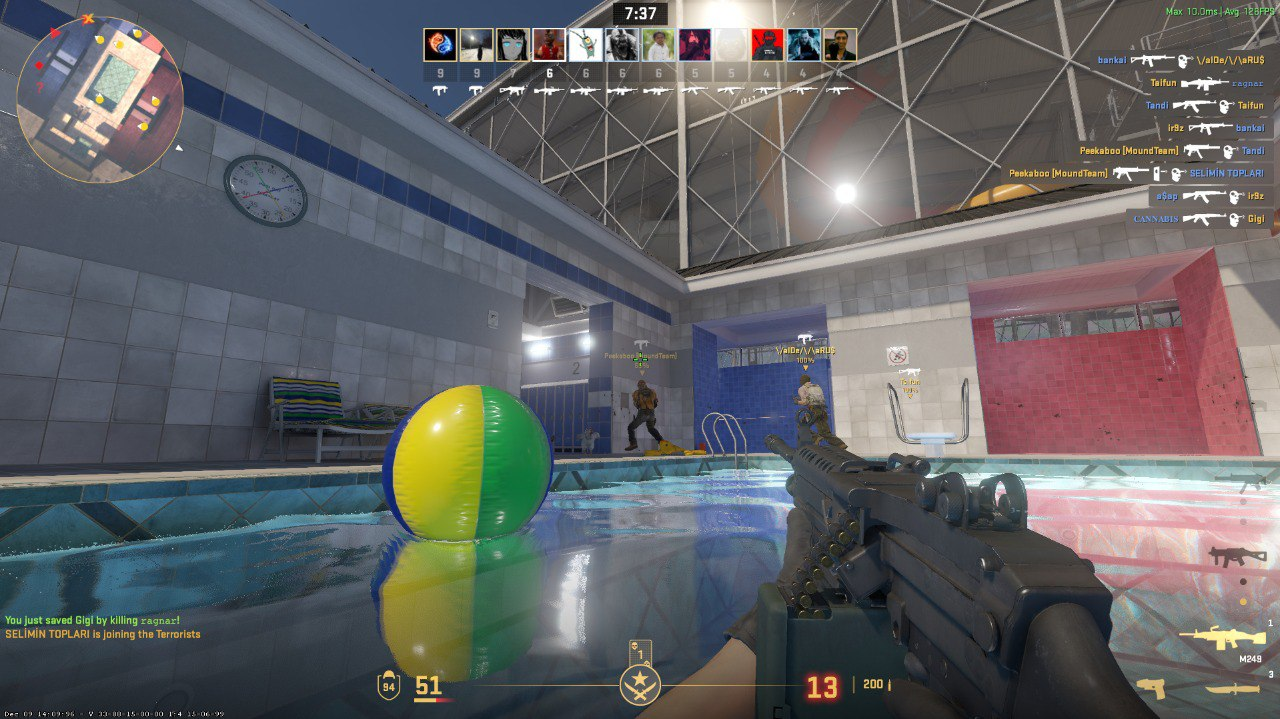
To improve FPS, the xplay.gg team developed FPS Boost, a real lifesaver for players whose PCs can’t handle CS2 at max settings.
The feature is enabled by default, but you can easily turn it off in chat with the command: !fps.
How does FPS Boost work?
The secret is simple: the game stops processing events happening far from you. You only hear footsteps and gunfire nearby — not across the entire map. This reduces system load and can increase FPS by up to +200%, depending on your hardware.
We ran a survey among the xplay.gg community:
- 99% of players noticed improved performance.
- Owners of low-end PCs with older GPUs gained 30–60 FPS.
- Mid-range systems saw increases of 60–100 FPS.
- High-end rigs recorded +100 FPS and above.
- Only 1% didn’t notice any changes — we’re carefully reviewing these cases to make FPS Boost even more stable.
Play on xplay.gg servers and not only enjoy high FPS but also win skins in the Christmas giveaway. Details in the article: Christmas Giveaway on xplay.gg.
Network Settings Tips
A stable network is just as important as FPS. To reduce lag and ping:
- Choose servers with low latency (<50ms).
- Set rate 786432, cl_cmdrate 128, cl_updaterate 128 in the console — standard CS2 settings to optimize data exchange with the server.
- Wi-Fi is no match for a cable — play via wired connection if possible.
- Close apps that heavily use the internet while gaming (torrents, streaming, etc.).
What if Nothing Helps?
Sometimes, even the most thorough optimizations and FPS Boost aren’t enough — the game still lags, stutters interfere, and your aim becomes unpredictable. If this sounds familiar, your PC is likely outdated for a comfortable CS2 experience, even on minimum settings.
In this case, consider upgrading key components. You don’t need to replace everything at once — often updating the GPU is enough, and then CPU or RAM if necessary.
What to Focus on When Upgrading:
Graphics Card (GPU)
- Minimum for smooth CS2: NVIDIA GTX 1050 Ti / AMD RX 570
- Optimal for stable 100+ FPS: NVIDIA GTX 1660 / RTX 2060, AMD RX 580 / RX 5600 XT
- Modern cards (RTX 3060 and above) provide future-proofing and allow high graphics settings.
Processor (CPU)
- Minimum: Intel Core i5‑9400 / AMD Ryzen 5 2600
- Optimal: Intel Core i5‑12400 / AMD Ryzen 5 5600 — handles Source 2 engine and multi-threaded load efficiently.
RAM
- Minimum: 8 GB (for CS2 at low settings)
- Optimal: 16 GB — ensures stable FPS and smooth background app performance.
SSD Instead of HDD
- Speeds up map loading and reduces micro-stutters when assets are being loaded.
Tip: start with upgrading your GPU — it gives the biggest FPS boost. If lag persists, then look at CPU and RAM.
Conclusion
Even with a budget PC, CS2 is still accessible for training and competitive play. The key is to properly optimize graphics, network, and system settings, and use features like FPS Boost on xplay.gg when needed.