
ZywOo CS2 Settings (2026): Crosshair, Config, Resolution & Sensitivity

You copy ZywOo's CS2 settings, queue a match, and suddenly every flick feels late or every spray drifts past the target. The values may be accurate, but changing sensitivity, crosshair, resolution, and video settings together leaves you with no idea which change caused the problem.
ZywOo currently uses 400 DPI with 2.00 in-game sensitivity for 800 eDPI, 1280x960 stretched, and a compact static white crosshair. That setup is a strong starting point, not a shortcut to his mechanics or decision-making.
This guide lists his mouse, crosshair, viewmodel, video, monitor, PC, and peripheral settings. It also gives you one controlled routine for testing each change in real CS2 fights, so you can keep only the values that solve a clear problem.
ZywOo CS2 Settings at a Glance
Start here if you only need the core values. The later sections explain what each choice changes and which parts should stay personal.
Who Is ZywOo?
Mathieu "ZywOo" Herbaut is the French AWPer for Team Vitality. After finishing first in HLTV's 2025 player ranking, he became the first player to win the Player of the Year award four times.
His setup attracts attention because it combines a controlled 800 eDPI with a stretched 4:3 image, but the useful question is how those choices affect your own first bullet, angle clearing, and visibility.

Should You Copy ZywOo's CS2 Settings?
Copy one category, not the entire setup. Start with the value tied to a clear problem: sensitivity if you keep passing targets, crosshair if the center disappears, or resolution if you want larger-looking models. Leave everything else unchanged while you compare the result.
Give sensitivity and crosshair changes several focused sessions. Resolution needs longer because it changes horizontal view and perceived movement speed. A value earns its place when the same fight becomes easier to read or repeat, not when one scoreboard happens to look good.
ZywOo Mouse and Sensitivity Settings
- DPI: 400
- In-game sensitivity: 2.00
- eDPI: 800
- Zoom sensitivity: 1.00
- Windows sensitivity: 6
- Polling rate: 1000Hz
At 800 eDPI, the mouse stays controlled through rifle sprays while remaining fast enough for AWP corrections and target switches. It sits in a practical middle ground, but it can feel heavy if you are moving down from a very fast setup.
Judge the value by the miss pattern. Repeated overshoots point toward excessive speed. Make small adjustments only after the same error appears across several fights.
ZywOo CS2 Crosshair Settings and Code
ZywOo uses a compact Classic Static crosshair. It doesn't expand while moving or spraying, so the center remains predictable during rifle fights and scoped follow-ups.
- Style: Classic Static
- Color: Custom white
- RGB: 255 / 255 / 255
- Alpha: 255
- Thickness: 1
- Length: 1
- Gap: -5
- Outline: Off
- Dot: Off
- T Style: Off
- Follow Recoil: Off
- Deployed Weapon Gap: Off
- Sniper Width: 0
ZywOo Crosshair Code
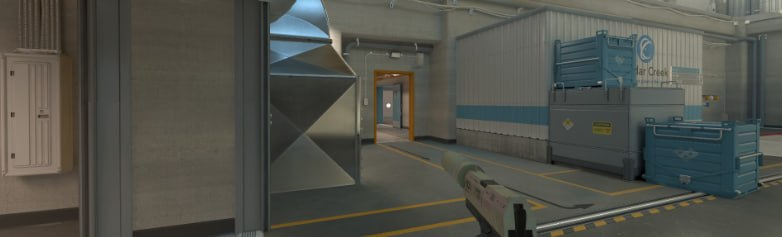
Open Settings -> Game -> Crosshair, select Share or Import, paste the code CSGO-CtrmB-erJwH-kJ3Jo-pRjZA-3yOtQ, and confirm. Test it before changing the shape. If the white center disappears against a bright wall or flash effect, adjust the color first while keeping the same length, gap, and thickness.
ZywOo Resolution and Video Settings
Display Settings
- Resolution: 1280x960
- Aspect ratio: 4:3
- Scaling mode: Stretched
- Display mode: Fullscreen
- Brightness: 93%
A stretched 4:3 image makes player models look wider on the screen, but it doesn't change their hitboxes. The trade-off is a narrower horizontal view and faster-looking movement across the display. Keep it only if the larger image helps more than the lost peripheral information hurts.
Advanced Video Settings
- Boost Player Contrast: Enabled
- V-Sync: Disabled
- NVIDIA Reflex Low Latency: Enabled
- NVIDIA G-Sync: Disabled
- Maximum FPS in game: 400
- Multisampling Anti-Aliasing: 4x MSAA
- Global Shadow Quality: High
- Dynamic Shadows: All
- Model / Texture Detail: High
- Texture Filtering Mode: Anisotropic 4x
- Shader Detail: High
- Particle Detail: High
- Ambient Occlusion: Medium
- High Dynamic Range: Quality
- FidelityFX Super Resolution: Disabled - Highest Quality
These values suit a high-end PC. Stable frame pacing matters more than copying every quality option, especially during smoke executes and multi-player fights. If your system struggles, lower one demanding setting and compare the same round before touching the next one.
ZywOo Config, Viewmodel, HUD, and Radar Settings
The viewmodel, HUD, and radar don't change raw aim, but they affect weapon position and how quickly you read information. Copy the parts that clean up your screen, then keep any binds and radar habits that already work for you.
Viewmodel
- Viewmodel FOV: 68
- Offset X: 2.5
- Offset Y: 0
- Offset Z: -1.5
- Preset position: 1
HUD and Radar
- HUD scale: 1
- HUD color: Team Color
- Radar centers player: Yes
- Radar rotates: Yes
- Square radar with scoreboard: Yes
- Radar HUD size: 1
- Radar map zoom: 0.4
Launch Options and Config Download
Listed launch options: -novid -tickrate 128 -allow_third_party_software
The -tickrate 128 argument doesn't convert Premier or another Valve server into 128-tick CS2. Matchmaking controls its own server configuration and uses CS2's subtick input system, so treat the line as part of the published profile rather than a performance upgrade.
Back up your autoexec, then download the current ZywOo config from xplay.gg. Compare commands before overwriting the file because a full import can replace binds, HUD choices, radar preferences, and launch options. DPI and Windows sensitivity still need to be set outside CS2.
ZywOo Monitor, NVIDIA Settings, PC Specs, and Gear
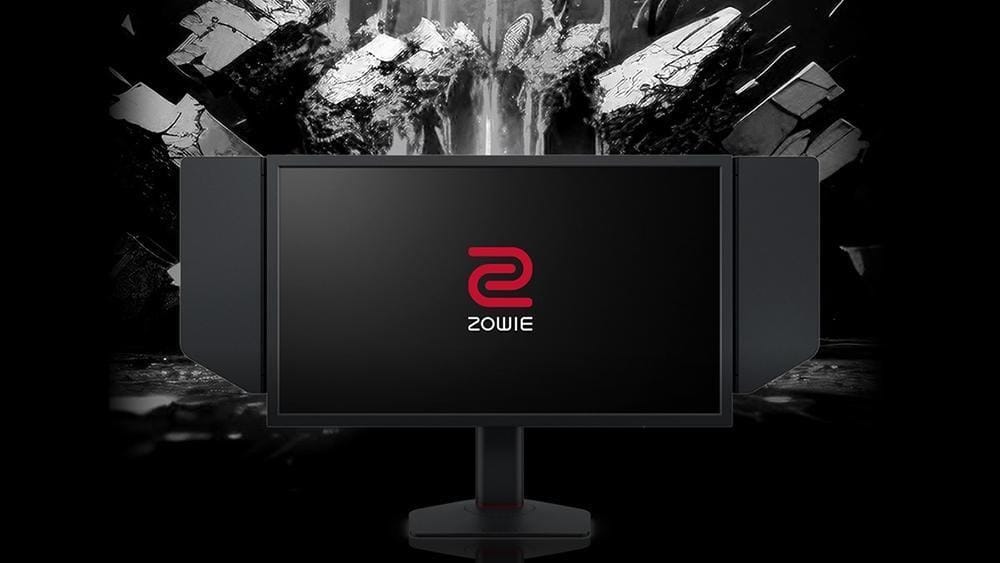
ZywOo uses the ZOWIE XL2586X+, a 600Hz Fast-TN display. Monitor values never transfer perfectly between panels, so adjust them for your room lighting and viewing distance instead of copying the numbers blindly.
Monitor and NVIDIA Settings
- DyAc: Premium
- Black eQualizer: 12
- Color Vibrance: 20
- Low Blue Light: 0
- Picture Mode: FPS 1
- Brightness: 83
- Contrast: 50
- Sharpness: 10
- Gamma: 3
- Color Temperature: User Define - R100 / G100 / B100
- AMA: Premium
- NVIDIA Digital Vibrance: 50%
PC Specifications and Peripherals
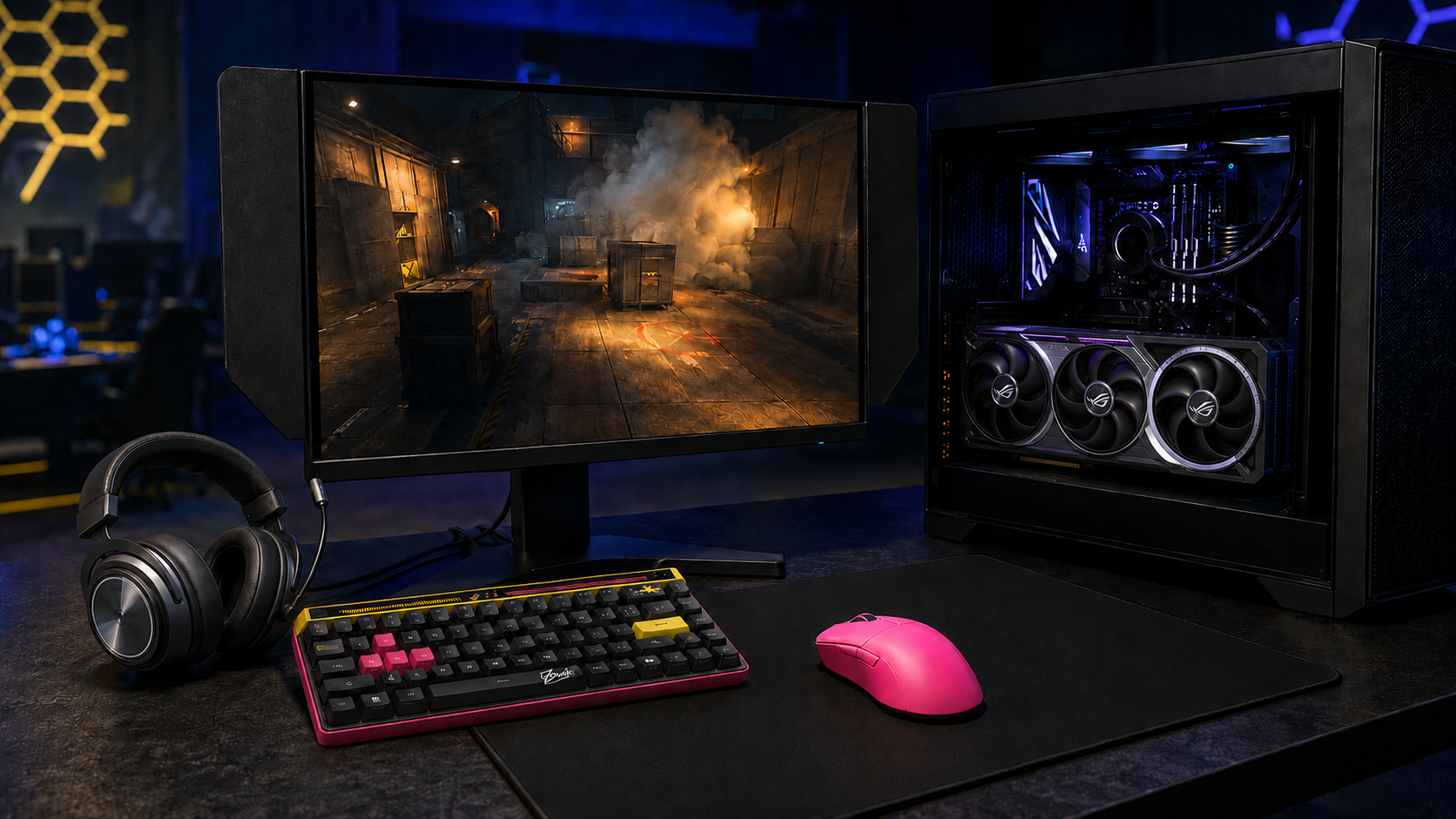
- CPU: AMD Ryzen 7 9800X3D
- GPU: NVIDIA GeForce RTX 5080
- Monitor: ZOWIE XL2586X+ at 600Hz
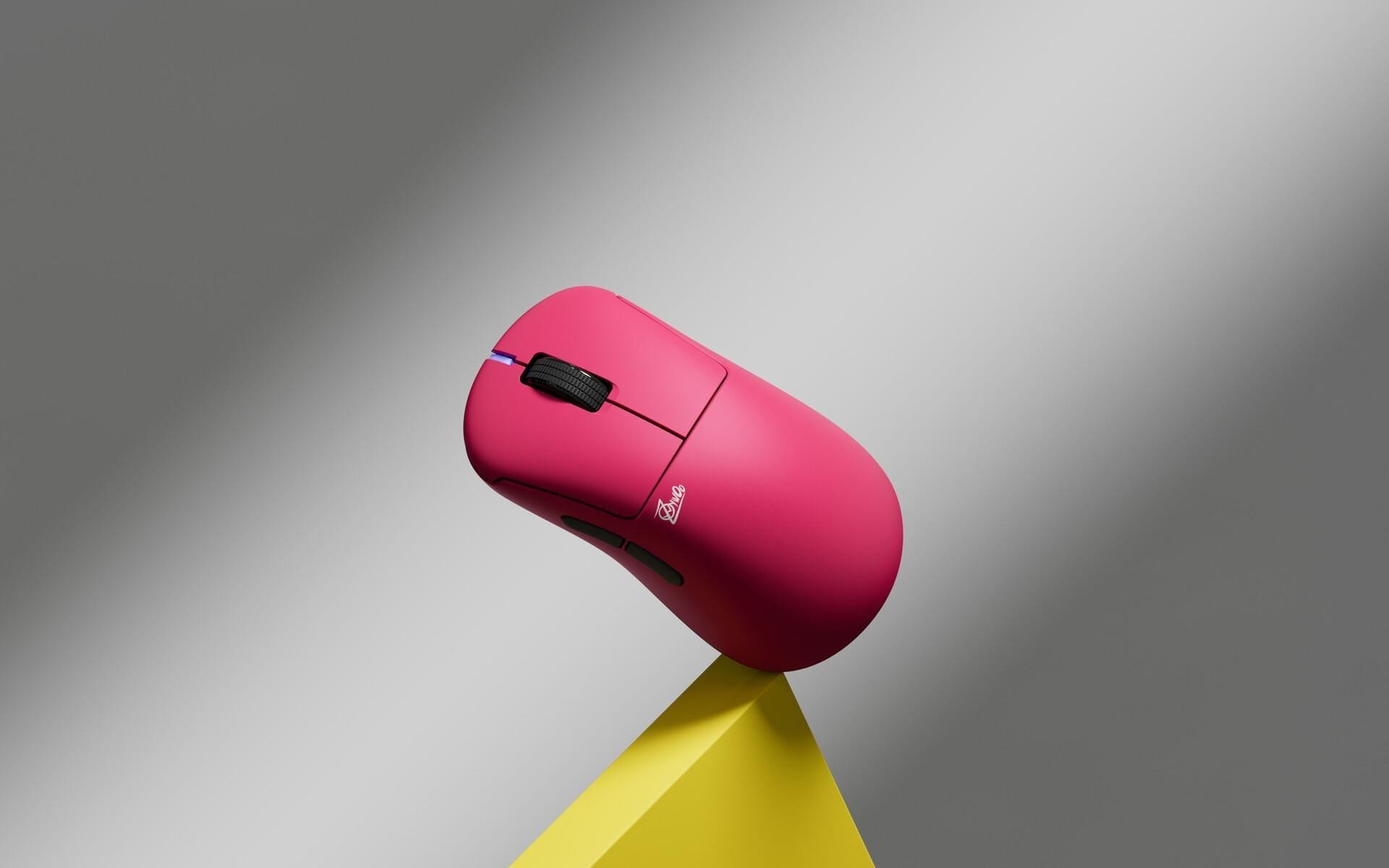
- Mouse: Pulsar ZywOo The Chosen Mouse Gen.2
- Keyboard: ASUS ROG Falchion Ace HFX ZywOo Edition
- Headset: ASUS ROG Pelta
- Mousepad: The Chosen Mousepad
The devices list explains why the high video preset and 600Hz display make sense for his setup. On your PC, prioritize stable frame pacing. Mouse shape, grip comfort, usable pad space, and a headset you can wear through a full match matter more than matching a product name.
Common Mistakes When Copying ZywOo's Settings
- Changing everything at once. If aim, visibility, and frame pacing all feel different, you can't isolate the cause. Test one category and keep a record of the result.
- Importing the config without a backup. Save your autoexec and compare commands before replacing binds, radar settings, or launch options that already fit your game.
- Treating 4:3 stretched as a hitbox advantage. The image looks wider, but hit registration stays the same. You're trading horizontal information for a different visual scale.
- Forcing his graphics or monitor values onto different hardware. A weaker PC or another panel can produce worse frame time, contrast, and visibility with the same numbers.
- Using one K/D as the verdict. Track repeated overshoots, lost crosshair visibility, missed edge information, or frame-time drops. The scoreboard cannot identify which setting caused the issue.
How to Test ZywOo's CS2 Settings on xplay.gg
Match the server to the setting under review. Each row below gives the setting one clear job, one environment, and one decision signal.
Use Challenges and xCoins as a Session Endpoint
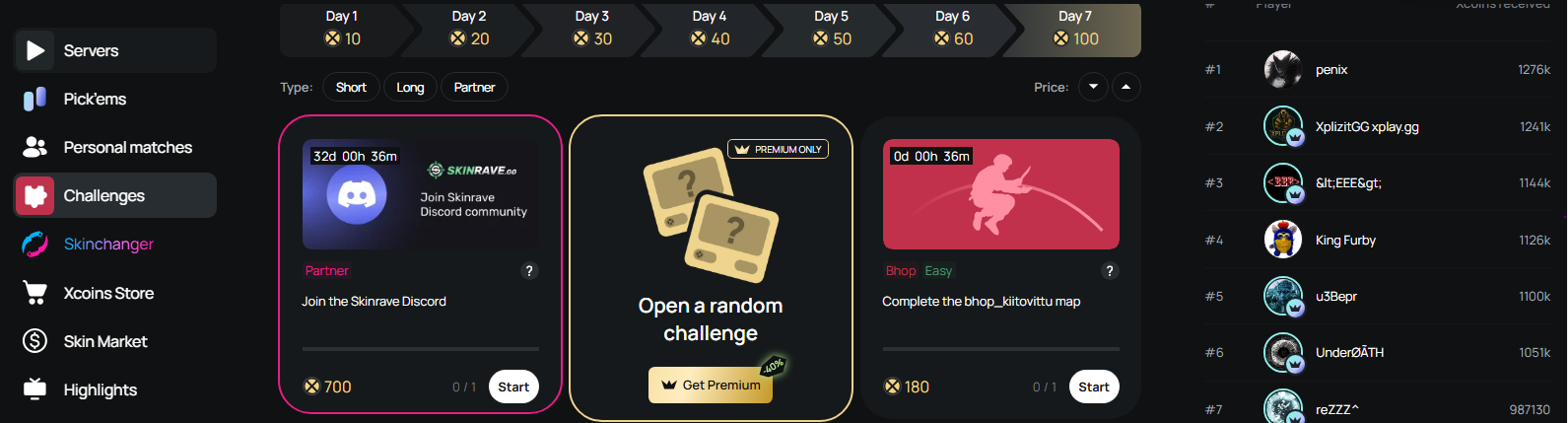
Before you queue, open the active xplay.gg Challenges and pick a task that overlaps with the setting you already planned to test. An eligible Deathmatch or Retake objective gives the session a clear endpoint and awards xcoins as a bonus. If the task sends you toward another weapon, mode, or goal, save it for a different day.
Start with the setting connected to your biggest problem, join the matching xplay.gg mode, and record one repeatable result. ZywOo's config gives you a proven reference, but the final setup should still fit your mouse control, screen, PC, and the fights you actually take.