
CS2 Dark Mode on xplay.gg: How to Play and Customize It

Dark Mode turns your chosen CS2 map pitch black and lets players use flashlights. A corner you usually clear at a glance can now hide an opponent until a beam sweeps across it.
Play with friends in xplay.gg Personal Matches. Before you start, choose a format for your group, decide who gets a flashlight, and adjust its range, brightness, width, and color.
How Dark Mode Changes a CS2 Round
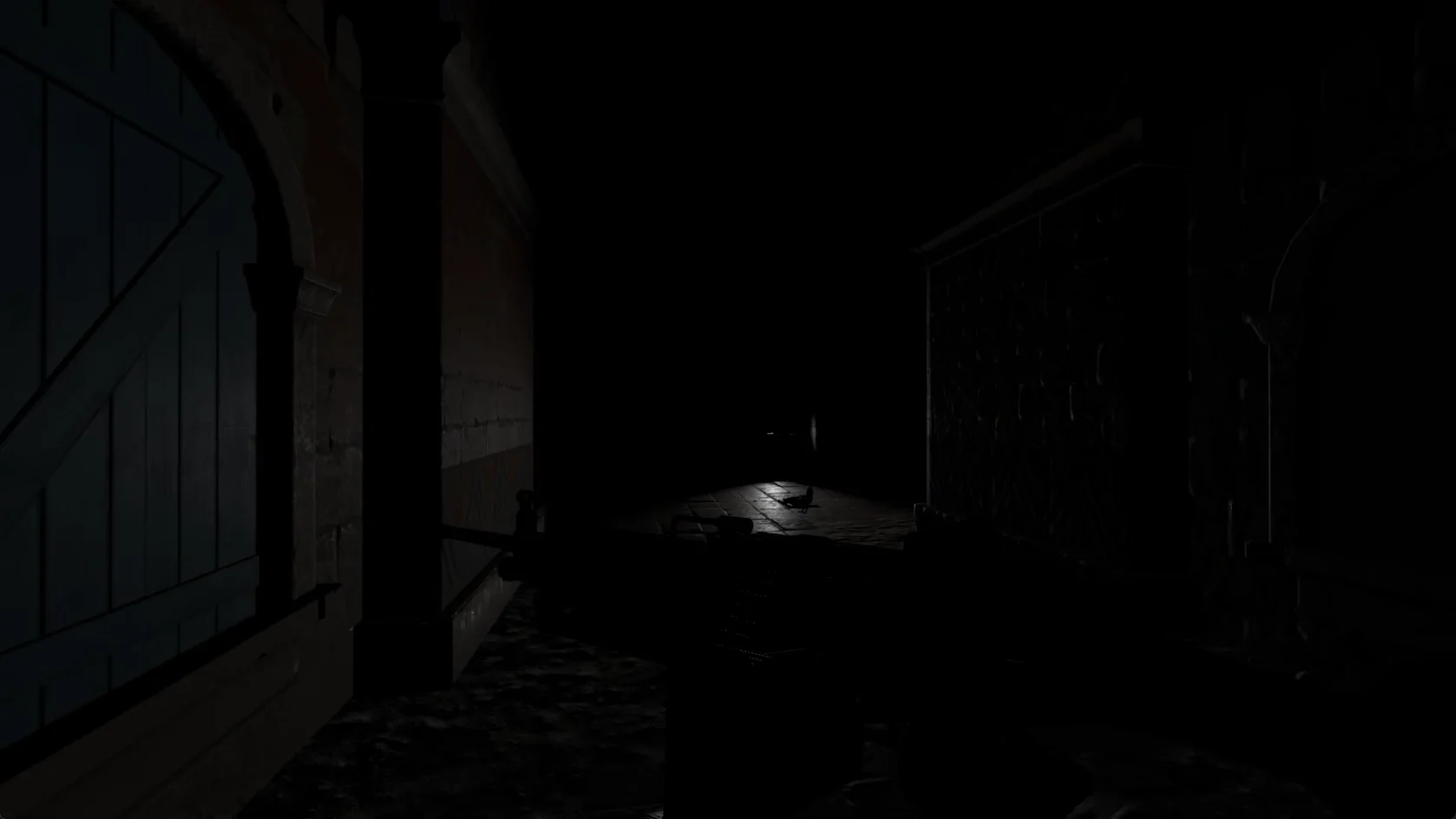
CS2 Dark Mode gameplay showing a flashlight illuminating the map
Your flashlight follows your view, lighting the angle you are checking. Other players can see the beam too, so using it to clear a position also gives opponents a clue to where you are.
With the map’s normal lighting switched off, check doorways and cover by sweeping the light across them. Watch for opponents’ flashlights as you move. Where a beam starts can help you locate the player holding it.
Players cast no shadows, removing a clue that can normally reveal someone around a corner. Unlit areas offer places to hide, though another player’s flashlight can still pick you out.
How Many Players Can Play CS2 Dark Mode
Dark Mode on xplay.gg supports formats from 1v1 to 5v5, covering 2–10 players across both teams. Choose a duel for two, 2v2–4v4 for groups of four, six, or eight, or a full 5v5 when you have ten players.
With everyone’s flashlight switched on, larger lobbies put more beams into play. The host can limit who gets a flashlight, so the number of visible beams also depends on the mod settings.
How to Customize Dark Mode in Your Lobby
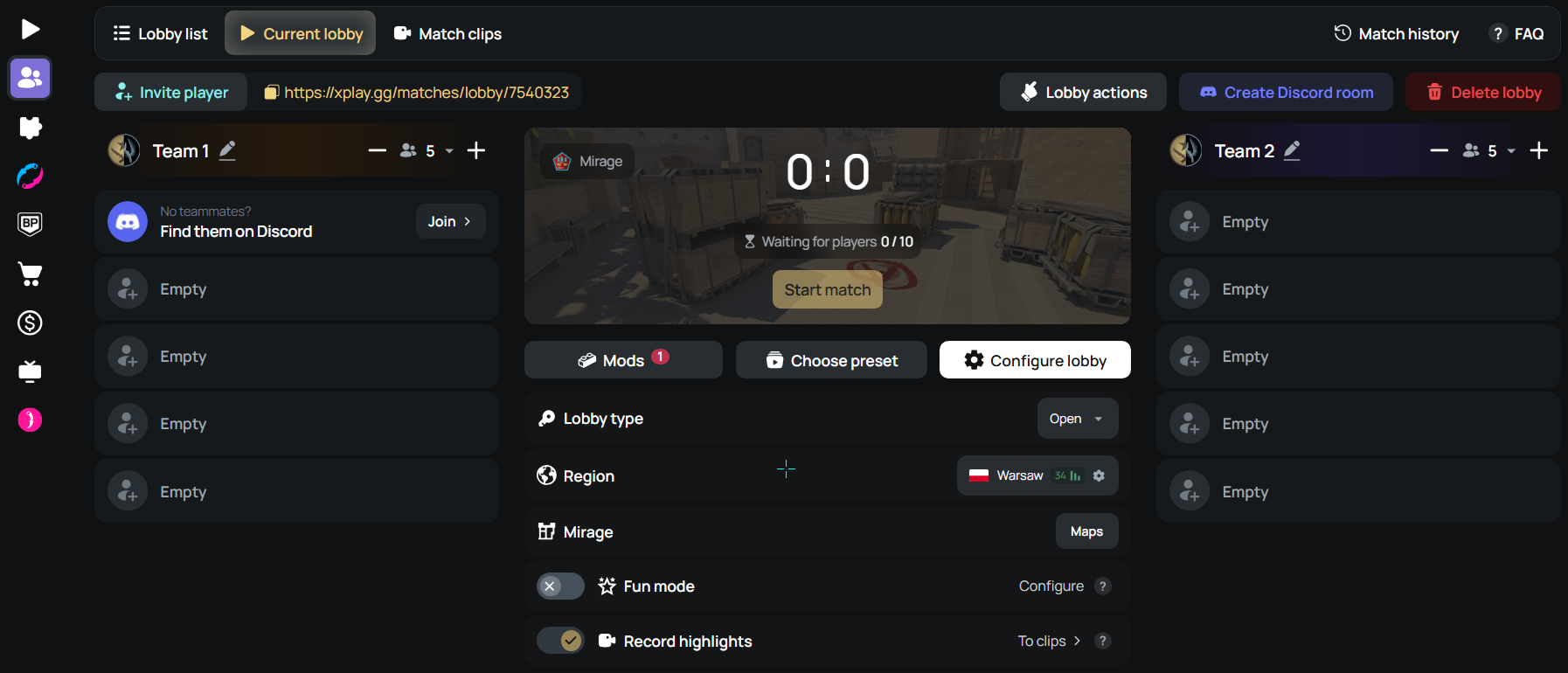
The lobby host controls Dark Mode’s settings. Before starting the match, open the Mods tab in your xplay.gg Personal Match lobby and select Dark Mode.
Who Gets a Flashlight
Choose which players get a flashlight:
- Everyone: give a flashlight to every player.
- Terrorists or Counter-Terrorists: give flashlights to one in-game side. This setting follows side swaps.
- A lobby team: assign flashlights to a team selected in the lobby.
- Random players: set how many players receive flashlights, with recipients chosen randomly each round.
- Chosen players: choose individual players from the list.
How to Turn the Flashlight On and Off
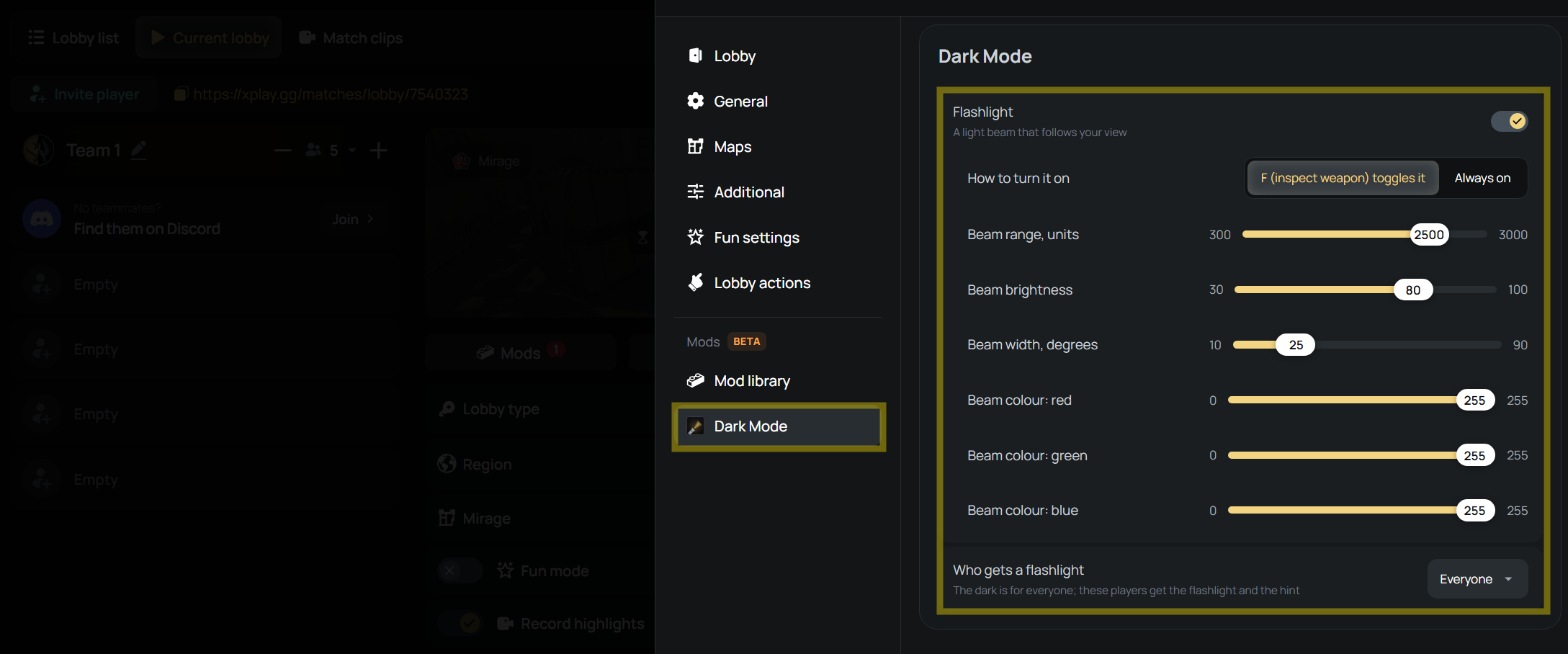
The Flashlight setting enables lights for the selected players or disables them entirely. With it disabled, the map stays dark and everyone plays without a flashlight.
When flashlights are enabled, choose one of two control modes:
- F toggle: players press F, the weapon-inspect key, to switch their flashlight on or off.
- Always on: flashlights stay lit and can't be switched off.
In toggle mode, each player’s on/off choice is remembered between rounds and after respawning. The toggle click is audible only to the player using it.
How to Adjust the Flashlight Beam
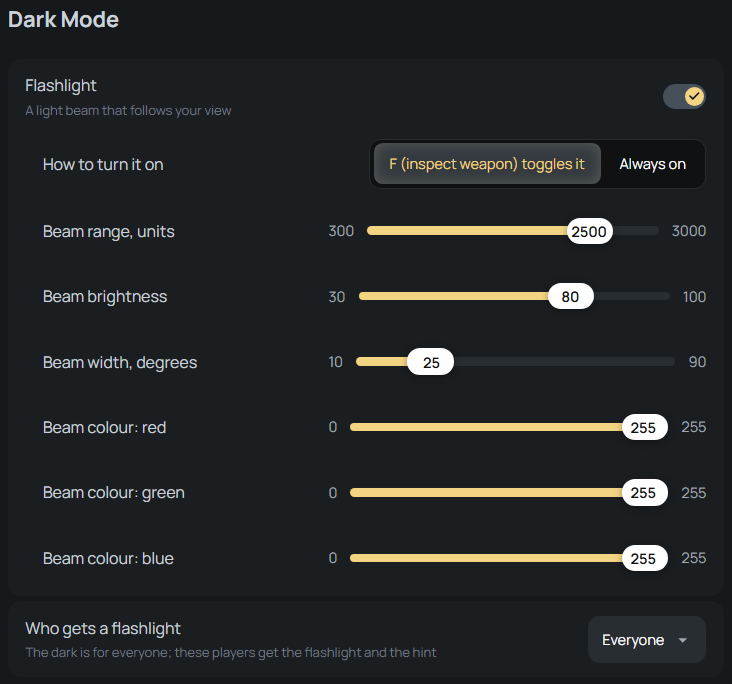
A longer, wider beam lights more of the map, while a shorter, narrower beam leaves more areas in darkness. You can adjust both its coverage and appearance:
- Beam range: Set how far the light reaches, from 300 to 3,000 game units.
- Beam brightness: Adjust how bright the beam appears on a scale of 30–100.
- Beam width: Choose an angle from 10° to 90°, ranging from a narrow cone to a broad spread.
- Beam color: Set the red, green, and blue channels individually from 0 to 255. Set all three to 255 for white light.
How to Start a Dark Mode Match on xplay.gg
You need CS2 and a Steam account. Dark Mode runs on the xplay.gg server, so there is no separate mod to install.
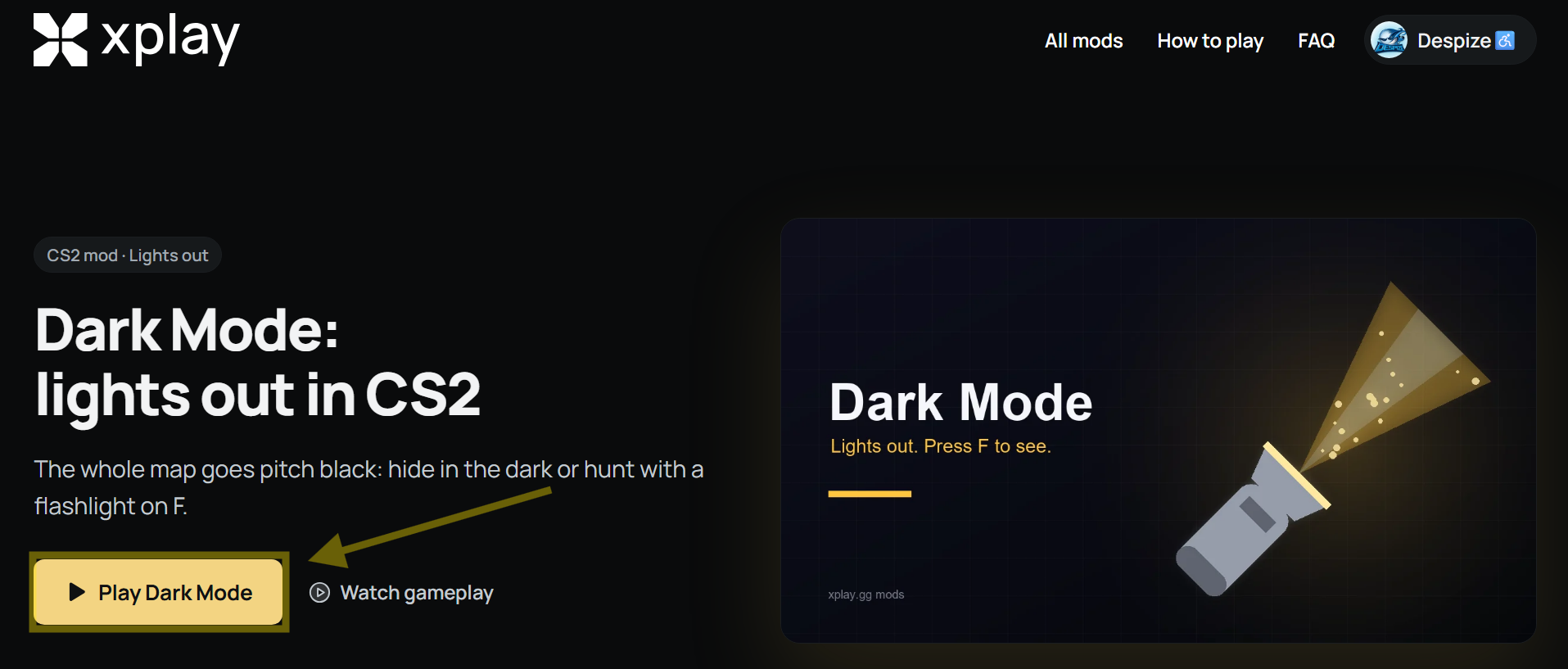
1. Open Dark Mode on xplay.gg and select the play button.
2. Sign in through Steam if prompted. xplay.gg creates a Personal Match lobby with Dark Mode enabled and selects the region with the lowest ping. If your own lobby is already open, the mod activates there instead.
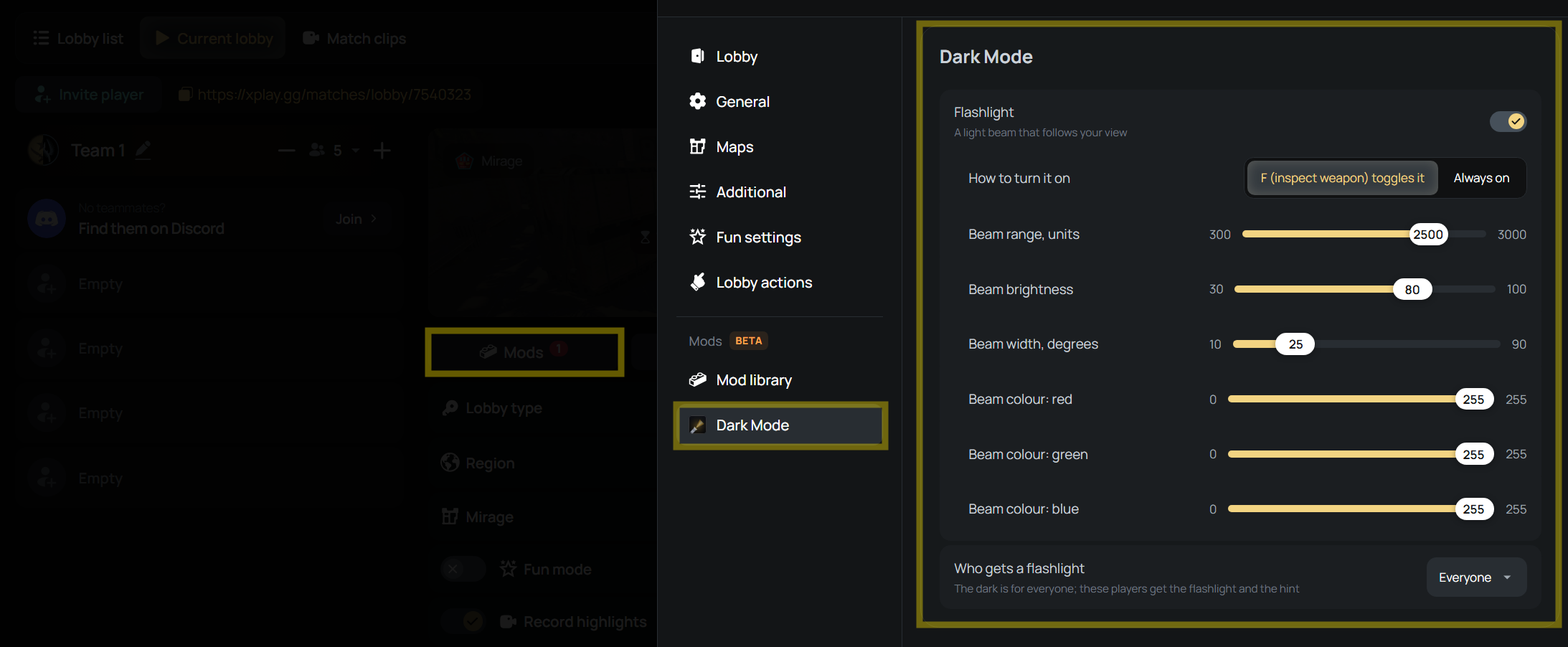
3. Choose a map in the lobby and set the match format to suit your group.
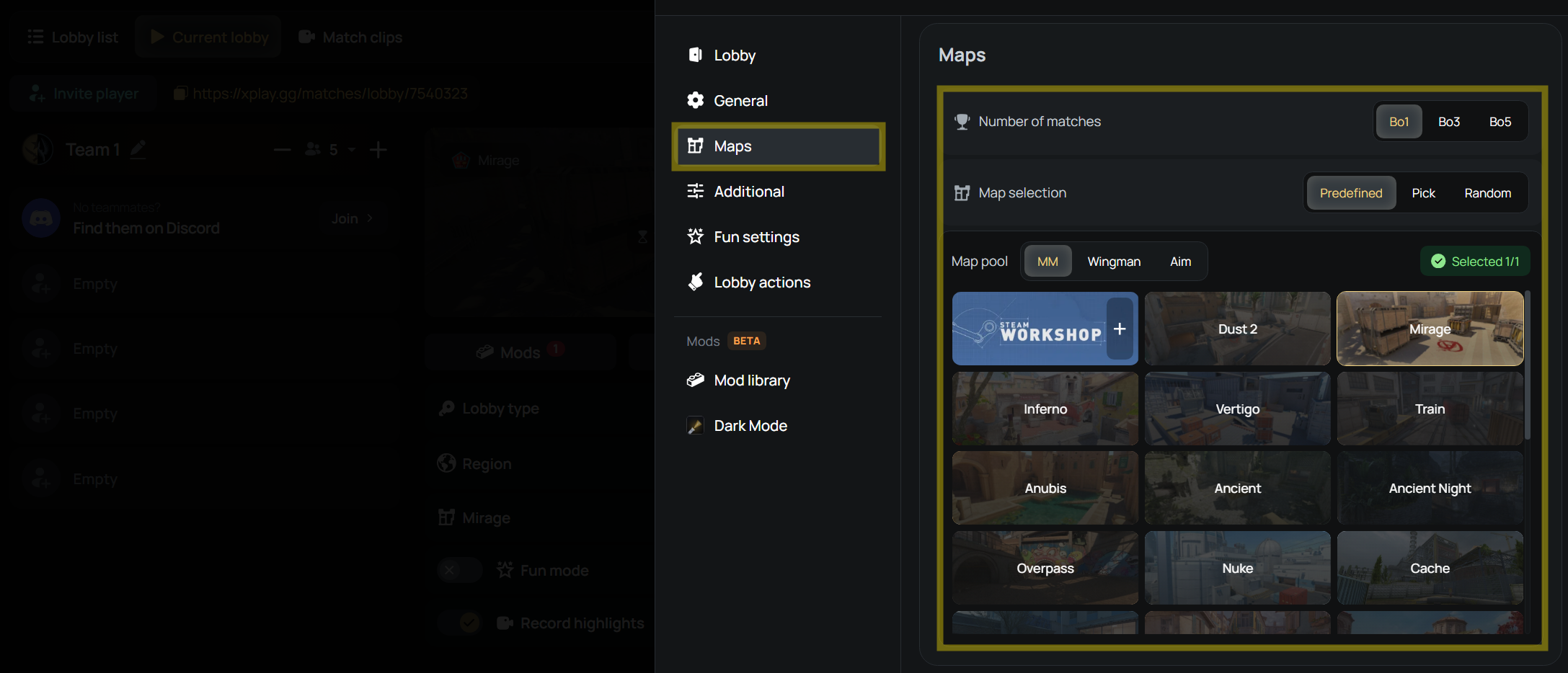
4. Adjust the flashlight settings under Mods → Dark Mode.
5. Share the lobby link with your friends so they can join.
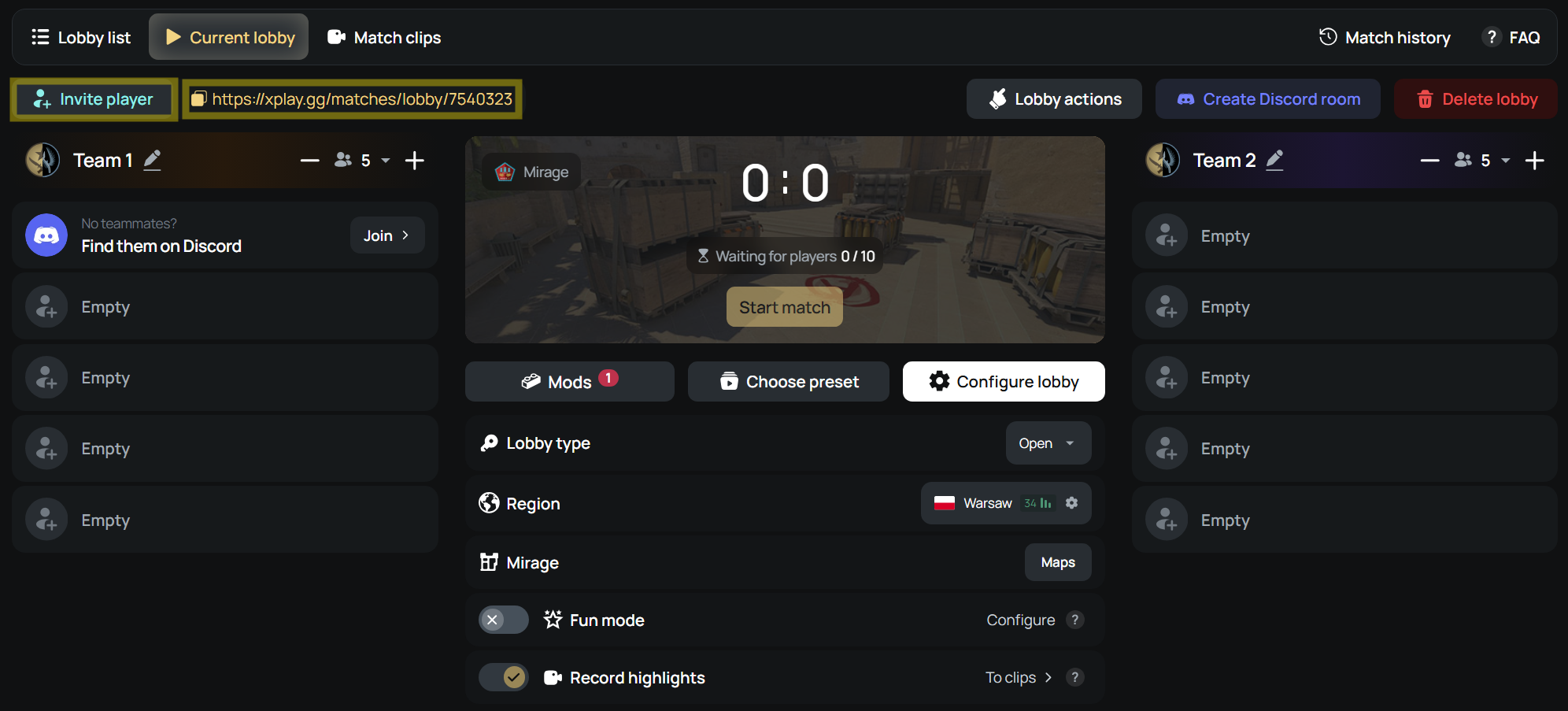
6. Select Start Match once everyone has joined the lobby.
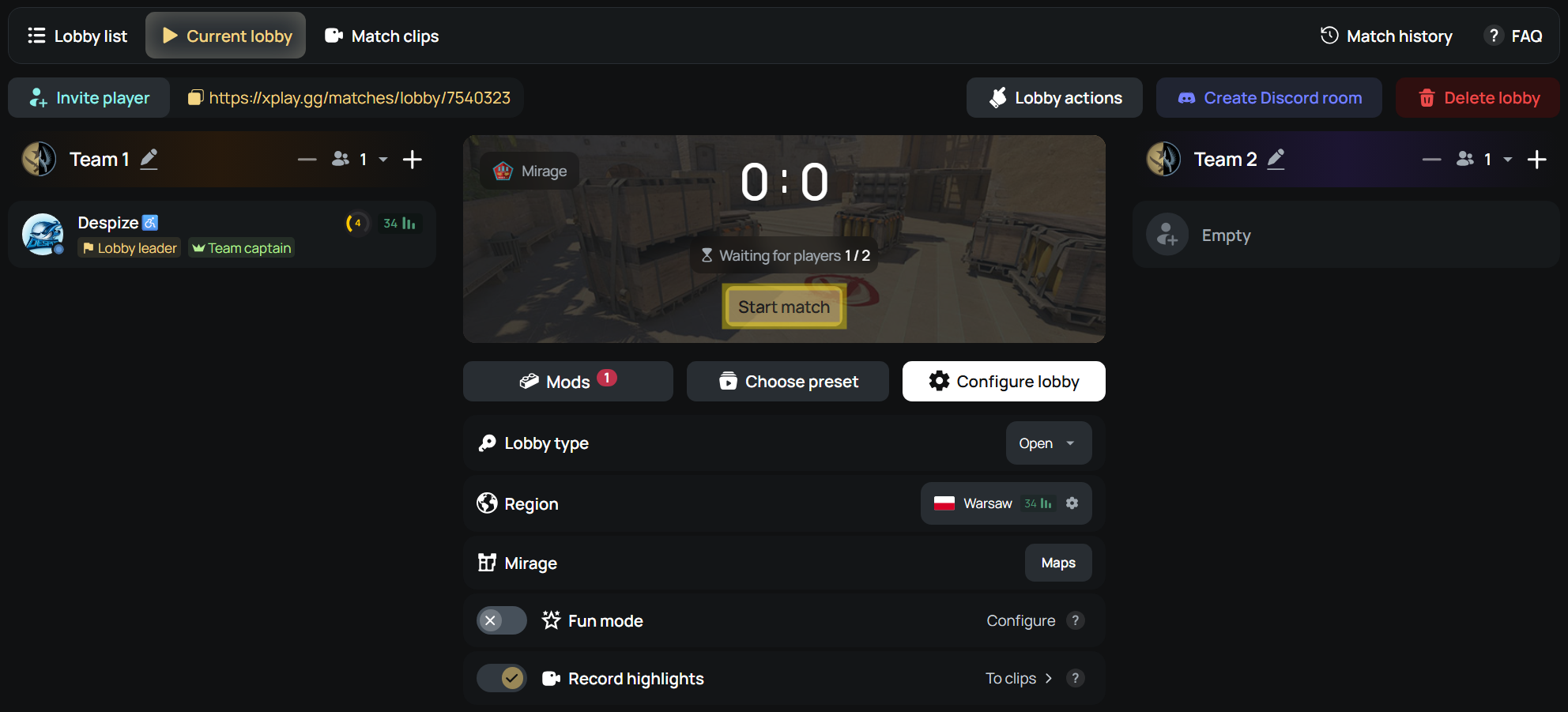
7. Connect from CS2 using the match server’s IP address and port.
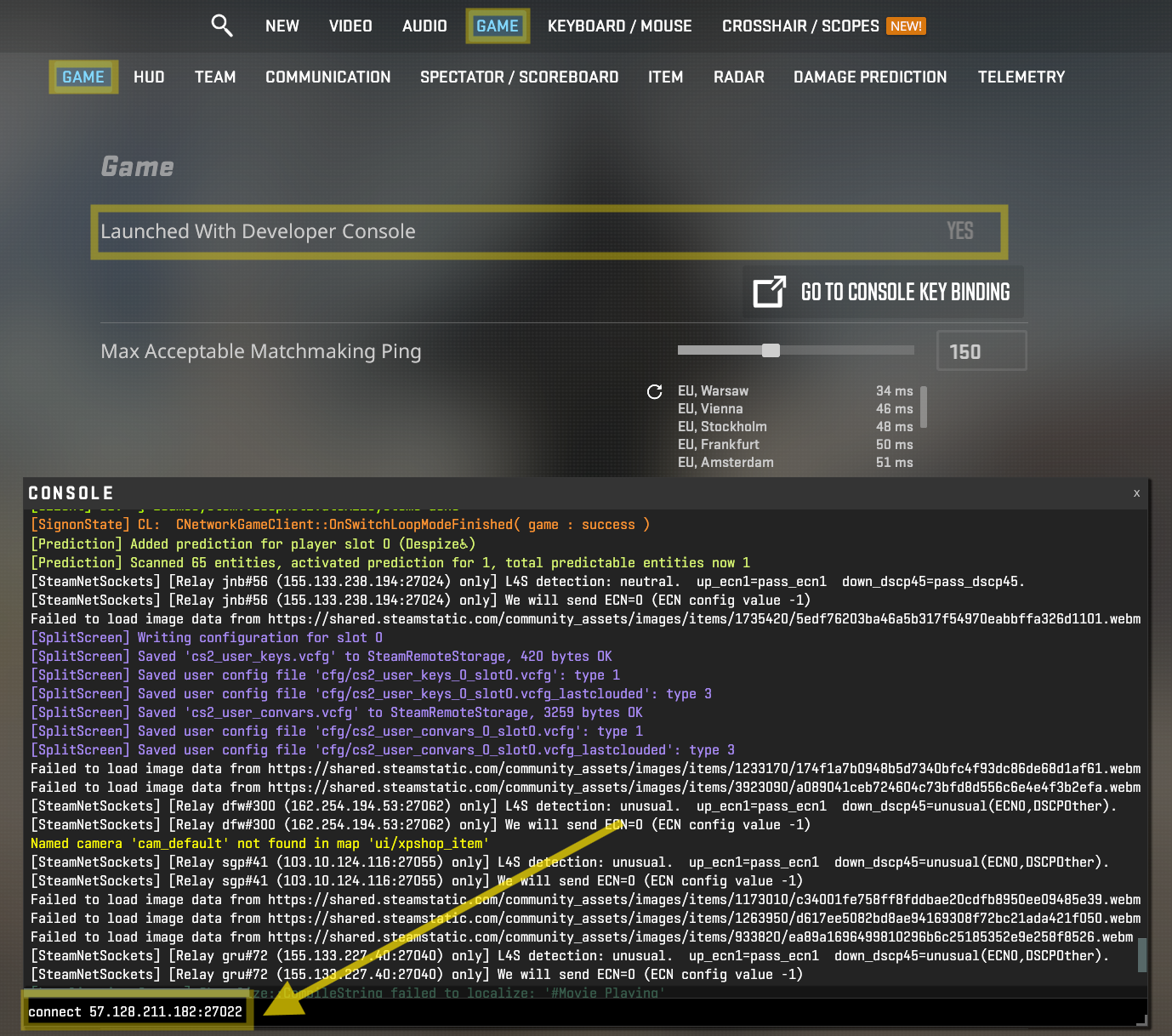
To join manually, set Settings > Game > Enable Developer Console (~) to Yes. Press ~ and enter connect IP:PORT, replacing IP:PORT with your match’s actual server address (for example: connect 57.128.211.182:27022), then press Enter. See xplay.gg’s CS2 server connection guide for this method.
Dark Mode Compatibility and Personal Match Limitations
You can add other mods alongside Dark Mode through the lobby’s Mods tab. If two selected mods can't run together, the lobby displays a compatibility warning before the match starts. For an overview of the available modes, see xplay.gg’s CS2 custom modes guide.
While Dark Mode is enabled, the built-in Wallhack lobby setting is hidden and inactive.
Personal Matches on xplay.gg are separate from Valve matchmaking. Playing Dark Mode here has no effect on your Premier CS Rating or Competitive Skill Groups.
Conclusion
For your first game, try giving everyone a flashlight with F toggle enabled. Play a few rounds to get used to the darkness, then adjust one beam setting at a time to see what works for your group.
Start your Dark Mode match with friends on xplay.gg.