
Fix CS2 Server Is Reserved for Game Lobby (2026)

The error message "Server reserved for game lobby" is frustrating and prevents you from enjoying your CS2 game.
If this has happened to you, don't worry; you are not alone. This error message can occur for a variety of reasons, but the good news is that there are a few solutions we can offer you to fix it. It's not a hundred percent method, but for the most part, these tips work.
Highlights
- Detailed information on how to solve the problem Server is Reserved for Game Lobby Error
What Does “Server is Reserved for Game Lobby” Mean in CS2?
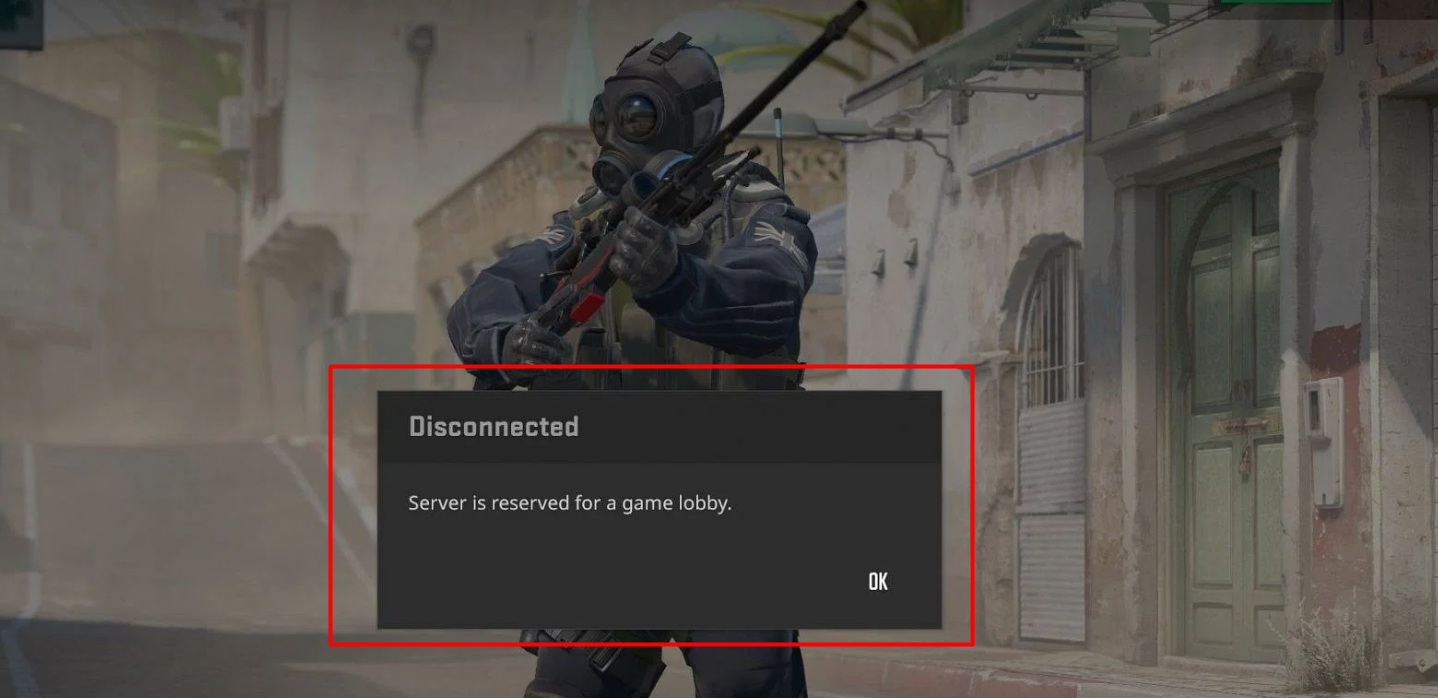
This error appears when you try to join a match, but the server is already assigned to a specific game lobby or has reserved space for players who are already in the queue.
In simple terms, CS2 has already “locked” that server for another group of players, and your client cannot take an open slot at that moment.
This usually happens because the matchmaking system is syncing players into active lobbies. If the server is already processing a full lobby or is in the final stage of starting a match, it temporarily stops accepting new connections.
As a result, your game cannot join that server until a slot becomes available again or a new server is assigned to your queue.
Other Common Causes of the Error
There are several reasons for this error message. Some factors we can influence, and others are beyond our control. The error appears when you are in a game and the servers are down. This could be due to server maintenance, updates, or a regular server crash due to too many players.
Sometimes, it happens when you invite friends, but they don't accept the invitation, and you start the game alone. We'll get acquainted with possible solutions to the problem below.
If you’re dealing with repeated matchmaking issues or just want a more stable environment to play CS2, xplay.gg offers community servers where you can jump into different game modes without waiting for official matchmaking.
Consequences of the Server is Reserved for Game Lobby Error
In most cases, this error simply prevents you from joining a match and forces you back to the main menu or matchmaking queue. However, depending on when it happens, it can have a few additional consequences that affect your gameplay experience.
The most common outcome is a failed matchmaking attempt, where CS2 cannot place you into a server and you are required to queue again. This can be frustrating, especially if you’ve already waited in line for a match.
But players report being unable to play and getting kicked or banned. The error can occur in casual and competitive games and will ban a player for 10 minutes. You cannot enter the game during this time, but the error will not appear when you return.
Step-by-Step Fix for CS2 “Server Reserved for Game Lobby” Error
Check Your Internet Connection
Yes, this advice is silly, but you must first check your internet connection and speed.
Restart your router and make sure no heavy downloads or streaming services are consuming your bandwidth. If possible, switch to a wired Ethernet connection instead of Wi-Fi, as it provides a more stable connection for online gaming.
You can also read this guide to understand how network performance directly affects gameplay and hit registration in CS2: CS2 Lag, Packet Loss & Hit-Reg: Practical Fixes.
Update Network Drivers
Also, check your network drivers for updates.Outdated or corrupted network drivers can interfere with your ability to connect to CS2 servers.
Go to your network adapter or motherboard manufacturer’s website and download the latest driver version. After installing it, restart your PC to apply the changes.
This ensures your system is properly communicating with Steam’s matchmaking services.
Restart CS2 and the Steam Client
The first and simplest step is to completely restart both the game and Steam. Don’t just close CS2 — make sure it is fully shut down.
Open Task Manager and check that there are no active CS2 or Steam processes running in the background. Once everything is closed, restart Steam first, then launch CS2 again.
This helps reset your connection to matchmaking servers and often clears temporary sync issues that cause the error.
Requeue After a Restart
After restarting the game, don’t rush into clicking “Play” multiple times. Instead, queue for a match once and wait a few seconds to let the matchmaking system properly assign you to a server.
If the error still appears, cancel the queue and try again after a short pause. In many cases, simply giving the system a fresh matchmaking request resolves the issue.
We have also attached a helpful video to help sort out the problem.
Leave and Recreate Your Lobby
If you were in the lobby before encountering the error, leave before trying to get in line again. Sometimes, lobbies can cause glitches and prevent you from joining a new match.
For example, inviting a friend to a lobby and they don't accept the invitation can cause an error. Exiting the lobby and rejoining the queue may solve the problem. This advice is also given on Reddit.
Check CS2 Server Status
Before returning to the game, you should check the server status on SteamStat.us or SteamDB and also check discussions on Reddit or Steam forums.
If many players are reporting the same issue, it usually means the problem is global, and the only solution is to wait until Valve stabilizes the servers.
While official servers may sometimes be unstable, you can still continue playing on community platforms like xplay.gg, where players join custom CS2 modes, earn xcoins, and stay active even when matchmaking is down.
Verify CS2 Game Files
If none of the above steps worked, try checking the game files. To do this, go to your Steam library, right-click on Counter-Strike 2, and select Properties > Local Files > Verify Game File Integrity. This will check for corrupted or missing game files and download them if necessary.
Adjust Network and Firewall Settings
If the issue persists, your system’s network configuration may be blocking CS2 connections.
You can try the following:
- Set your DNS to Google DNS (8.8.8.8 and 8.8.4.4)
- Allow CS2 through Windows Firewall exceptions
- Temporarily disable antivirus software to test if it is interfering
- Enable QoS (Quality of Service) on your router to prioritize gaming traffic
These steps help ensure CS2 traffic is not being blocked or delayed by your system or network.
If you want to go deeper into ping optimization and server selection, this guide might be useful: CS2 Low-Ping Servers: How to Pick the Nearest Region.
Wait for Server Recovery
Sometimes the issue is completely out of your control.
If CS2 servers are overloaded, under maintenance, or experiencing instability, matchmaking will not work properly no matter what you do. In this case, the only real solution is to wait until the servers recover and try again later.
Don't Refuse a Match
If you encounter this error during a competitive match, do not abandon the match. Abandoning the match may result in a temporary lockout. Instead, first, try the above steps to reconnect to the game.
Reinstall CS2 (Last Resort)
If none of the previous steps helped, you may need to reinstall the game.
Uninstall Counter-Strike 2 from Steam, then download and install it again. This removes any deeply corrupted files or configuration issues that might be affecting matchmaking.
Contact Steam Support
If the error continues even after a full reinstall, it may be a deeper account or system-related issue.
In this case, contact Steam Support and describe the problem in detail. They can check your account status and connection logs to identify the cause.
FAQ
Why does CS2 say “Server is reserved for game lobby”?
This happens when the server is already assigned to another lobby or is full. It can also be caused by Steam or matchmaking issues.
How do I fix the CS2 server reserved error quickly?
Restart CS2 and Steam, leave your lobby, and requeue. In most cases, this resolves the issue immediately.
Can DNS or firewall settings fix CS2 connection errors?
Yes. Changing DNS, allowing CS2 through firewall, or disabling antivirus temporarily can help resolve network-related matchmaking issues.
Is this a server-side CS2 problem?
Sometimes yes. If servers are overloaded or under maintenance, players may experience this error globally. Check Steam Status or community forums.
How do I verify game files in Steam for CS2?
You can do that by going to Steam -> Library -> Counter-Strike 2 -> Right-click on the name -> Properties -> Installed Files -> Verify integrity of game files.