
CS2 Bullet Control on xplay.gg: Guided Shots and Lobby Setup

CS2 Bullet Control on xplay.gg lets you steer fired bullets with your mouse while the camera follows their flight. The mode runs in Personal Matches.
Set up a private lobby for your friends, choose a format for your group, and decide who gets guided shots. You can then adjust how those shots behave before the match begins.
How Bullet Control Changes a CS2 Round
CS2 Bullet Control, showing a player holding an AWP and firing a bullet in first-person view
Choose a firing position with cover before you shoot. Your body stays where you fired while you steer the bullet, and your death ends the flight.
When Bullet Control applies to everyone, players spawn with an AWP and R8 Revolver, and buying is disabled. Firing switches the camera to the bullet. Move your mouse to steer it and hold Shift during flight to speed it up.
You can curve a shot around a corner toward an opponent outside your original line of sight. To intercept an incoming guided shot, steer your bullet into it. The collision destroys both bullets in mid-air.
The flight also ends when your bullet hits an enemy or a wall, or when the round ends. A bullet that leaves the map is lost, and control returns to your player. It causes no explosion or damage, even with explosive bullets enabled.
How Many Players Do You Need for CS2 Bullet Control?
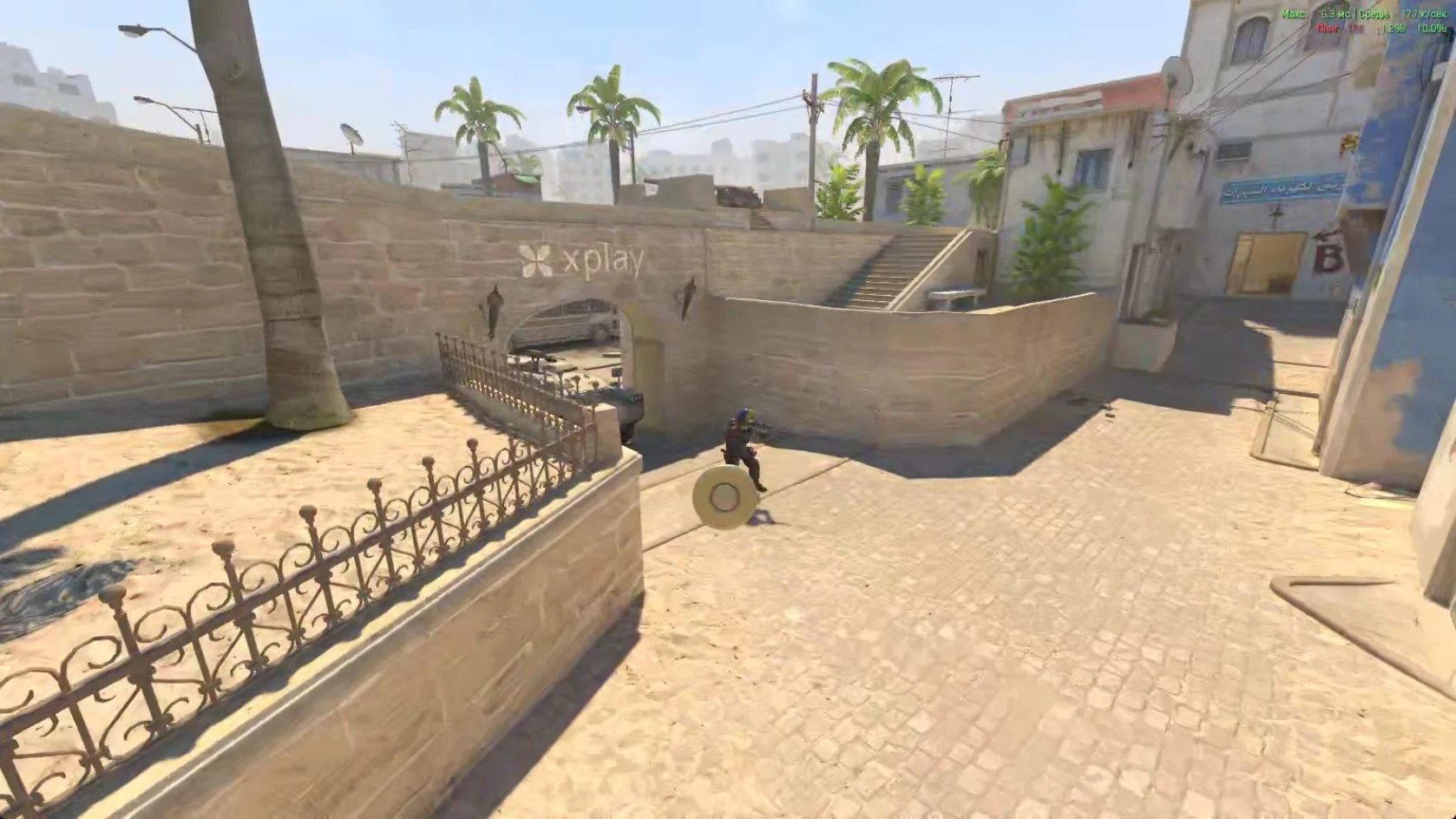
Two players are enough for a 1v1 duel. With one opponent to track, you can concentrate on steering your bullet and responding to their shots.
A 5v5 match has ten players, with five on each team. More players can fire at once, creating more opportunities for mid-air interceptions. Select your lobby format in Personal Matches.
How to Customize Bullet Control in Your Lobby
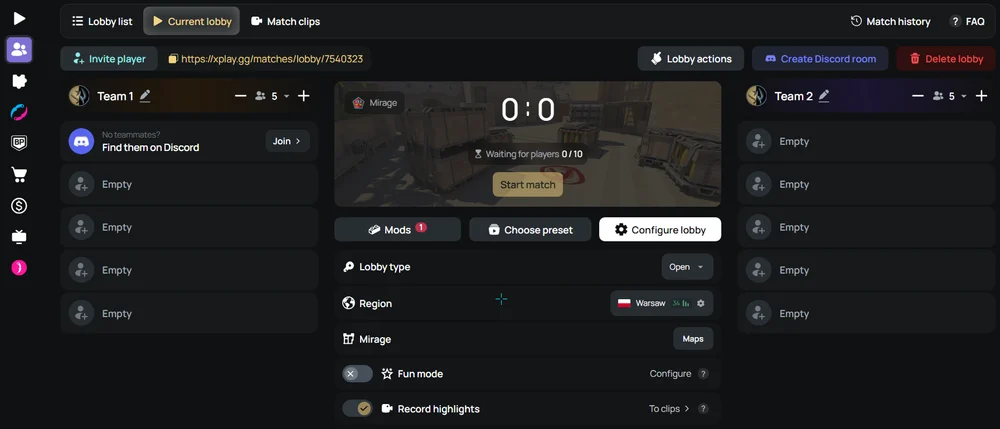
The lobby owner controls the mod's settings. Before starting the match, open Mods > Bullet Control in your lobby.
Choose Who Gets Guided Shots
The Applies to setting controls whose shots become guided bullets:
- Everyone: give guided shots to the whole lobby.
- Terrorists or Counter-Terrorists: assign the effect to an in-game side. It follows players' current side after a side swap.
- Lobby Team 1 or Team 2: assign it to a team selected in the lobby.
- Random players: set how many players receive Bullet Control. Selection takes place each round, before players spawn.
- Selected players: choose individual players from the list.
Players outside your selection shoot normally.
Adjust Bullet Speed, Turning, and Flight Time
These controls determine how quickly a shot travels and how much time the shooter has to guide it:
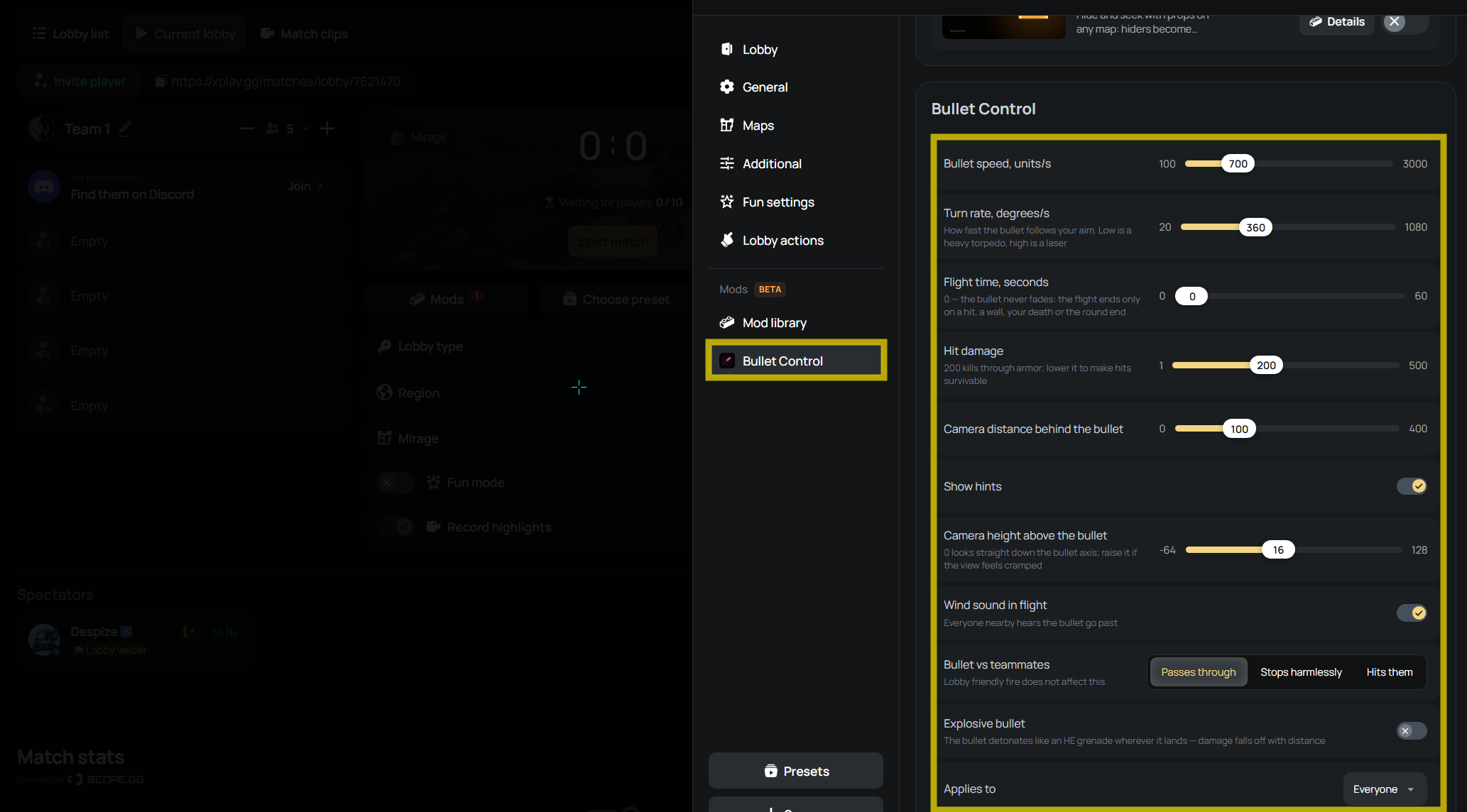
- Bullet speed — 100–3,000 units/s: slower bullets are easier to guide, but opponents also have more time to dodge them. Higher speeds give targets less time to react.
- Turn rate — 20–1,080°/s: lower values make the bullet turn gradually. Higher values let it follow your aim more quickly, allowing sharper changes of direction.
- Flight time — 0–60 seconds: set a time limit for each flight. 0 removes the time limit, while the other flight-ending conditions still apply.
Speed and turn rate work together. A fast bullet with a low turn rate needs more room to change direction, so increasing speed alone will not make it easier to steer around corners.
Set Hit Damage, Explosions, and Teammate Interactions
Choose direct-hit damage first, then decide if shots can explode or hurt teammates:
- Hit damage — 1–500: controls direct-hit damage. At normal player health, 200 damage kills through armor. Lower values can let opponents survive a hit.
- Explosive bullet — on/off: adds an HE-like explosion where the bullet lands. The blast can hurt anyone nearby, with damage decreasing over distance.
- Bullet vs teammates: choose Passes through to let the bullet continue, Stops harmlessly to end the flight without dealing direct-hit damage, or Hits them to allow a damaging hit. The lobby's regular friendly-fire setting doesn't override this choice.
The teammate options control direct contact. With explosive bullets enabled, Passes through doesn't protect nearby teammates from blast damage.
Adjust the Bullet Camera, Hints, and Flight Sound
Set the camera position for a clearer view during flight, then choose which visual and sound cues players receive:
- Camera distance behind the bullet — 0–400: sets how far behind the bullet the camera sits.
- Camera height above the bullet — −64 to 128: adjusts its vertical position. 0 places the view along the bullet's axis. Raise it if the view feels cramped.
- Show hints — on/off: displays tips about steering and speeding up. Keep these visible while your friends learn the controls.
- Wind sound in flight — on/off: nearby players hear the bullet passing while this is enabled. The sound stops when the bullet stops.
How to Start a Bullet Control Match on xplay.gg
Personal Matches are free. You need CS2 and a Steam account. Bullet Control runs on the xplay.gg server, so there is no separate mod to install. The private match guide documents the requirements and connection process.
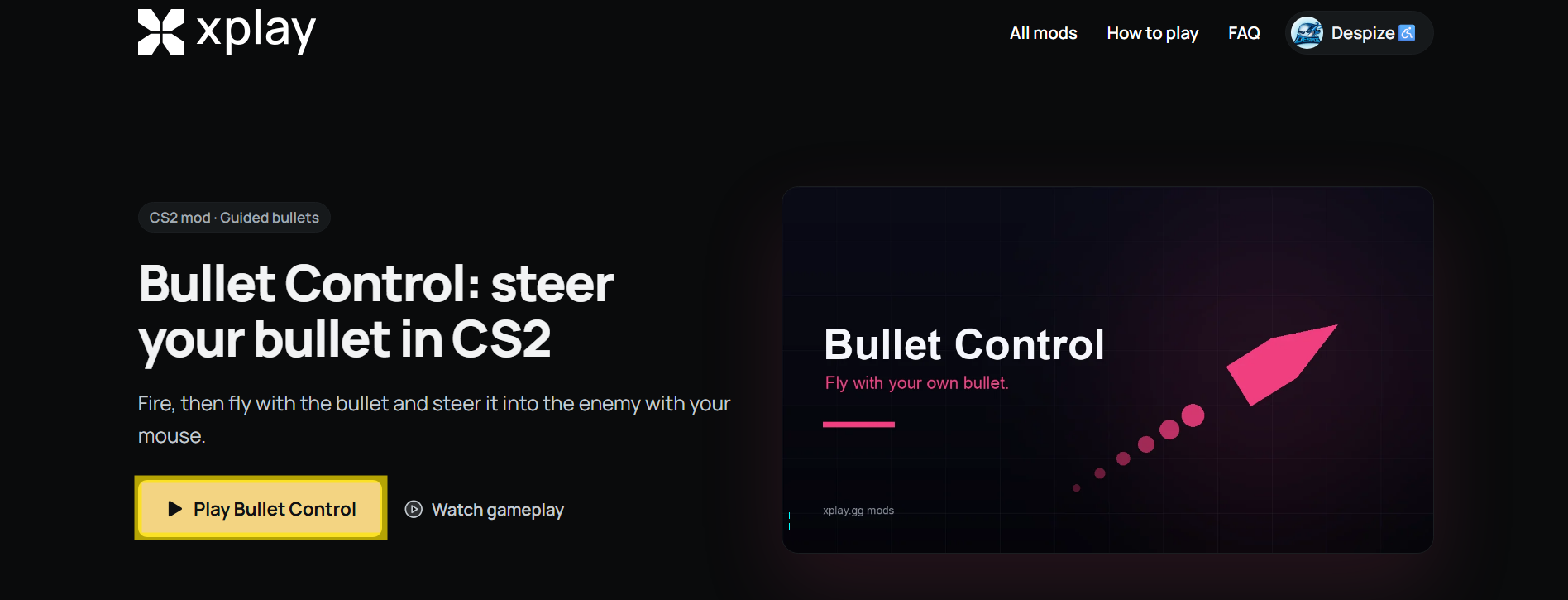
- Open the Bullet Control page and select Play Bullet Control.
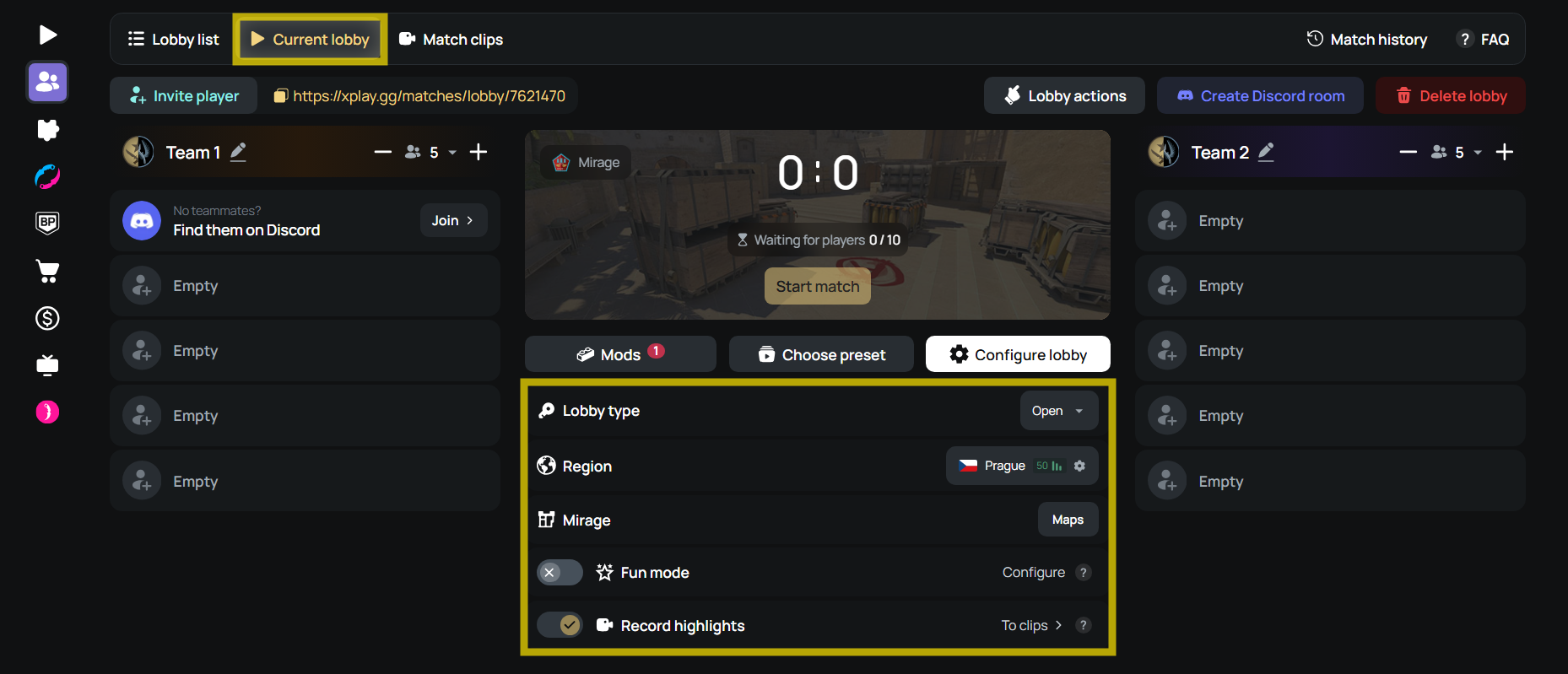
- Sign in through Steam if prompted, then check your lobby and server region. If you’re already in a lobby you own, the mode is activated there instead. New lobbies automatically use the region with your lowest ping. You can change it to suit your group.
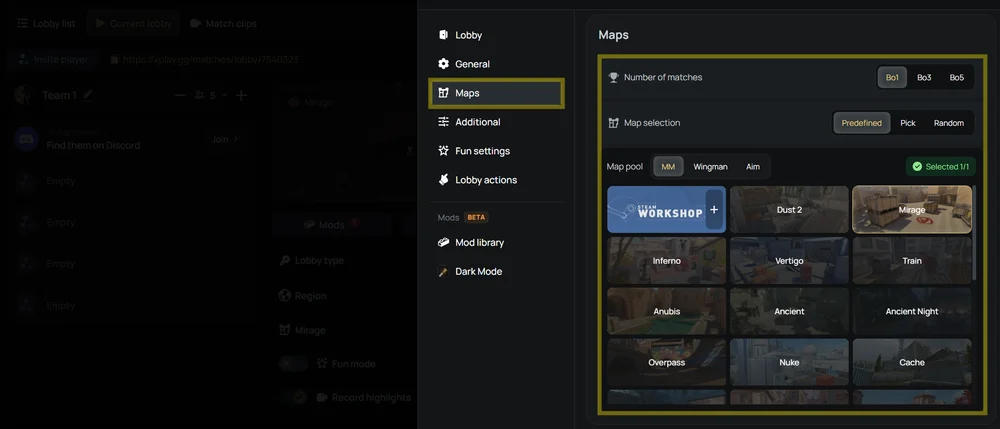
- Choose a map from the options available in the lobby.
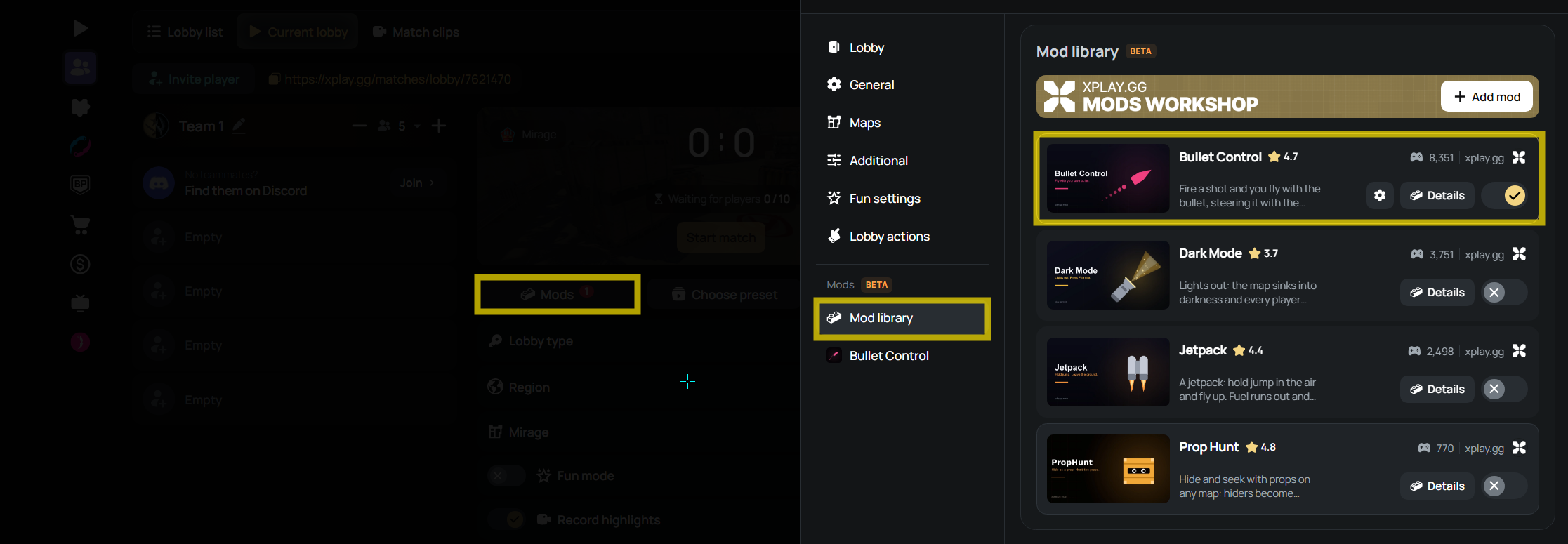
- Open Mods > Bullet Control and adjust the settings for your group.
- Copy the lobby link and send it to your friends so they can join.
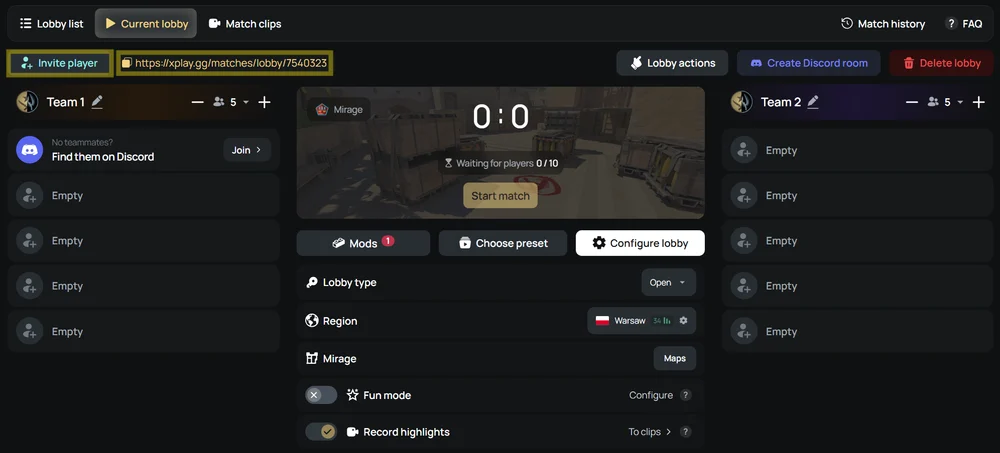
- When everyone is in the lobby and the teams are ready, select Start match.
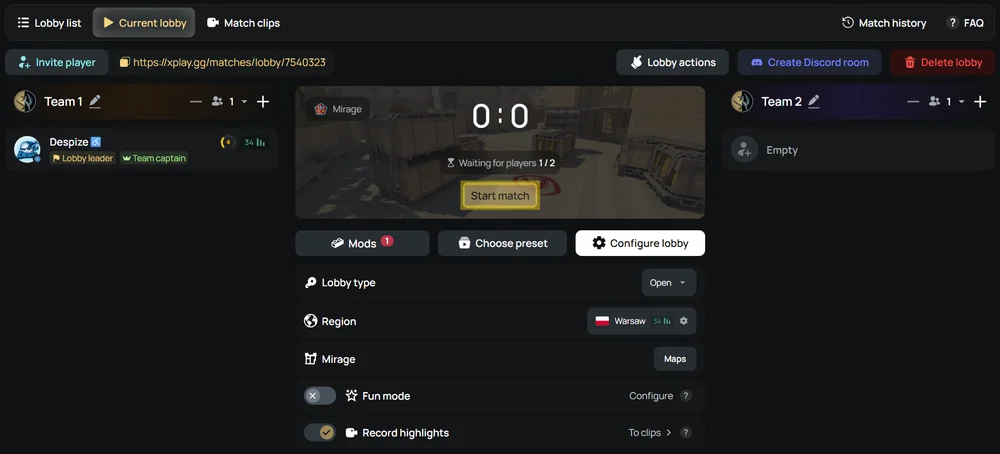
- Open CS2 and join the match server using the IP address and port provided in your lobby (extra connect option).
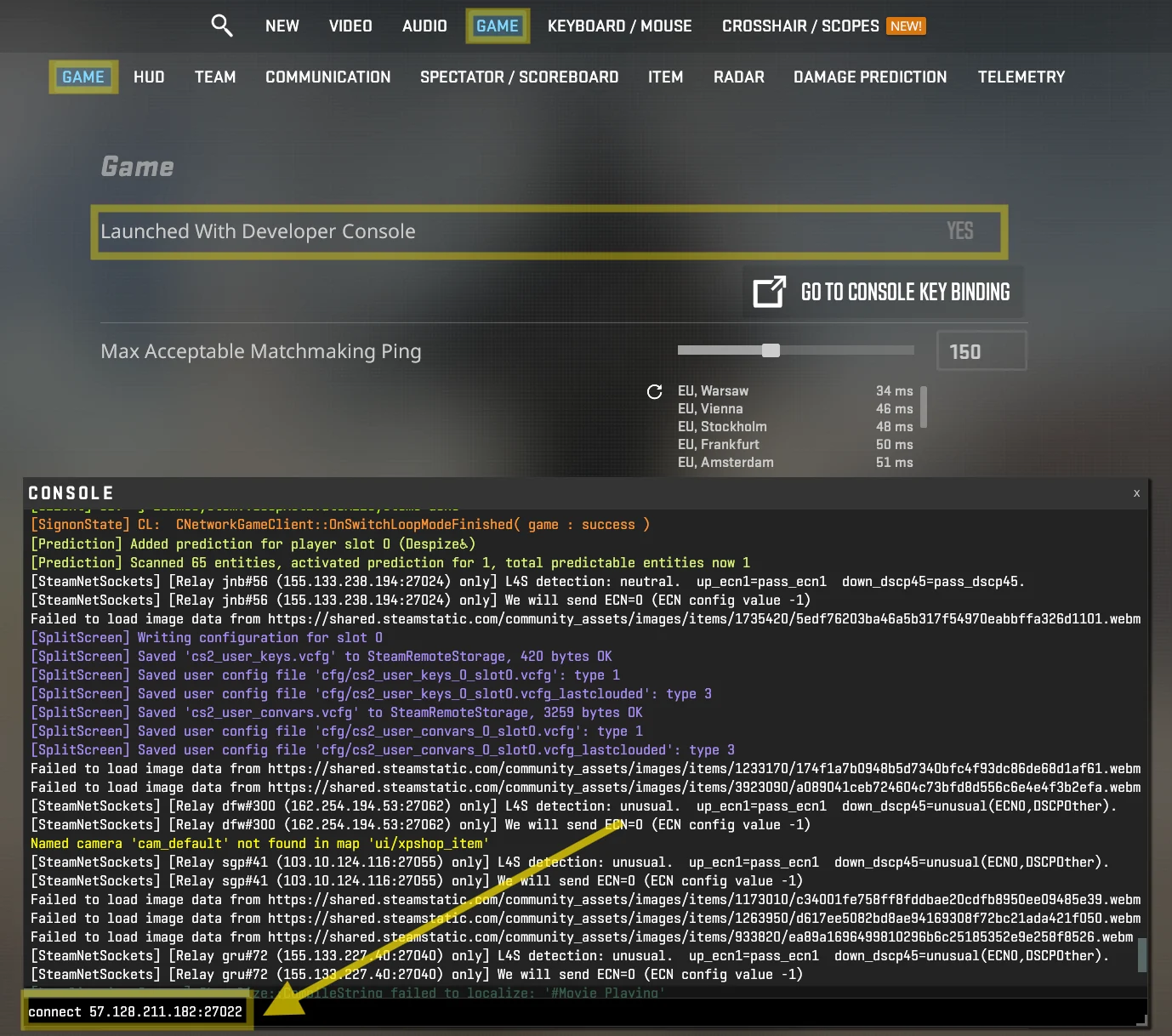
For a manual connection, open Settings > Game and turn Enable Developer Console (~) to Yes. Press ~ to open the console, then type connect IP:PORT with your match’s server address and port. The command should look like connect 57.128.211.182:27022, using the details from your own lobby. Press Enter to join. For more help, follow server connection instructions.
Bullet Control Compatibility and Personal Match Limitations
Add other mods alongside Bullet Control through your lobby's Mods tab. You can enable up to five mods at once, as listed in the custom modes guide. If selected mods are incompatible, the lobby displays a warning before the match starts. Review the warning and disable any conflicting mods.
Personal Matches are separate from Valve matchmaking. Your results in Bullet Control on xplay.gg don't affect your Premier CS Rating or Competitive Skill Group.
Conclusion
Bullet Control gives your group a chance to win familiar CS2 fights in unexpected ways. Start a Bullet Control match with friends on xplay.gg and see who adapts fastest.