
CS2 Aim Assist on xplay.gg: Auto-Aim in Private Matches

Aim Assist on xplay.gg helps shots connect in CS2 even when your crosshair is off target. Give everyone auto-aim for the same rules on both sides, or let a few assisted players take on the rest of your group.
The host controls the effect in Personal Match. You need CS2 and a Steam account, with no separate mod to install. Aim Assist runs on the match server, and these rules don't carry into Valve matchmaking.
Choose Silent or Visual Aim Assist in CS2
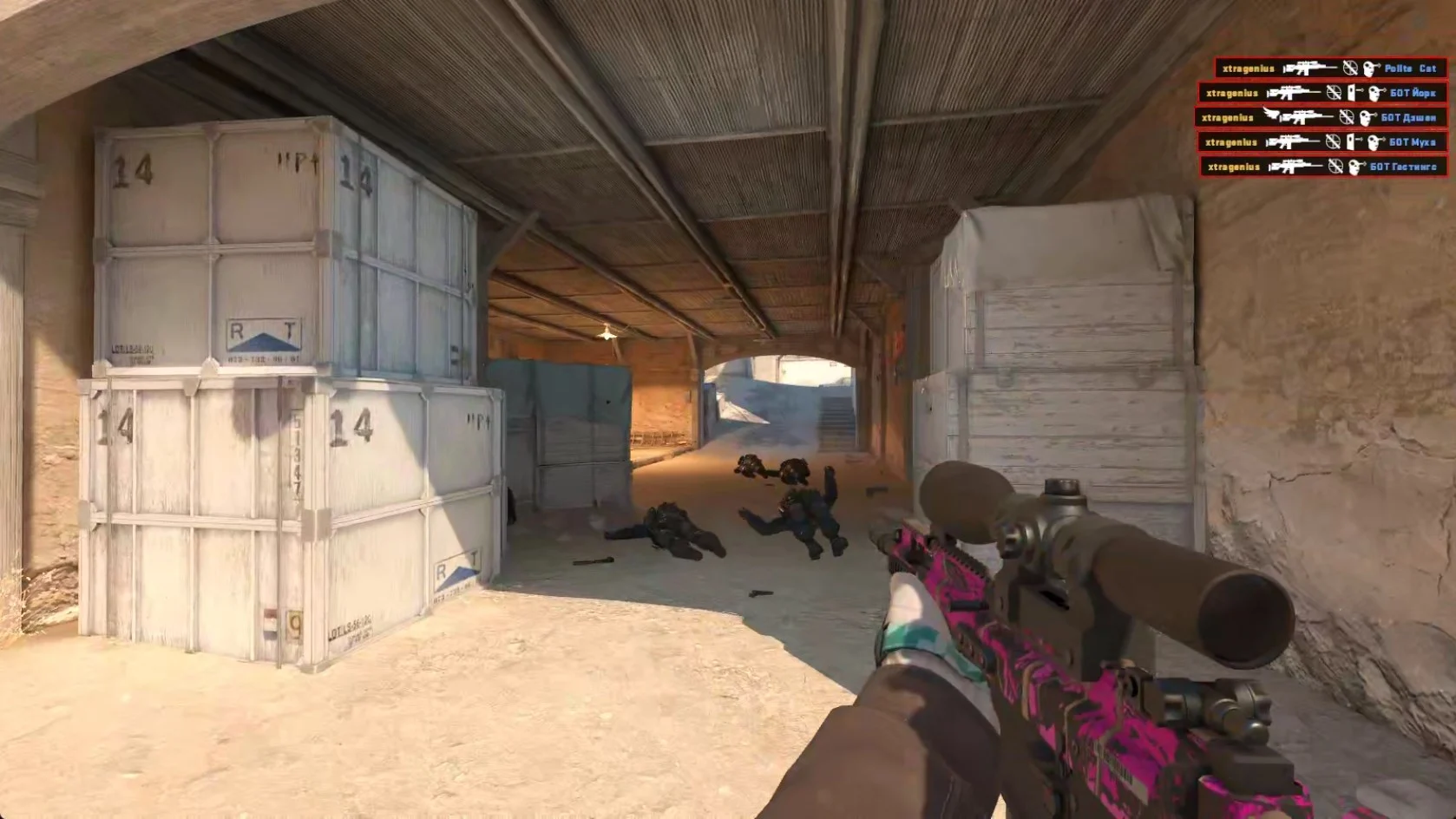
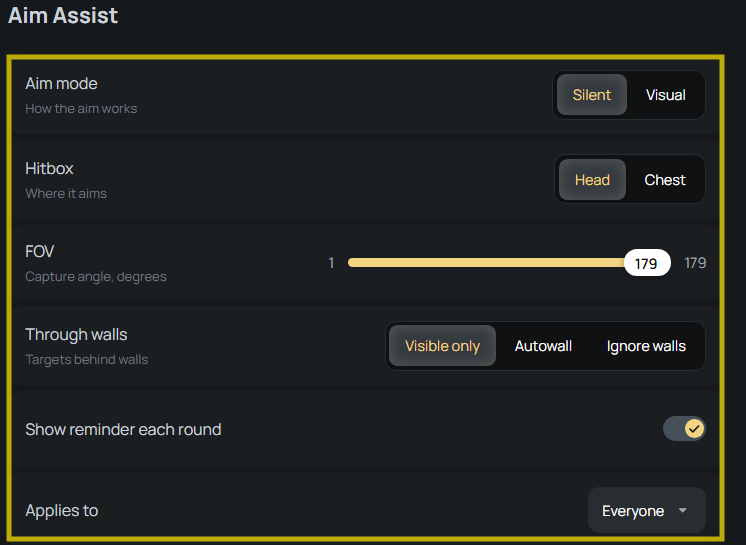
Choose Silent if camera snaps distract you while tracking opponents. Choose Visual for obvious lock-on fights or gameplay clips that show the aim snapping toward an opponent.
Neither mode gives you a target everywhere on the map. An opponent still needs to fall inside the configured aim cone and meet the wall-targeting rule.
In Visual mode, smoothing changes a sharp snap into a more gradual turn. If you like seeing the lock-on but find the camera movement too abrupt, try a smoother turn before switching modes.
For direct control over a bullet after firing, see the CS2 Bullet Control guide.
Configure Aim Assist Targeting
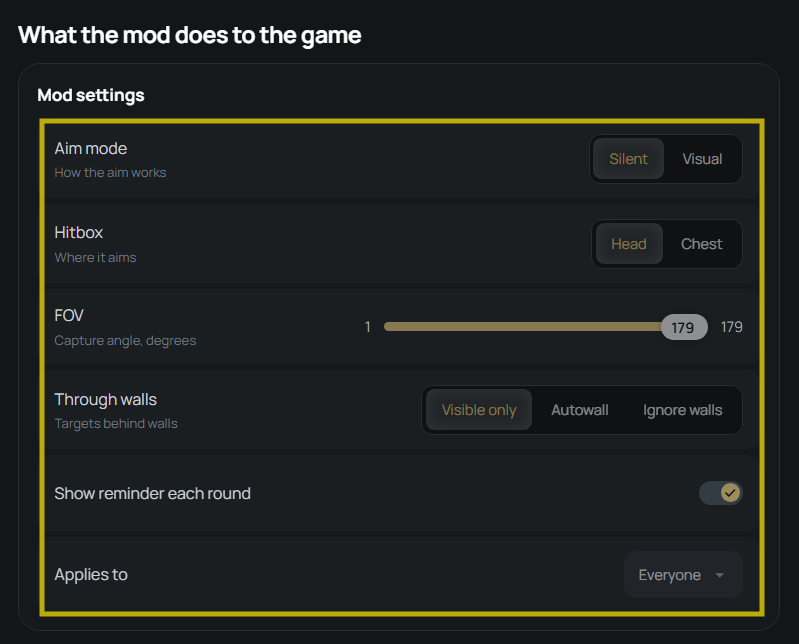
Set the aim cone and wall rule together. A wide FOV can still exclude a player behind cover if Visible only is selected.
Choose Head or Chest and Adjust the Aim Cone
Hitbox chooses the body part Aim Assist aims toward. Weapon damage still matters, so selecting Head doesn't guarantee a one-shot kill with every gun.
FOV sets the capture angle around your crosshair. Keep the cone narrow for duels where players still need to line up their aim. Widen it for a more forgiving match where opponents farther from the crosshair can be targeted.
An opponent can be visible on your screen and still fall outside the capture cone. This FOV setting changes which targets can be selected without widening the camera view.
Control Target Selection Through Walls
Choose Visible only for fights where assistance should wait for an opponent to peek out of cover.
Autowall checks if the bullet can pass through cover and deal enough damage. Raise its minimum-damage threshold to skip weaker wallbang opportunities.
Ignore walls lets the mod select enemies behind cover without the Autowall damage check. Selecting someone behind a wall doesn't guarantee that the shot will penetrate it.
Decide Who Gets Aim Assist in Your Lobby
Use Applies to to build the matchup your group wants:
- Everyone: give both sides the same assistance.
- T or CT: give the effect to the attacking or defending side.
- Lobby team: select a group by its team assignment in the web lobby rather than its T or CT label.
- Random players: choose how many players get the effect, with a fresh random selection each round.
- Selected players: pick names for a fixed group of assisted players.
Enable the round reminder if your group wants a regular prompt that auto-aim is active. It displays a message at the start of each round, which is useful when assistance goes to only part of the lobby.
What Aim Assist Changes Beyond Targeting
Aim Assist also removes recoil and spread, but only for the players chosen in Applies to. Everyone else keeps normal shooting behavior. The v1.3.4 update also makes the spread correction visible in the assisted shooter’s own view.
Broken shot registration and Knife only are hidden and inactive while the mod runs. Aim Assist automatically disables lag compensation too (sv_maxunlag 0), so you don't need to configure that command yourself.
If you add another mod, resolve any compatibility warning before starting the match. Use the CS2 custom modes guide to compare what the other mods change.
How to Start an Aim Assist Match with Friends
Follow the Aim Assist setup instructions to get your private match ready. xplay.gg automatically selects a server region for low ping, and you can change it if another location suits your friends better.
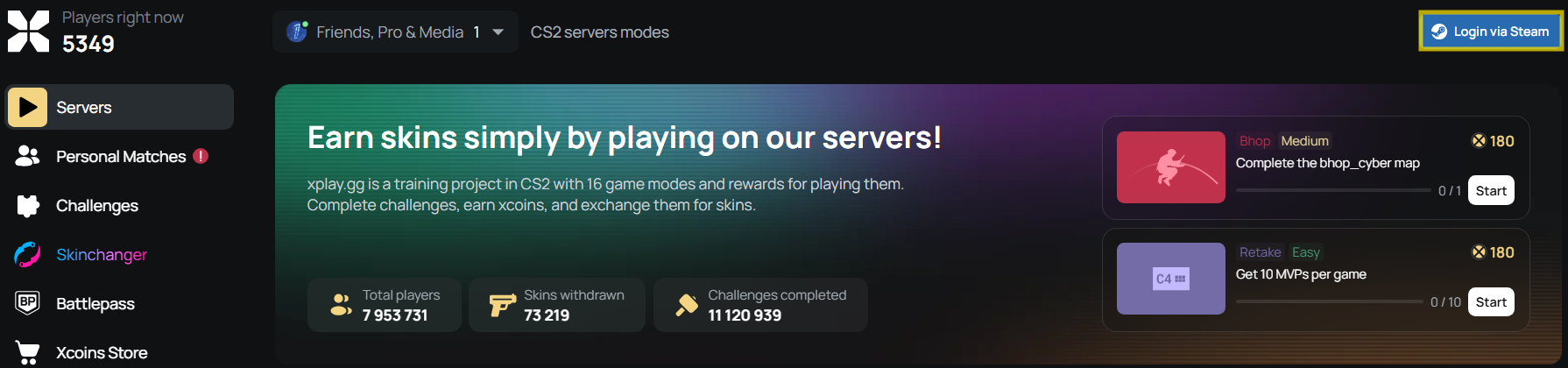
1. Sign in to xplay.gg through Steam.
2. Open Personal Matches and Create a lobby.
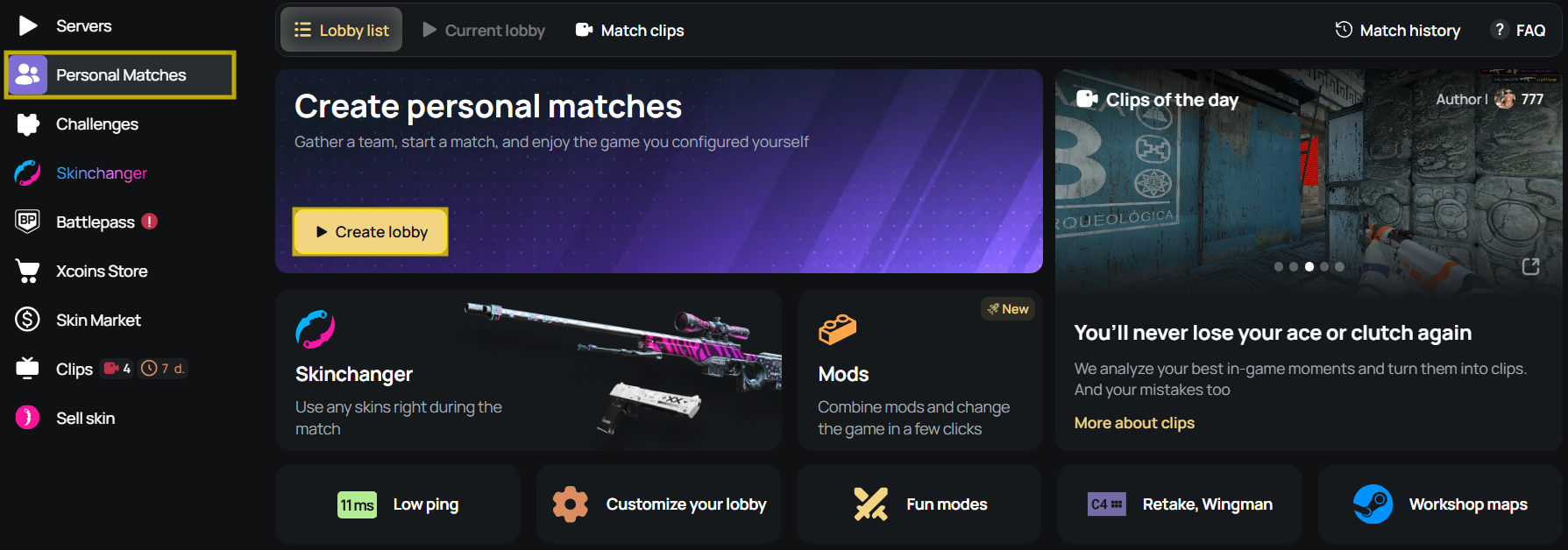
- Check the server location. Keep the suggested region or switch to one with lower ping for your group.
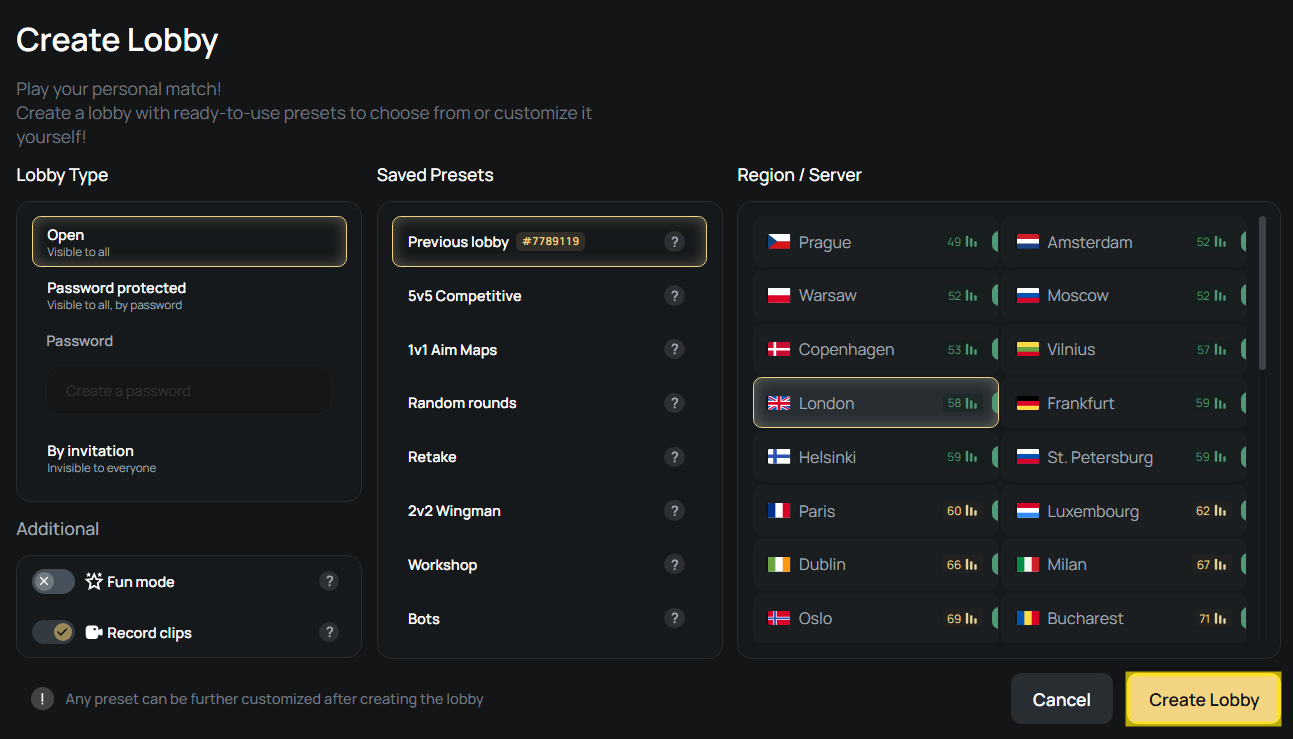
- Select your map and Choose the match format.
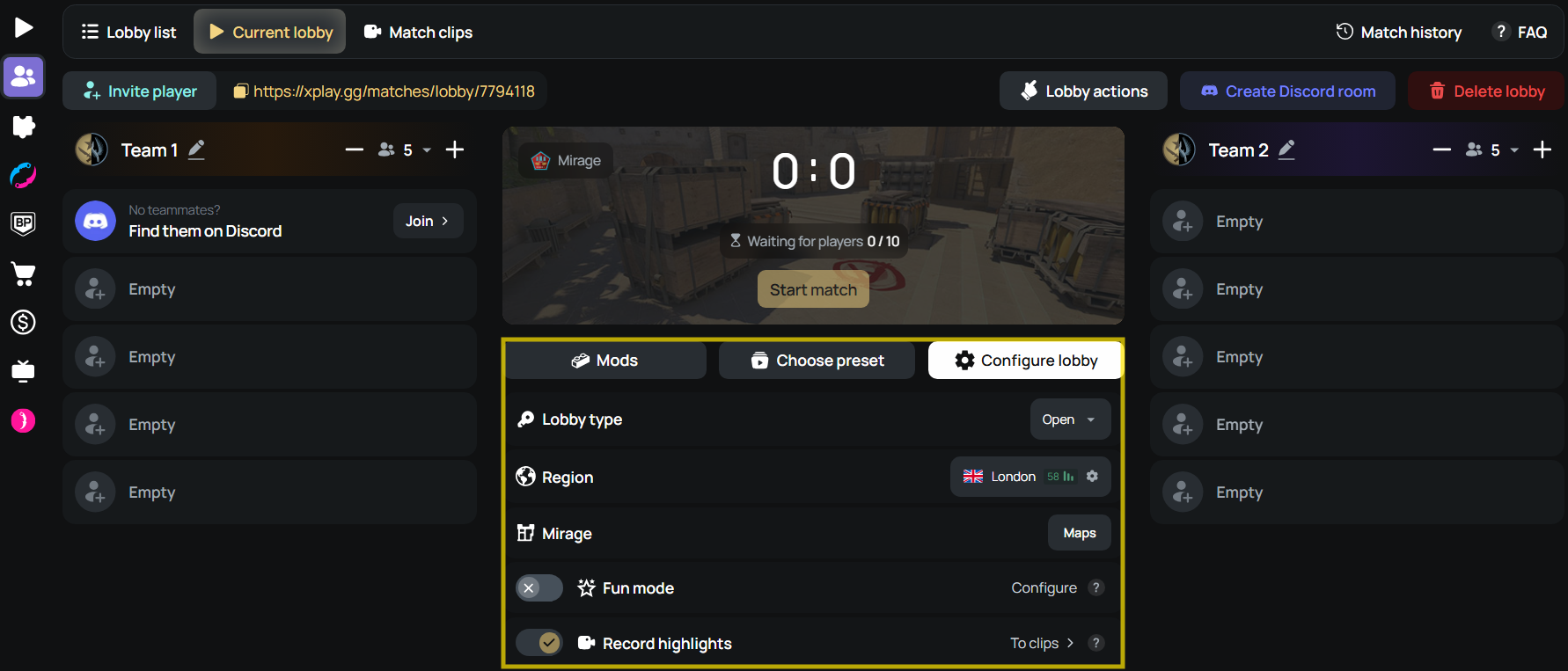
- Enable Aim Assist in the Mods tab.
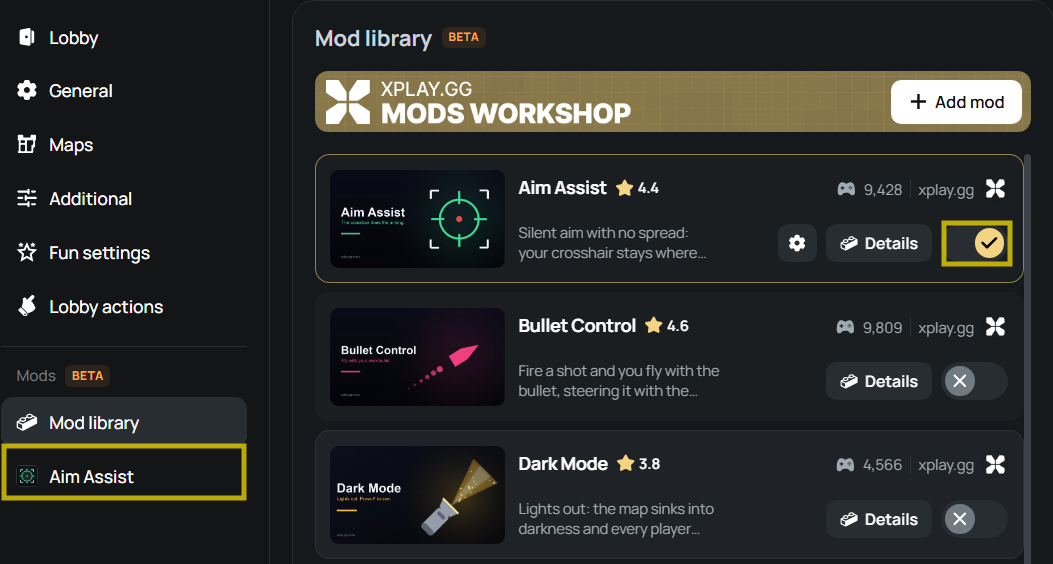
- Apply the mode, targeting, and player-selection choices from the sections above.
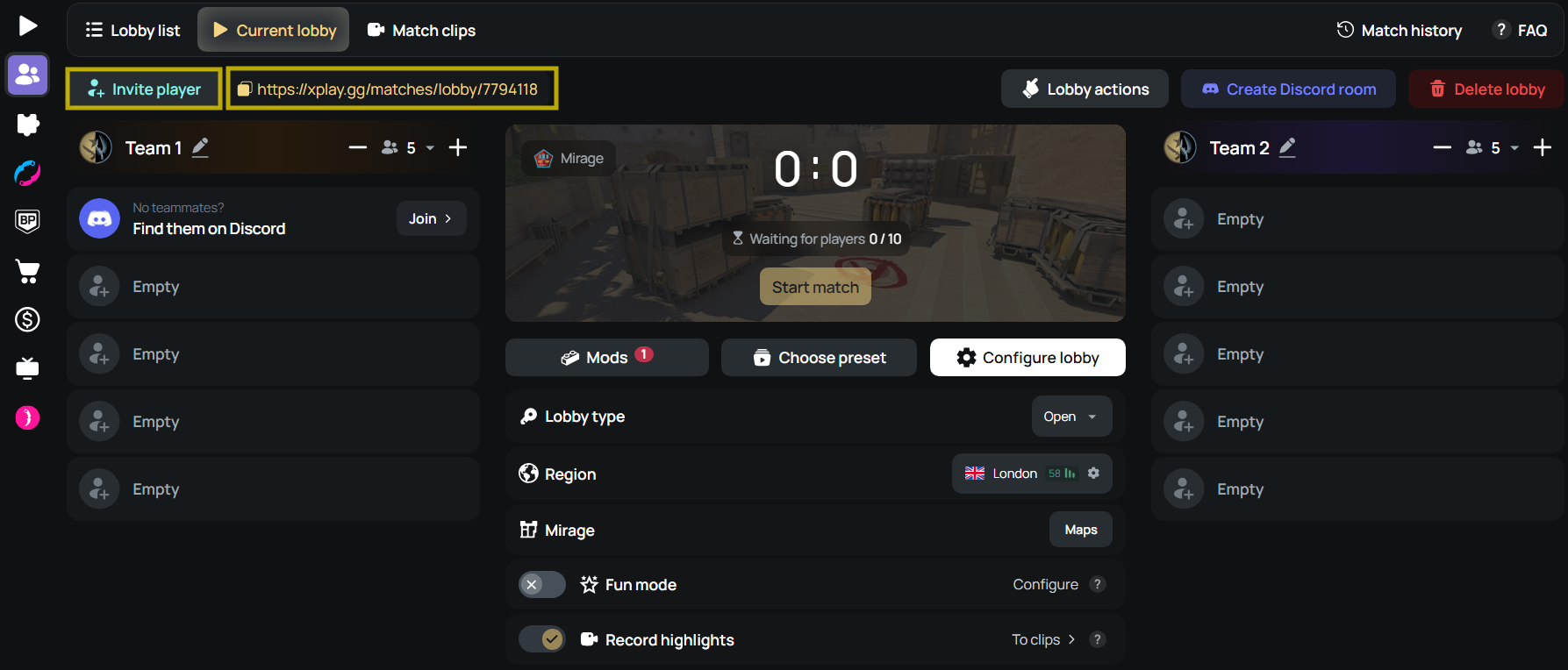
- Share the lobby invite link with your friends.
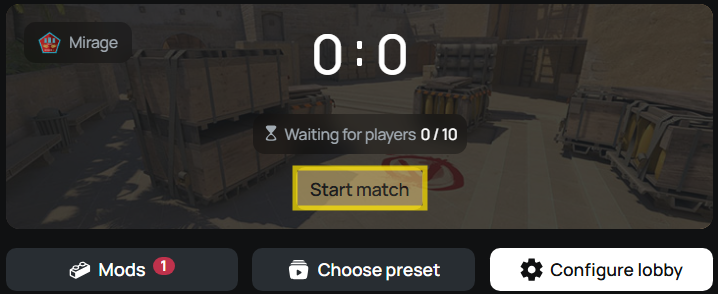
- Select Start match when everyone is ready.
- Select Connect to join the server in CS2.
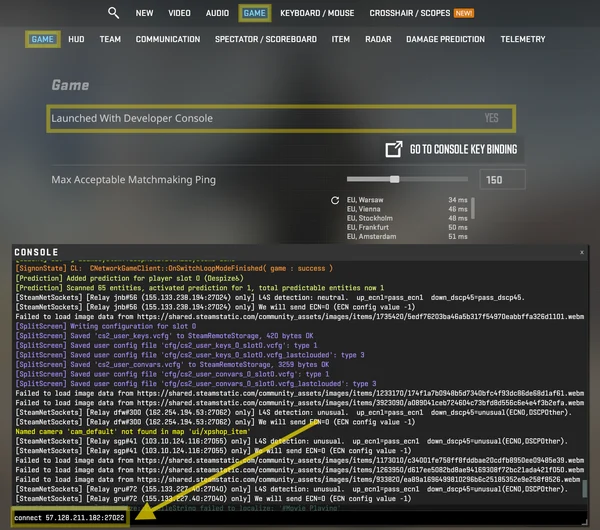
If a friend has joined the web lobby but is missing in-game, ask them to select Connect after the match starts. Opening the invitation alone doesn't put them on the server.
For more detail on access settings and joining, use the private CS2 match guide.
Conclusion
Create an Aim Assist match with friends.